Welcome to KwikEngage! Let’s Set Up Your WhatsApp Business Account
Connecting WhatsApp is the most important step in unlocking broadcasting, automation, chat support, and commerce features. This guide walks you through everything you need — from prerequisites to step-by-step onboarding.
Before You Start — Prerequisites
To ensure a smooth WhatsApp Embedded Signup (WES) onboarding, keep the following ready:
1. Facebook Business Requirements
A Facebook Business Manager (FBM) account
You should be an admin of that FBM
The business must have:
Legal name
Business email
Business address
Website / social media link
2. WhatsApp Business Requirements
An active phone number not linked to any WhatsApp / WA Business App
Ability to receive SMS or Voice OTP on that number
A verified business website or active social presence
3. Approval Checks Done by Meta
Meta validates:
Business legitimacy
Display name consistency
Policy compliance
Most accounts are approved instantly; some may take 1–3 days.
Step-by-Step WhatsApp Setup on KwikEngage
Step 1 - Start WhatsApp Embedded Signup
From your KwikEngage dashboard → Setup Guide → Connect WhatsApp
Click Connect WhatsApp and log in with your Facebook account.
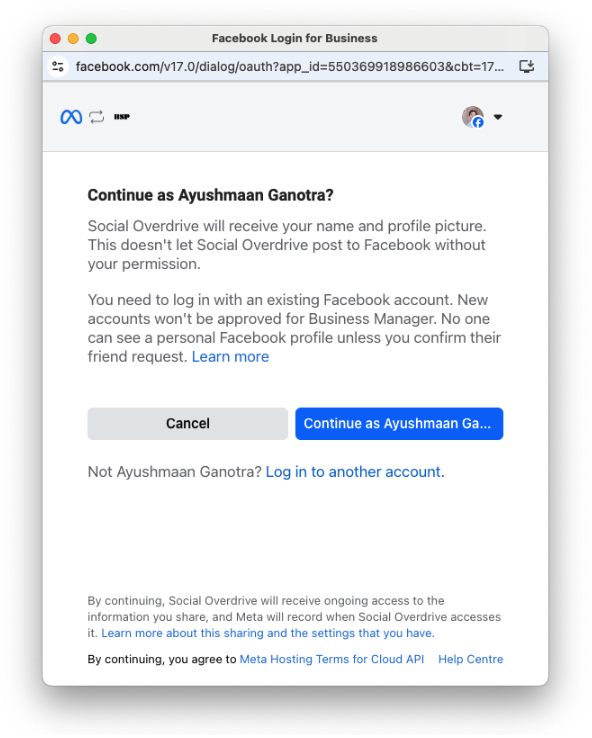
Authentication screen: This screen authenticates business customers using their Facebook or Meta Business Suite credentials
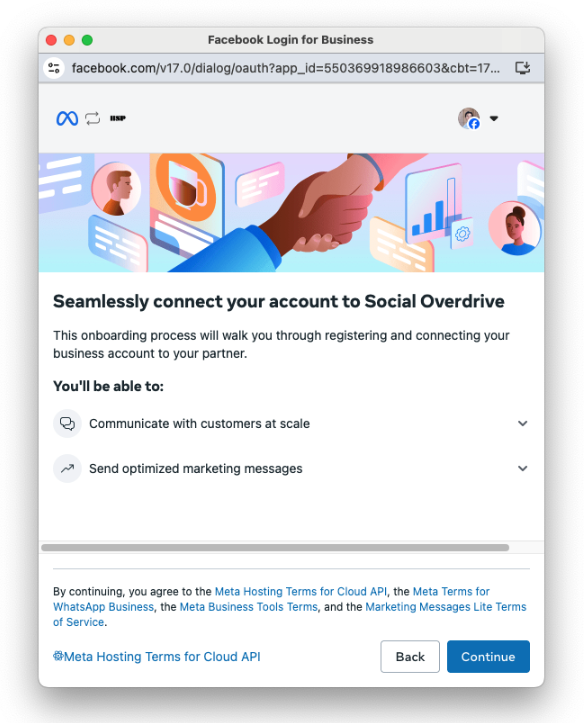
Authorization screen: This screen describes the data the business customer will be permitting your app to access.
Step 2 - Select or Create Your Business
Choose an existing Facebook Business OR
Create a new one
(Make sure you have admin rights)
Step 3 - Create or Select a WhatsApp Business Account (WABA)
If you already have a WABA, select it
Otherwise, create a new one (takes ~10 seconds)
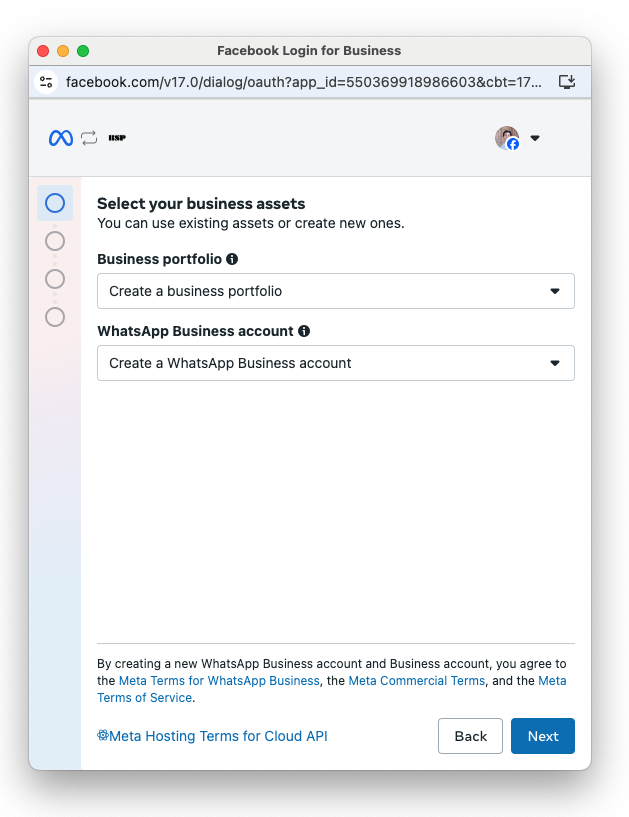
Business Asset Selection Screen: This screen gives the option to select existing business assets such as a Meta business portfolio and WhatsApp Business Account
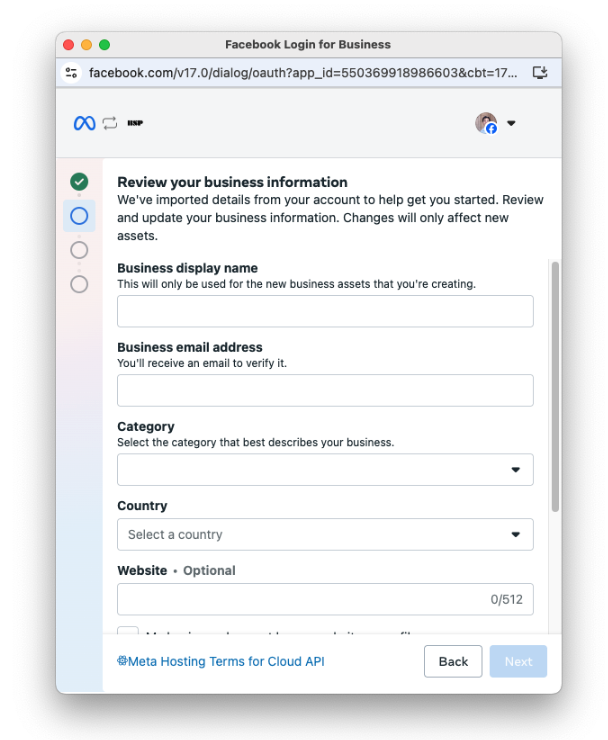
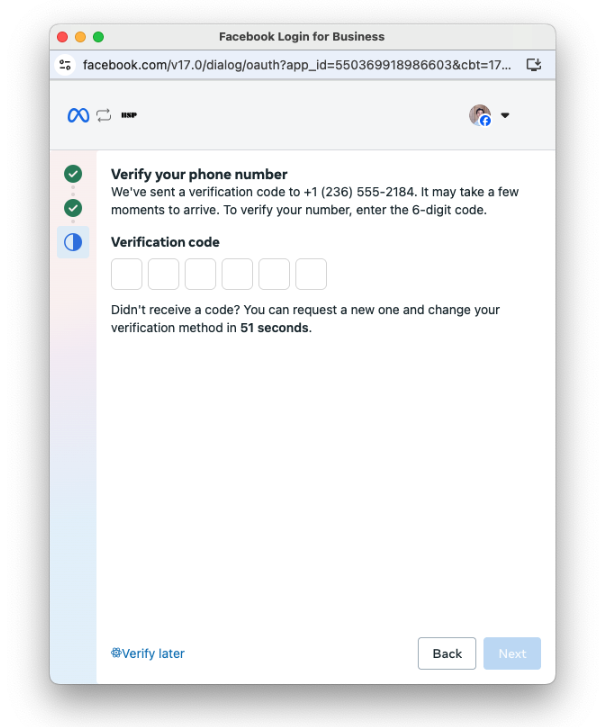
Step 4 - Add Your Phone Number
Choose an unused number
Receive OTP via SMS or Call
Verify the number

Step 5 - Completion & Sync
Kwik Engage automatically validates:
Messaging tier
Quality
Verification status
Once done, your WhatsApp is live ?
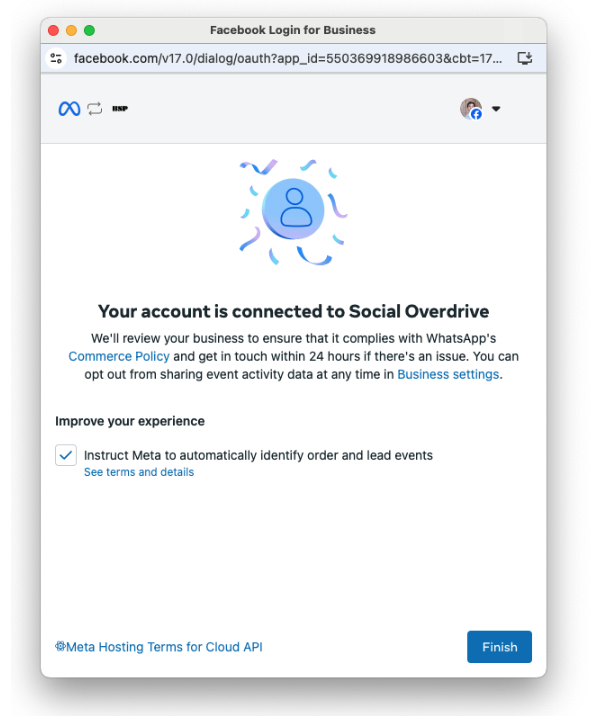
This screen indicates that you have successfully created the WhatsApp Business API account. Clicking on Finish will take you back to Kwik Engage portal.
Note: Basis the Business verification and WhatsApp Business Account verification by Meta, your number will be in use immediately or once the review is completed.
After Success — Complete These Steps
To maximize your WhatsApp performance, complete the following:
1. Update WhatsApp Business Profile
Add:
Logo
Business description
Website
Address
2. Kickstart WhatsApp Marketing
Was this article helpful?
That’s Great!
Thank you for your feedback
Sorry! We couldn't be helpful
Thank you for your feedback
Feedback sent
We appreciate your effort and will try to fix the article