Please find below the steps to check billing-related details on the KwikEngage panel (https://app.kwikengage.ai ):
Steps to Check Billing Details
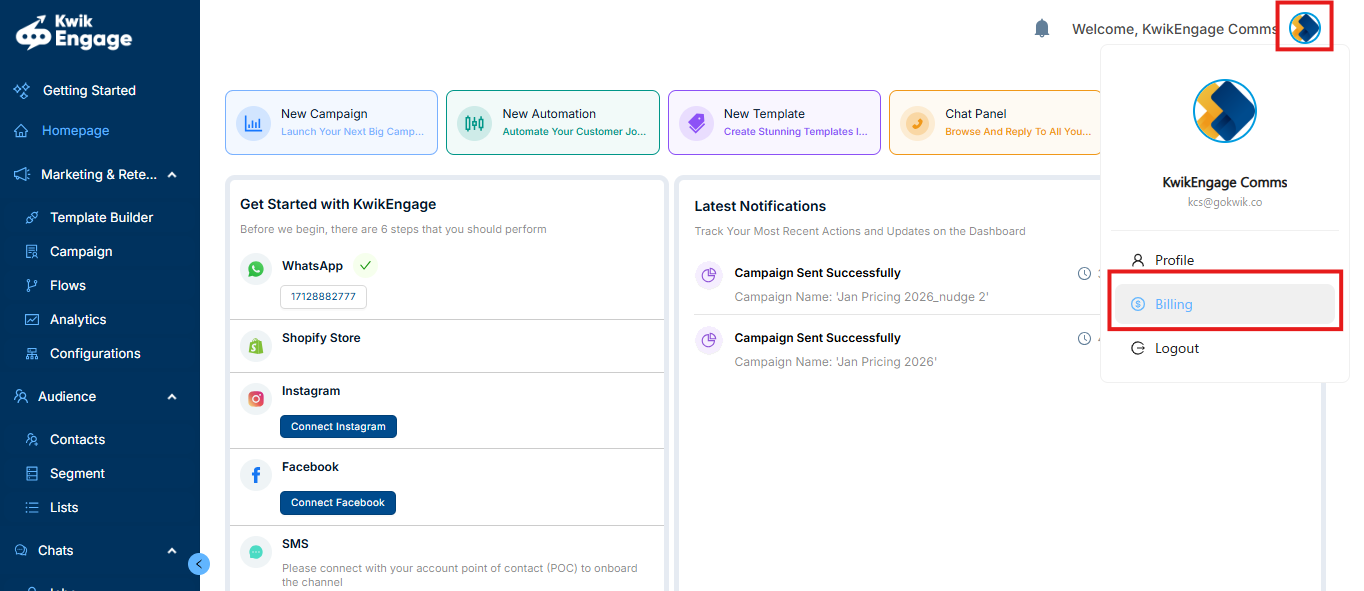
Click on the profile icon located at the top of the page.
From the dropdown menu, select Billing.
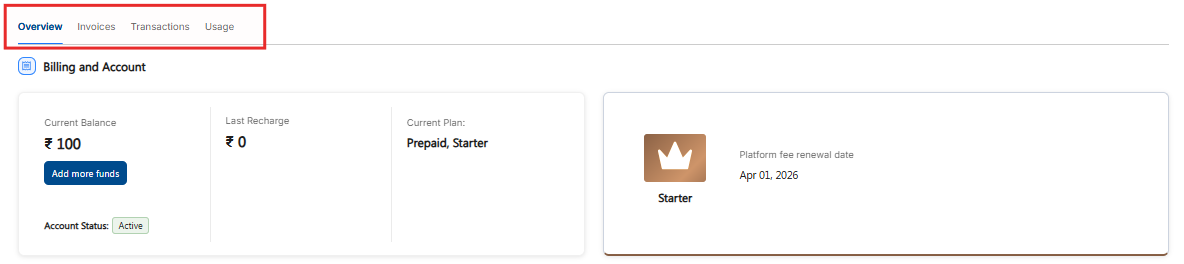
You will see four sections: Overview, Invoices, Transactions, and Usage.
Overview: View key account details such as wallet balance, company information, and your current plan.
Invoices: Download invoices based on specific date ranges.
Transactions: Check all transactions made on the account for selected dates.
Usage: View detailed transaction-level data using filters and export the data for deeper analysis.
How to Download an Invoice from the KwikEngage Portal
Click on the profile icon at the top of the page.
Select Billing from the dropdown menu.
Navigate to the Invoices section.
Locate the invoice you wish to download.
Click on the eye icon under the Action column to view the invoice.
Once opened, you will have the option to download the invoice.
Was this article helpful?
That’s Great!
Thank you for your feedback
Sorry! We couldn't be helpful
Thank you for your feedback
Feedback sent
We appreciate your effort and will try to fix the article