Purpose
This SOP explains the end-to-end process of setting up a COD to Prepaid (C2P) Automation Flow in KwikEngage. The C2P flow converts Cash on Delivery (COD) orders into Prepaid orders by sending a WhatsApp confirmation message to the customer at the time of order creation, along with an incentivized payment link to encourage online payment. This reduces Return to Origin (RTO) rates and improves prepaid conversion metrics.
Flow Overview
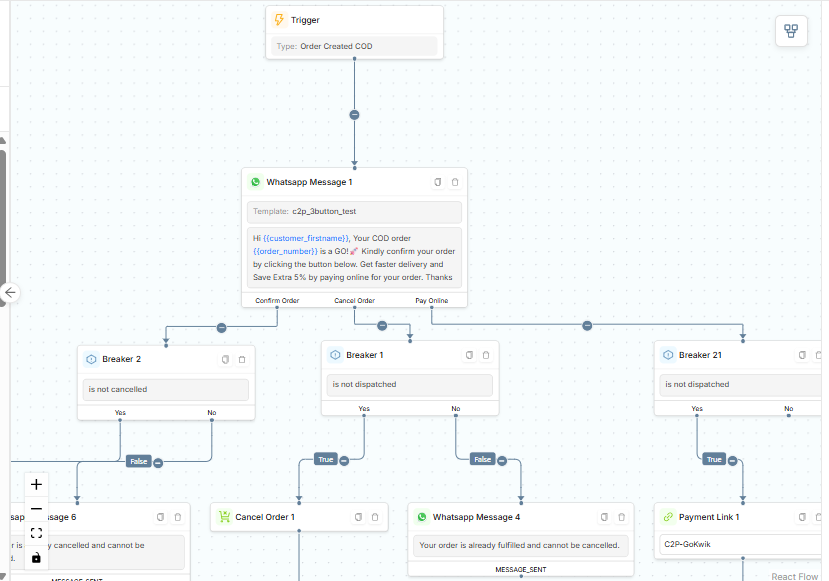
The C2P automation triggers on every new COD order. The customer receives a WhatsApp message with quick-reply buttons. Depending on the customer's response, the flow branches into three paths:
Confirm Order → Tags order COD_CONFIRMED → Generates payment link for the order → Places new prepaid order & cancel existing COD order.
Cancel Order → Checks dispatch status → Cancels order if not dispatched → Tags COD_CANCELLED.
Pay Online (3-button template only) → Directly generates payment link → Places new prepaid order after payment & cancel existing COD order.
Step-by-Step Process
Step 1: Verify WhatsApp C2P Templates
Log in to KwikEngage (https://app.kwikengage.ai/) and navigate to Marketing & Retention → Template Builder from the left sidebar.
Ensure the WhatsApp tab is selected (this is the default tab).
Click on the Approved filter tab to view all approved templates.
Verify that the required C2P templates are present and have GREEN rating status:
For eg:
c2p_2button_test — Type: IMAGE - QUICK_REPLY, Category: UTILITY. Buttons: Confirm Order | Cancel Order.
c2p_3button_test — Type: IMAGE - QUICK_REPLY, Category: MARKETING. Buttons: Confirm Order | Cancel Order | Pay Online.
NOTE: If C2P templates are not available or show Pending/Rejected status, create them in Template Builder and submit for Meta approval before proceeding with the flow setup.
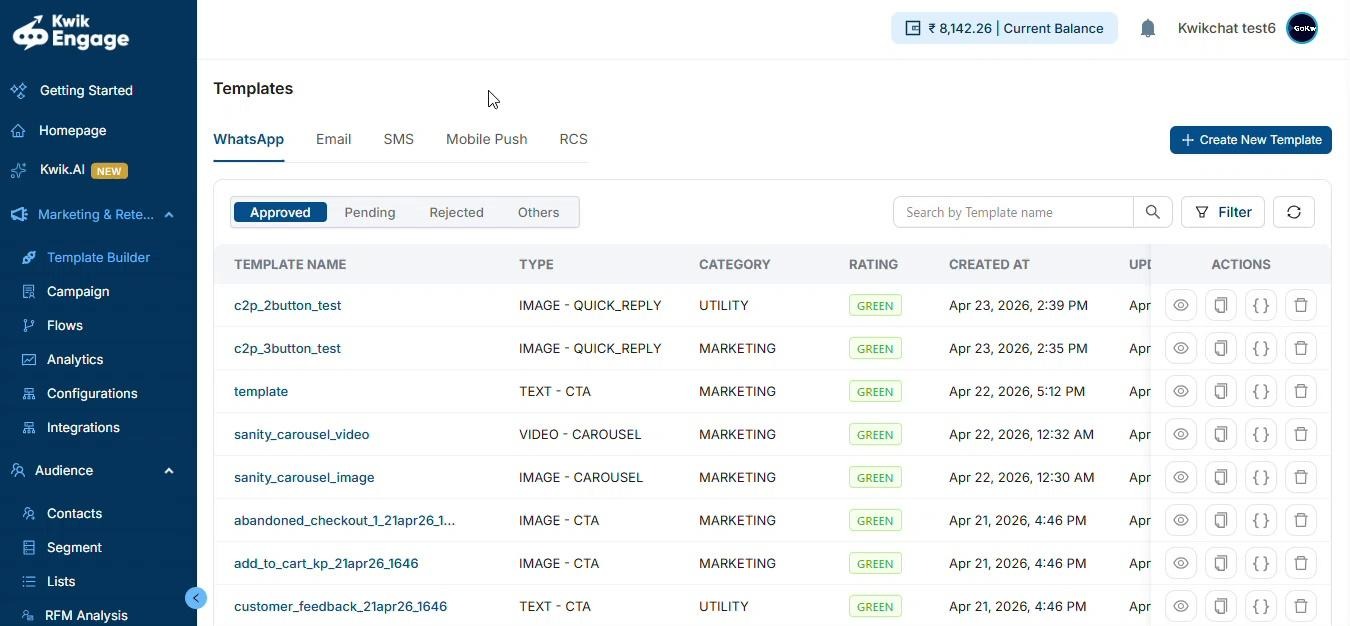
Expected Outcome: C2P templates visible with GREEN rating under the Approved tab.
Step 2: Navigate to Automation Flows
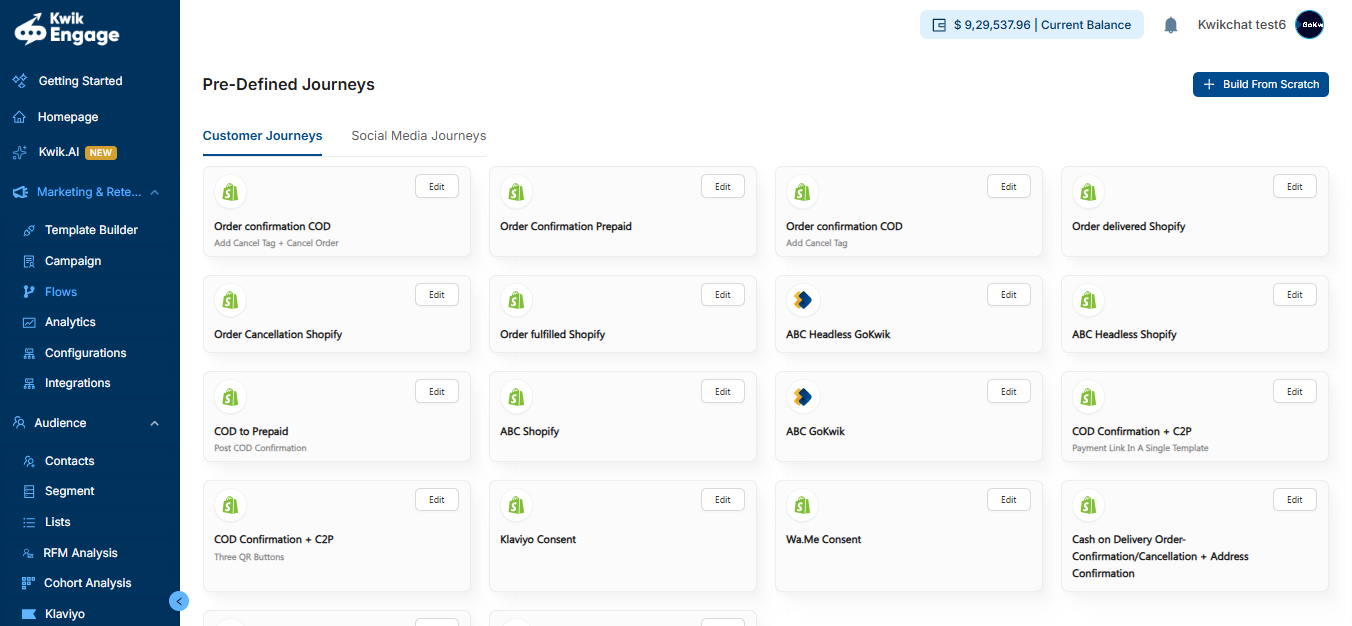
Click on Flows in the left sidebar under Marketing & Retention.
To create a new C2P automation, click + Create Flow (top-right button).
The Automation Flows page opens showing all pre-defined automation flows.
To edit an existing C2P flow, click the edit (pencil) icon under the Actions column.
Step 3: Configure the Trigger Node
Inside the Flow Builder canvas, enter a descriptive name in the Flow Name field at the top-left (e.g., C2P_COD_Confirmation_Flow).
Click the Trigger node at the top of the canvas to open its configuration panel on the right.
In the Trigger panel, set the following fields:
Trigger type: Automation
Automation: Order Created COD
Automation Type: Select Transactional (for UTILITY templates) or Marketing (for MARKETING templates).
Enter the test number in the Sandbox Mob. No. field (e.g., +91 XXXXXXXXXX).
Optionally click + Add Trigger Filter to add specific order conditions.
IMPORTANT: Automation Type must match the WhatsApp template category. Transactional (UTILITY) templates do not require customer opt-in. Marketing templates require prior customer opt-in to receive messages.
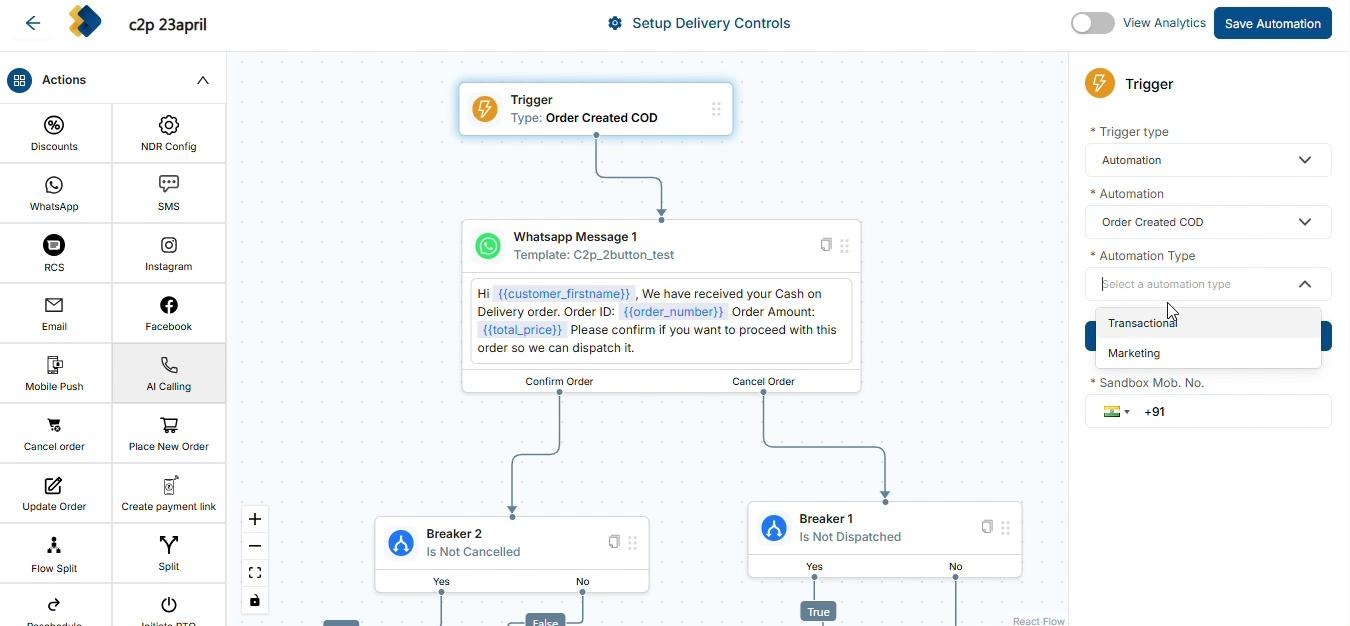
Expected Outcome: Trigger node configured with Order Created COD automation, correct automation type, and sandbox number.
Step 4: Configure WhatsApp Message 1 — COD Confirmation Message
Click on the WhatsApp Message 1 node on the canvas to open its settings panel on the right.
Set Message Type to Template Message.
Click the Template dropdown and search for the appropriate C2P template.
Once selected, the right panel shows the template preview with buttons. Map the template variables, for eg.:
Variable 1: {{customer_firstname}}
Variable 2: {{order_number}}
Variable 3: {{total_price}}
Set Image Type to Product Image (displays the ordered product in the message).
The Response Variable will auto-populate (e.g., {{whatsapp_message_1_response_1}}). Leave as default.
Click Save to save the node configuration.
EXAMPLES:-
2-button template message: "Hi {{customer_firstname}}, We have received your Cash on Delivery order. Order ID: {{order_number}} Order Amount: {{total_price}} Please confirm if you want to proceed with this order so we can dispatch it." — Buttons: Confirm Order | Cancel Order
3-button template message: "Hi {{customer_firstname}}, Your COD order {{order_number}} is a GO! Kindly confirm your order by clicking the button below. Get faster delivery and Save Extra 5% by paying online for your order. Thanks" — Buttons: Confirm Order | Cancel Order | Pay Online
Expected Outcome: WhatsApp Message 1 node shows the selected template name and a message preview with all variables mapped.
Step 5: Configure the Confirm Order Branch
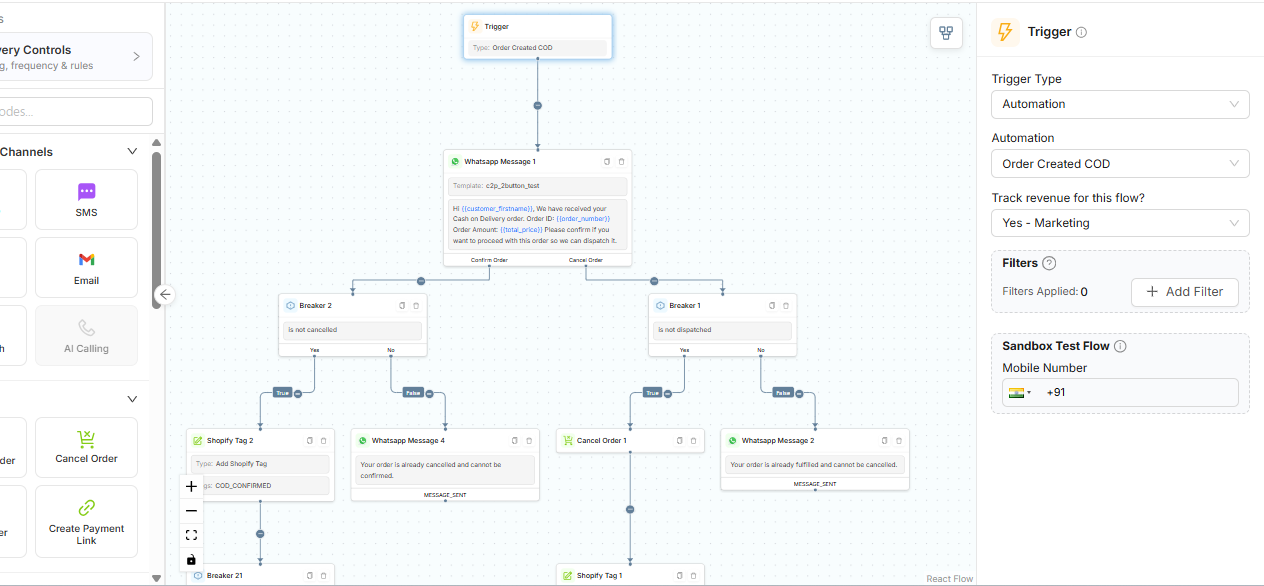
When the customer taps Confirm Order on the WhatsApp message, the flow routes through the following sequence of nodes:
Step 5a: Breaker 2 — Is Not Cancelled Check
The Confirm Order button output connects to Breaker 2: Is Not Cancelled.
This breaker checks whether the order has NOT been cancelled at this point in time:
Yes (True path): Order is not cancelled → proceed to tag the order and dispatch.
No (False path): Order was already cancelled → send 'already cancelled' message to customer.
Step 5b: Shopify Tag 2 — COD_CONFIRMED
On the True path, a Shopify Tag 2 node adds the tag COD_CONFIRMED to the order in Shopify.
This tag marks the order as customer-confirmed and is visible in your Shopify admin dashboard.
Step 5c: Breaker 21 — Is Not Dispatched Check
After tagging, Breaker 21: Is Not Dispatched checks if the order has not yet been dispatched.
Yes (True path): Order not yet dispatched → generate a payment link for C2P upsell.
No (False path): Order already dispatched → no further action needed.
Step 5d: WhatsApp Message 7 — Order Confirmation Message
A confirmation WhatsApp message is sent to the customer: "Your order {{order_number}} is confirmed and will be shipped soon."
Step 6: Configure the Payment Link Node (C2P)
After the Breaker 21 True path, a Payment Link node generates a payment link to convert the COD order to Prepaid.
Click the Payment Link 1 node to open its settings panel on the right.
Configure the following fields:
Type: C2P
Payment Provider: GoKwik (or Razorpay, depending on merchant setup)
Expiry Duration: 20 Minutes (the payment link will expire after 20 minutes)
Discount: Select Fixed (fixed rupee amount) or Percentage (e.g., 10%) and enter the discount value.
Click Save to save the node.
IMPORTANT: The Payment Provider must be pre-configured under Configurations → Payment Configuration before this step. GoKwik and/or Razorpay must show 'Connected' status. If not connected, the payment link generation will fail.
NOTE: The generated payment link is stored as the variable {{payment_url}}, which is referenced in the next WhatsApp message node.

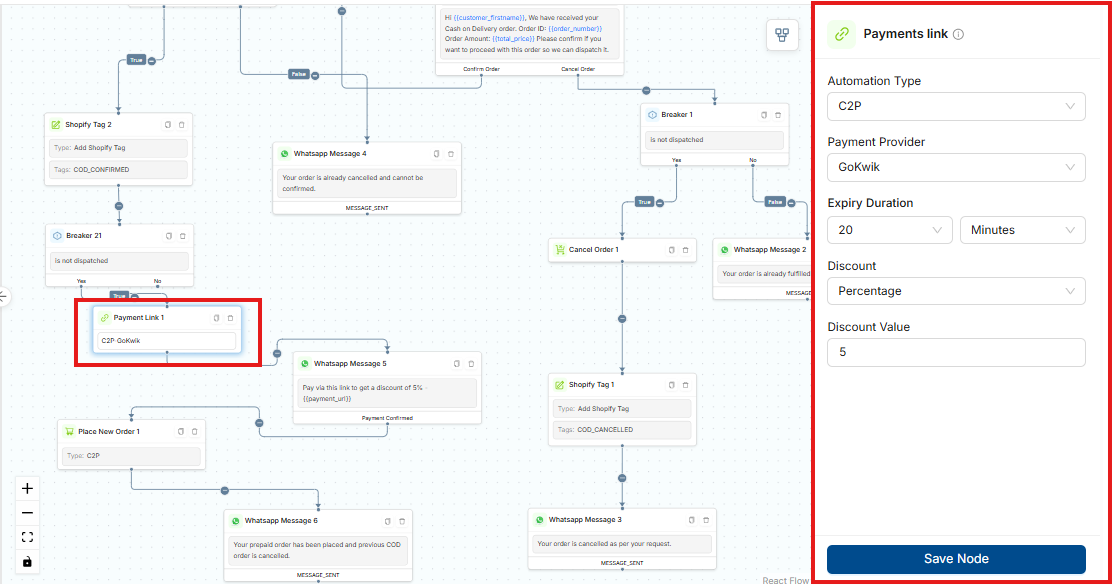
Expected Outcome: Payment Link node configured with C2P type, GoKwik provider, 20-minute expiry, and discount settings.
Step 7: Configure WhatsApp Message 5 — Payment Link Message
After the payment link is generated, this WhatsApp message sends the payment URL to the customer along with a discount incentive.
Click WhatsApp Message 5 to open the settings panel.
Set Message Type to Session Message.
Set Session Message Type to Message.
Set Header Type to Text.
In the Body Text field, enter the payment incentive message. Example:
"Pay via this link to get a discount of X% - {{payment_url}}"
(Adjust the discount percentage as per the merchant's offer.)
Under Variable 1, select {{payment_url}} from the dropdown.
Ensure the No Response checkbox is unchecked (the node must listen for the Payment Confirmed event).
Click Save to save the node.
NOTE: The output handle of this node is labeled 'Payment Confirmed' — this event fires when the customer successfully completes the payment, triggering the next action in the flow.
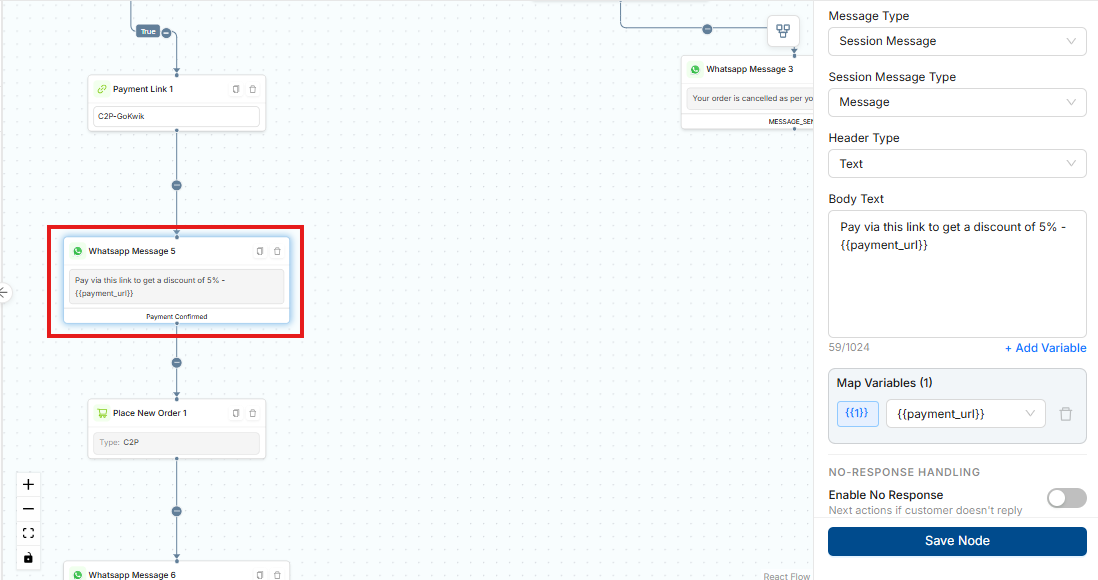
Expected Outcome: Customer receives a WhatsApp message with a clickable payment link and discount offer.
Step 8: Configure Place New Order Node (C2P Conversion)
Once the customer completes the payment (Payment Confirmed event fires), a new prepaid order is automatically placed.
Click the Place New Order 1 node to open its settings.
Verify that Type is set to C2P. This ensures the system cancels the original COD order and creates a new prepaid order in Shopify.
Click Save.
After Place New Order 1, configure WhatsApp Message 6 with the following message:
"Your prepaid order has been placed and previous COD order is cancelled."
This message confirms the successful C2P conversion to the customer.
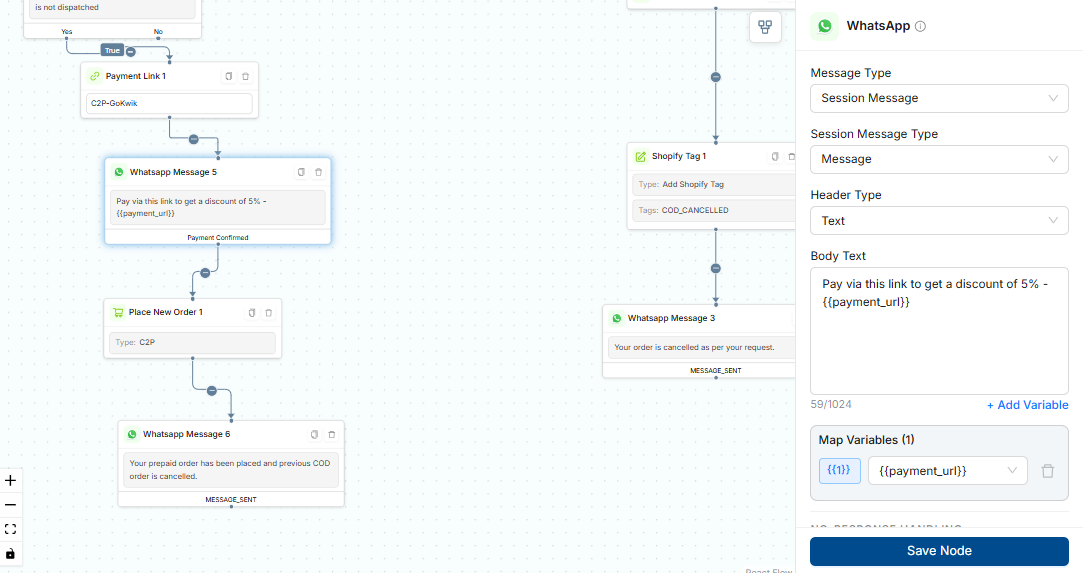
Expected Outcome: Original COD order is cancelled, new prepaid order created in Shopify, and customer receives a confirmation message.
Step 9: Configure the Cancel Order Branch
When the customer taps Cancel Order on the WhatsApp message, the flow routes through the following logic:
The Cancel Order button output connects to Breaker 1: Is Not Dispatched.
This breaker checks whether the order has NOT yet been dispatched:
Yes (True path): Order not dispatched → cancel the order.
No (False path): Order already dispatched → cannot cancel; notify the customer.
True Path — Order Not Yet Dispatched (Can Cancel)
Cancel Order 1 node: Cancels the order in the system.
Shopify Tag 1: Adds the tag COD_CANCELLED to the order in Shopify.
WhatsApp Message 3: Sends "Your order is cancelled as per your request."
False Path — Order Already Dispatched (Cannot Cancel)
WhatsApp Message 2: Sends "Your order is already fulfilled and cannot be cancelled."

Expected Outcome: Cancellable orders are cancelled with COD_CANCELLED tag applied. Dispatched orders receive an appropriate notification.
Step 10: Configure the Pay Online Branch (3-Button Template Only)
NOTE: This step applies only when using the 3-button template (c2p_3button_test). Skip this step if using the 2-button template.
When the customer taps Pay Online directly on the WhatsApp message:
The Pay Online button output connects to Breaker 21: Is Not Dispatched.
True path (not dispatched): Payment Link 1 (C2P-GoKwik) is generated immediately.
WhatsApp Message 2 is sent: "Pay via - {{payment_url}}"
When the customer completes payment, Payment Confirmed event fires → Place New Order 1 (Type: C2P) is executed.
A success confirmation message is sent to the customer.
False path (already dispatched): An appropriate message is sent to the customer.

Expected Outcome: Customers who tap Pay Online receive a payment link; upon payment, a new prepaid order is placed automatically.
Step 11: Name and Save the Automation
Click the Flow Name field at the top-left of the canvas (shows placeholder 'Enter flow name').
Enter a meaningful name, e.g., C2P_COD_Confirmation_2Button.
Click the Save Automation button (top-right, blue button) to save the flow.
The automation is saved with Disabled status by default.
NOTE: Do not activate the flow immediately. Test it in Sandbox mode first (see Step 12) to verify all nodes, variables, and payment links work correctly.
Expected Outcome: All required payment providers show Connected status, ensuring payment link generation will work correctly.
Step 12: Test the Automation in Sandbox Mode
Return to the Flow Builder by clicking the Edit (pencil) icon on the saved flow.
Click the Trigger node and verify the Sandbox Mob. No. is set to a valid test WhatsApp number.
In the Automation Flows list, toggle the automation status to Sandbox.
Place a test COD order on the connected store.
Verify the following on the sandbox mobile number:
WhatsApp Message 1 received with correct variable values (customer name, order ID, order amount).
Buttons render correctly (Confirm Order / Cancel Order / Pay Online).
Tapping Confirm Order triggers the payment link message with the correct discount.
The payment link is valid and opens the payment page correctly.
After completing payment, a confirmation WhatsApp message is received.
The Cancel Order branch cancels the order and sends a cancellation confirmation.
WARNING: Never go Live without completing full Sandbox testing. Incorrect variable mapping or broken payment links directly impact customer experience and order fulfilment.
Step 13: Verify Payment Configuration
Before activating the flow Live, confirm that payment providers are properly configured.
Navigate to Configurations from the left sidebar.
Scroll down and click Payment Configuration.
Confirm that the following payment providers show Connected status:
GoKwik — Connected
Razorpay — Connected (optional, serves as fallback)
If a provider shows Disconnected, click Add New Credentials and enter the required API credentials from the provider dashboard.
IMPORTANT: For detailed steps on adding payment configuration, please scroll down and refer to the section titled "Appendix: Adding Payment Provider Credentials in KwikEngage."
Step 14: Activate the Automation (Go Live)
Go to Flows → Automation Flows from the left sidebar.
Locate the saved C2P automation in the list.
Toggle the Status switch to Live (the toggle turns green).
Confirm the status column updates to Live in the list view.
WARNING: Activating a flow makes it go Live for ALL new COD orders immediately. Ensure all nodes are correctly configured and Sandbox testing is fully complete before enabling.
Best Practices
Always complete Sandbox testing before going Live. Place a real test COD order and verify every branch of the flow end-to-end.
Use the 3-button template for higher conversion. The direct Pay Online button reduces customer friction and speeds up conversion.
Keep payment link expiry at 20 minutes minimum. Shorter durations reduce the window for customers to complete payment.
Set an attractive discount incentive. A 5–10% discount on the payment link significantly improves COD-to-Prepaid conversion rates.
Use Product Image as the image type. Displaying the ordered product in the WhatsApp message increases relevance and click-through.
Monitor COD_CONFIRMED and COD_CANCELLED Shopify tags. These tags enable direct performance tracking of the C2P flow in Shopify analytics.
Do not run two C2P flows simultaneously. Duplicate flows for the same trigger cause multiple messages and conflicting order actions.
Review flow analytics regularly. Use the View Analytics button in the flow builder to monitor delivery rates, button click rates, and payment conversion.
Expected Final Outcome
Upon successful setup and activation of the C2P automation flow:
Every new COD order automatically triggers a WhatsApp message to the customer with order details and action buttons.
If the customer taps Confirm Order — the order is tagged COD_CONFIRMED in Shopify, and a payment link with a discount incentive is sent to encourage prepaid conversion.
If the customer taps Pay Online (3-button template) — a payment link is sent directly; upon payment, a new prepaid order is placed and the original COD order is cancelled.
If the customer taps Cancel Order — the order is cancelled (if not yet dispatched), tagged COD_CANCELLED, and a cancellation confirmation is sent.
If no action is taken or the order is already dispatched — appropriate status messages are sent to the customer without altering the order.
Business outcome: Merchants experience improved COD-to-Prepaid conversion rates, reduced RTO (Return to Origin), and lower operational costs.
Appendix: Adding Payment Provider Credentials in KwikEngage
Before the Payment Link node can generate payment links, the payment provider (GoKwik or Razorpay) must be connected in KwikEngage. This section covers how to retrieve credentials from each provider dashboard and add them to the KwikEngage Payment Configuration.
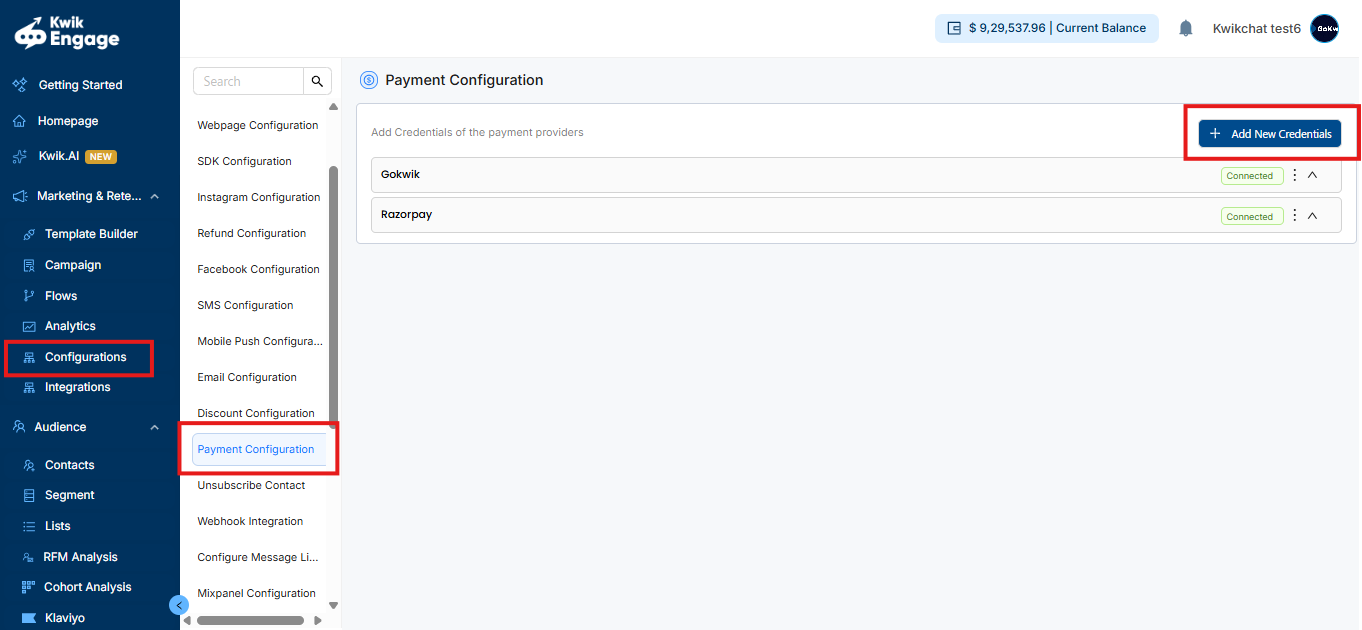
A. Navigate to Payment Configuration in KwikEngage
Log in to your KwikEngage account.
Click on Configurations in the left sidebar.
From the Configurations sub-menu, scroll down and click Payment Configuration.
The Payment Configuration page opens, listing all connected payment providers.
To add a new provider, click the + Add New Credentials button (top-right corner).
B. Getting GoKwik App ID & App Secret
Follow the steps below to retrieve your GoKwik App ID and App Secret from the GoKwik merchant dashboard.
Step B1: Log in to the GoKwik Dashboard
Open your browser and go to https://dashboard.gokwik.co/
Enter your GoKwik merchant credentials (email and password) and click Login.
You will land on the GoKwik merchant dashboard home page.
Step B2: Navigate to Account → Advanced Details
Click on Account in the left sidebar or top navigation menu.
Under the Account section, look for and click Advanced Details.
The Advanced Details page will display your merchant credentials including App ID and App Secret.
Step B3: Copy App ID and App Secret
Locate the App ID field and copy the value.
Locate the App Secret field and copy the value.
IMPORTANT: Keep the App Secret confidential. Do not share it in emails, chat, or documents. If the App Secret is compromised, regenerate it immediately from the GoKwik dashboard.
Step B4: Add GoKwik Credentials in KwikEngage
Return to KwikEngage → Configurations → Payment Configuration.
Click + Add New Credentials.
In the provider selection, choose GoKwik.
Enter the App ID copied from the GoKwik dashboard.
Enter the App Secret copied from the GoKwik dashboard.
Click Save or Connect to complete the setup.
Verify that GoKwik now shows Connected status on the Payment Configuration page.
NOTE: If GoKwik already shows 'Connected' status, credentials are already configured. Click the three-dot menu (⋮) next to GoKwik to edit or update credentials if needed.
C. Getting Razorpay API Key ID & Key Secret
Follow the steps below to retrieve your Razorpay API Key ID and Key Secret from the Razorpay dashboard.
Step C1: Log in to the Razorpay Dashboard
Open your browser and go to https://dashboard.razorpay.com/
Enter your Razorpay account credentials (email and password) and click Log In.
Complete any 2FA verification if prompted.
Step C2: Navigate to Settings → API Keys
In the Razorpay dashboard, click on Settings in the left sidebar.
Under Settings, click on API Keys tab.
You will see the API Keys section showing your existing keys or an option to generate new ones.
Step C3: Generate or Copy API Keys
If no Live keys exist, click Generate Key to create a new Key ID and Key Secret.
The system will display the Key ID and Key Secret — copy both values immediately and store them securely.
WARNING: The Key Secret is shown ONLY ONCE at the time of generation. Store it securely immediately. If you lose it, you must regenerate new keys (which will invalidate the old ones).
If keys already exist, the Key ID is visible. Click Regenerate Key if a new secret is needed.
NOTE: Use Live mode API keys for production. Test mode keys will only work in sandbox/test environments. Ensure you are in the correct mode (Live/Test) before copying keys.
Step C4: Add Razorpay Credentials in KwikEngage
Return to KwikEngage → Configurations → Payment Configuration.
Click + Add New Credentials.
In the provider selection, choose Razorpay.
Enter the Key ID (also called API Key) copied from the Razorpay dashboard.
Enter the Key Secret copied from the Razorpay dashboard.
Click Save or Connect to complete the setup.
Verify that Razorpay now shows Connected status on the Payment Configuration page.
Was this article helpful?
That’s Great!
Thank you for your feedback
Sorry! We couldn't be helpful
Thank you for your feedback
Feedback sent
We appreciate your effort and will try to fix the article