The Kwik Engage Chat Analytics module gives you a complete picture of your customer support operations — from ticket volumes and agent performance to chatbot efficiency and AI-powered sentiment insights. This article walks you through each section of the Analytics dashboard so you can make the most of the data available to you.
Getting Started: Global Controls
No matter which tab you are on, the top navigation bar has controls that apply to all analytics views:
- Tab Selector: Switch between the five analytics views — All, Tickets, Agents, Chatbot, and AI Insights.
- All Channels Dropdown: Filter all data to a specific messaging channel — WhatsApp, Email, Instagram DM, or Instagram Comments.
- Date Range Picker: Filter all metrics to a custom date window to analyse any specific time period.
- Export Reports: Download the displayed analytics data in an exportable format (CSV/Excel) for offline analysis or reporting.
Section 1: All (Overview)
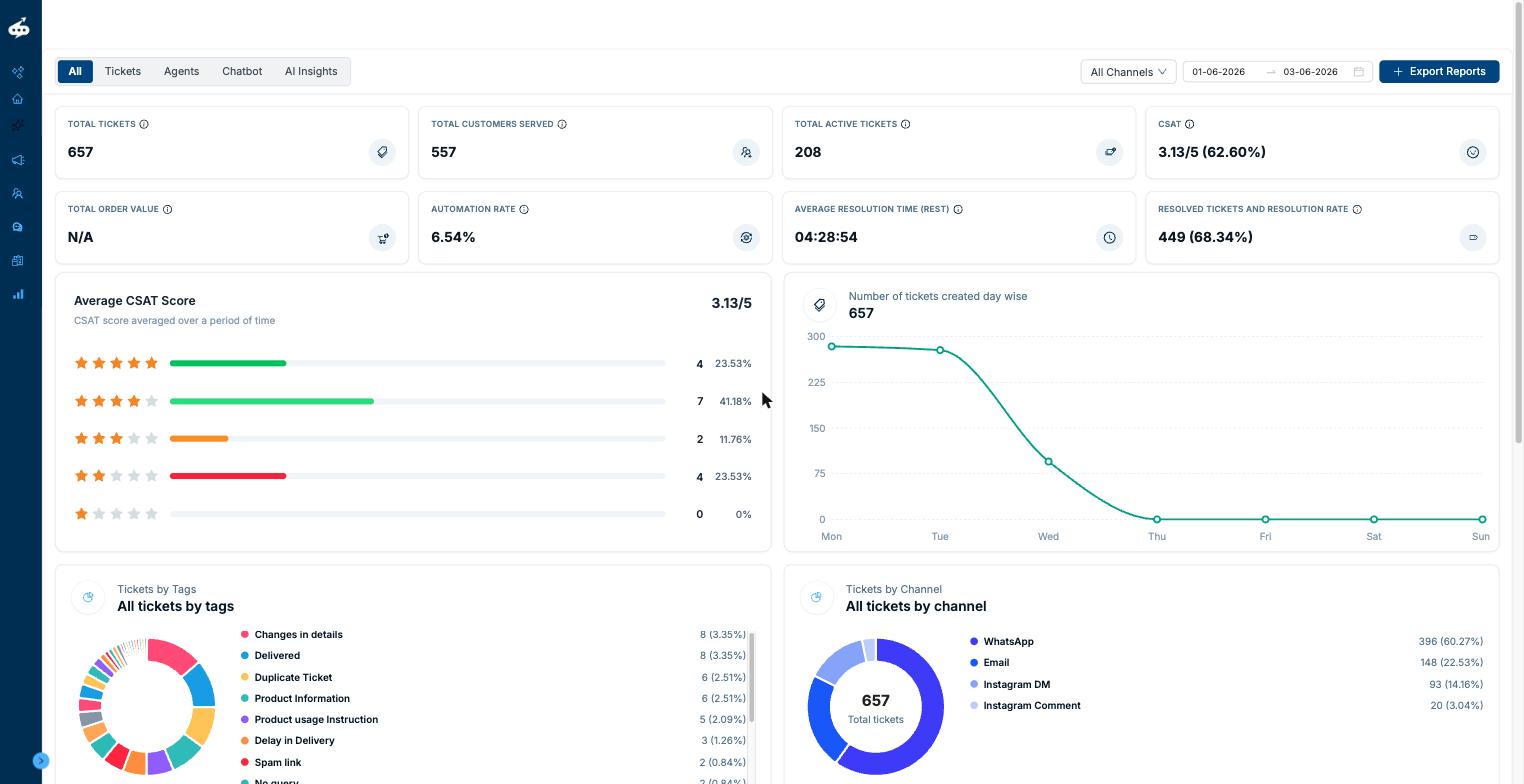
The All tab is a holistic summary of your entire support operation. It gives you a bird's-eye view of tickets, agent performance, bot automation, and customer satisfaction — all in one place.
KPI Tiles — Quick Metrics at a Glance
The top two rows of the All tab display eight key performance indicators at a glance:
- Total Tickets: The total number of support tickets created in the selected period across all channels.
- Total Customers Served: The number of unique customers who had at least one support interaction in the period.
- Total Active Tickets: Tickets that are currently open or unresolved at the time of viewing.
- CSAT (Customer Satisfaction Score): The average star rating left by customers, displayed as X/5 and a positive-rating percentage (e.g. 3.13/5 with 62.60% means 62.60% of all rated tickets received 4 or 5 stars).
- Total Order Value: The combined monetary value of orders linked to support tickets. Requires Shopify/e-commerce integration (shows N/A if not connected).
- Automation Rate: The percentage of tickets fully handled and resolved by the bot without any human agent intervention. Formula: Bot-resolved tickets ÷ Total tickets × 100.
- Average Resolution Time (REST): The average time from when a ticket is first assigned to when it is marked as resolved. Displayed in HH:MM:SS format.
- Resolved Tickets and Resolution Rate: Shows the raw count of resolved tickets and the resolution rate as a percentage. Formula: Resolved tickets ÷ Total tickets × 100.
Average CSAT Score
This chart shows a detailed breakdown of customer ratings, from 1 star to 5 stars, with the count and percentage for each rating level. The overall average score (e.g. 3.13/5) and positive-rating percentage help you quickly understand overall customer satisfaction at a glance.
Number of Tickets Created Day Wise
A line chart showing the daily ticket volume across the selected date range. Each data point represents the total tickets created on that day. This helps you identify peak days and quieter periods, which is useful for staffing decisions.
Tickets by Tags and Tickets by Channel
Two donut charts that show how your tickets are distributed by tag (e.g. Delivered, Duplicate Ticket, RTO) and by channel (WhatsApp, Email, Instagram DM, Instagram Comment). Hovering over a segment shows the exact count and percentage. Use these charts to understand which topics are generating the most tickets and which channels your customers prefer.
First Response Time (FRT) Breakdown
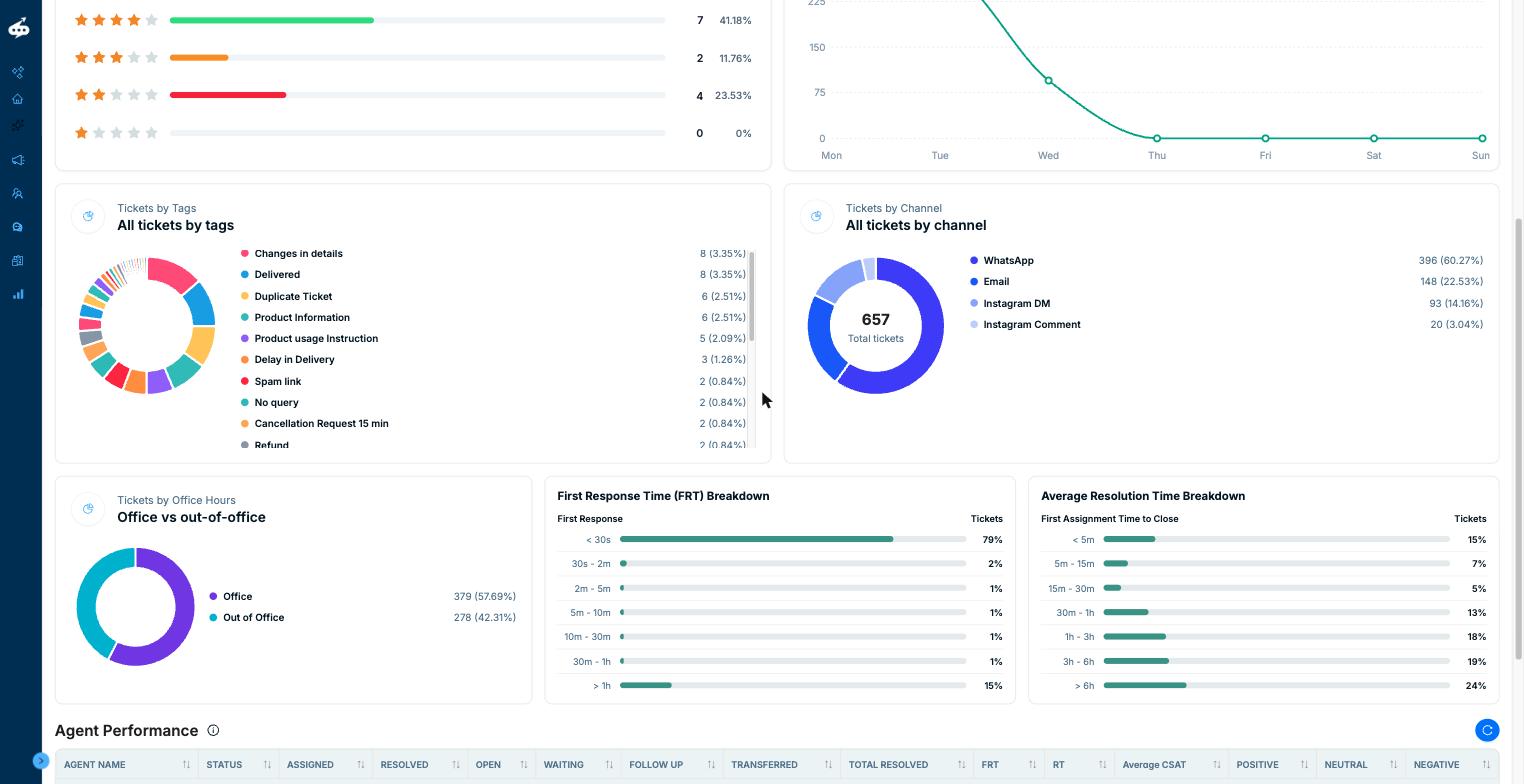
A horizontal bar chart showing what percentage of tickets received their first response within each time bracket (under 30 seconds, 30s–2 min, and so on up to over 1 hour). A high percentage in the under-30-seconds bucket indicates excellent responsiveness — mainly driven by bot auto-responses.
Average Resolution Time (REST) Breakdown
Similar to the FRT breakdown but shows the distribution of ticket resolution times from first assignment to close. Useful for identifying whether a large proportion of tickets take a long time to resolve and where improvement is needed.
Agent Performance Table
A summary table showing each agent's performance for the selected period, grouped by team. For each agent it shows: Agent Name, Status (Online/Offline/On Break), number of tickets Assigned, Resolved, Open, Waiting, in Follow Up, Transferred, Total Resolved (cumulative), Average FRT, Average Resolution Time, Average CSAT, and Positive/Neutral/Negative rating counts.
Section 2: Tickets
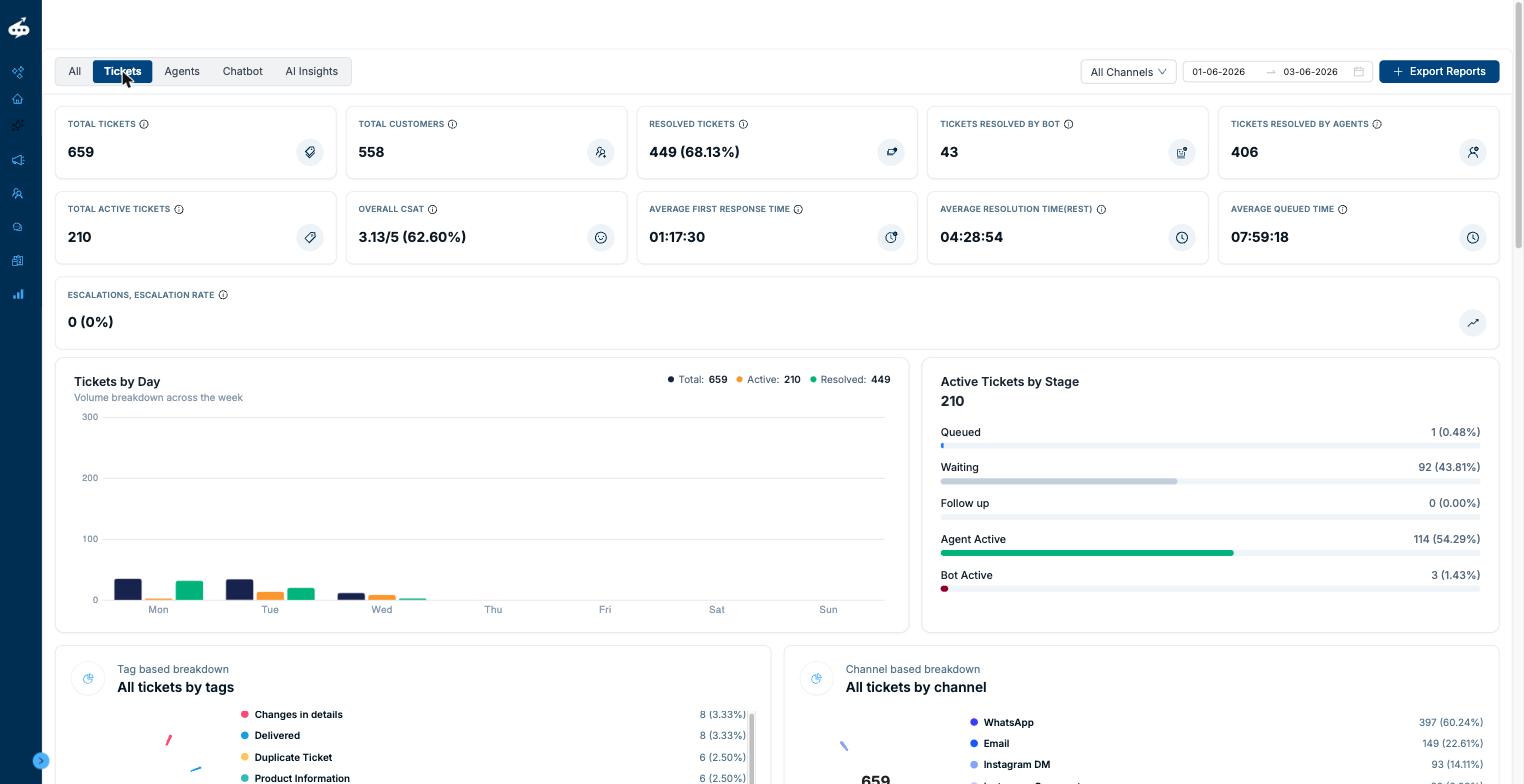
The Tickets tab focuses on support ticket data and provides deeper insights into ticket volume, resolution patterns, and SLA performance. Use this tab to understand how well your team is handling incoming tickets across all channels.
KPI Tiles
The Tickets tab displays ten KPI tiles across two rows:
- Total Tickets: Total tickets in the selected period.
- Total Customers: Number of unique customers who raised tickets.
- Resolved Tickets (Resolution Rate): Count of resolved tickets and the resolution rate percentage.
- Tickets Resolved by Bot: Number of tickets the bot fully resolved without human intervention.
- Tickets Resolved by Agents: Number of tickets closed by human agents.
- Total Active Tickets: Currently open/unresolved tickets.
- Overall CSAT: Average customer satisfaction star rating (X/5 with positive percentage).
- Average First Response Time (FRT): Average time from ticket creation to the first agent (or bot) response, in HH:MM:SS.
- Average Resolution Time (REST): Average time from first assignment to ticket closure, in HH:MM:SS.
- Average Queued Time: The average time tickets spent waiting to be assigned to an agent or bot, in HH:MM:SS.
Escalations and Escalation Rate
Shows the total number of escalated tickets and the escalation rate percentage. An escalation typically occurs when a ticket breaches SLA. Formula: Escalated tickets ÷ Total tickets × 100. Use this to quickly spot if SLA compliance is declining.
Tickets by Day
A grouped bar chart showing daily ticket volumes for the selected period, broken down into Total, Active (open), and Resolved tickets. This helps you identify which days have the highest support demand and how resolution is tracking against incoming volume.
Active Tickets by Stage
Shows how your currently open tickets are distributed across different stages: Queued (waiting to be assigned), Waiting (pending customer reply), Follow Up, Agent Active (currently being handled), and Bot Active. This helps you understand where bottlenecks are occurring in your support queue.
Tickets by Tags and Tickets by Channel
Two donut charts showing the breakdown of tickets by tag (e.g. order queries, product issues, delivery delays) and by channel (WhatsApp, Email, Instagram DM, Instagram Comment). Use these to identify your most common issue types and preferred customer contact channels.
Resolution Time Trend
A line chart showing how your average resolution time changes day by day across the selected period. Useful for tracking whether resolution times are improving or worsening over time.
CSAT by Bot and by Agent
Two side-by-side CSAT breakdowns — one showing ratings earned by the bot's interactions and one for agent-handled interactions. Each shows ratings from 1 to 5 stars with count and percentage. Compare bot vs. agent satisfaction to understand where your customers are happiest.
Hourly Ticket Volume Trend (Heatmap)
A heatmap grid showing ticket volume for each hour of the day (0–23) across each day of the week. Darker blue cells indicate higher volume. This helps you identify peak hours for staffing — for example, if tickets are concentrated between 10am and 2pm on weekdays, you can ensure maximum agent availability during those windows.
All Tickets Table
A searchable and sortable table listing every individual ticket in the selected period. Columns include: User ID, Ticket ID (e.g. #71254133), Customer Name, Channel (WhatsApp, Email, Instagram), Status (Open, Resolved, Waiting), Last Updated timestamp, Resolved By (agent name or bot), CSAT star rating, and any Customer Comments. Use this table to investigate specific tickets, search by customer name or ticket ID, and sort by any column.
Section 3: Agents
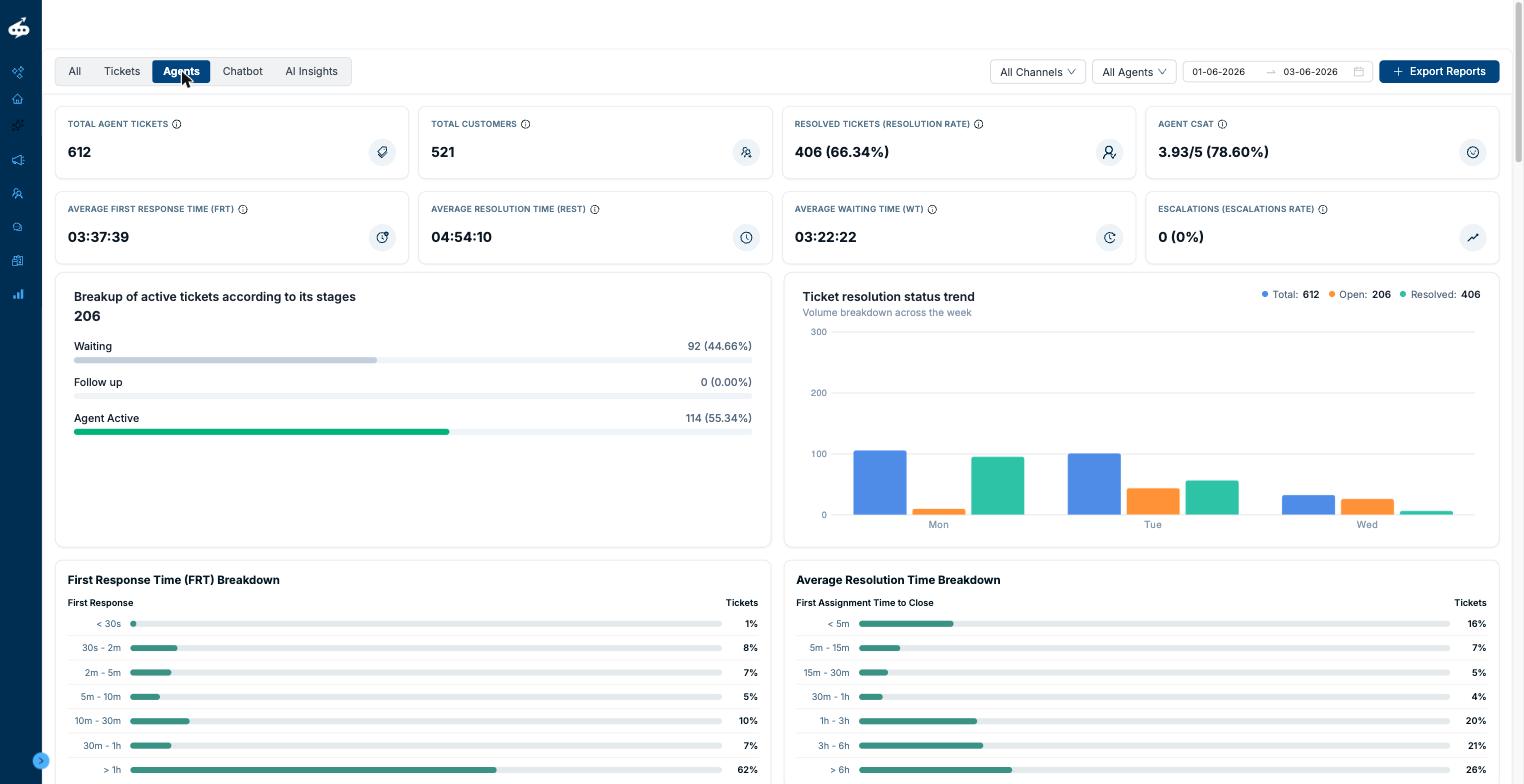
The Agents tab focuses entirely on human agent performance metrics. Use this tab to assess individual and team-level performance, identify top performers, and monitor agent workload.
KPI Tiles
- Total Agent Tickets: Total tickets assigned to human agents.
- Total Customers: Unique customers served by agents.
- Resolved Tickets (Resolution Rate): Agent-resolved tickets and resolution rate percentage.
- Agent CSAT: Average customer satisfaction score for agent-handled tickets.
- Average First Response Time (FRT): Average time for agents to send their first response.
- Average Resolution Time (REST): Average time for agents to close tickets from first assignment.
- Average Waiting Time (WT): Average time tickets waited for agent action.
- Escalations (Escalation Rate): Total escalations and escalation rate for agent-handled tickets.
Breakup of Active Tickets by Stage
Shows how your currently open agent tickets are distributed across stages: Waiting (pending customer reply), Follow Up, and Agent Active. Helps you understand where agents are spending their time and where bottlenecks are forming.
Ticket Resolution Status Trend
A grouped bar chart showing Total, Open, and Resolved ticket volumes by day. Use this to track whether your agents are keeping up with incoming ticket volume over time.
First Response Time (FRT) Breakdown (Agent-Specific)
Shows the distribution of how quickly agents respond to tickets. This view filters out bot responses, so you'll typically see a higher proportion in the longer time brackets compared to the All tab view.
Average Resolution Time (REST) Breakdown (Agent-Specific)
Shows the distribution of resolution times for agent-closed tickets specifically. Useful for SLA compliance monitoring.
Ticket Response and Resolution Time Trends
Two line charts showing how the average FRT and average REST change day by day across the selected period. Useful for spotting trends — for example, if response times are gradually increasing, it may indicate a staffing issue.
Agent Status Table
A real-time status table for all agents in your team, showing: Agent Name, Current Status (Online / Offline / On Break), Last Online and Last Offline timestamps, Total Online Time in the period, Total Break Time, and Time Since Last Online/Offline status change. Use this to monitor agent availability at any given time.
Hourly Ticket Summary (Agents Tab)
A table listing key metrics broken down by each hour of the day (00:00–23:00), including: Handed Off Tickets (number of tickets handed from bot to agent in that hour), Average First Response Time, and Average Resolution Time. Useful for identifying which hours generate the most agent workload.
No. of Chats Resolved Per Hour by Agent (Heatmap)
A heatmap grid showing each agent's resolved ticket count per hour of the day. Darker cells indicate higher resolution volume. Use this to identify which agents are most productive at different times of day.
Section 4: Chatbot
The Chatbot tab tracks how your automated chat bot is performing. Use this tab to evaluate bot efficiency, customer satisfaction with bot interactions, and how often the bot hands off to human agents.
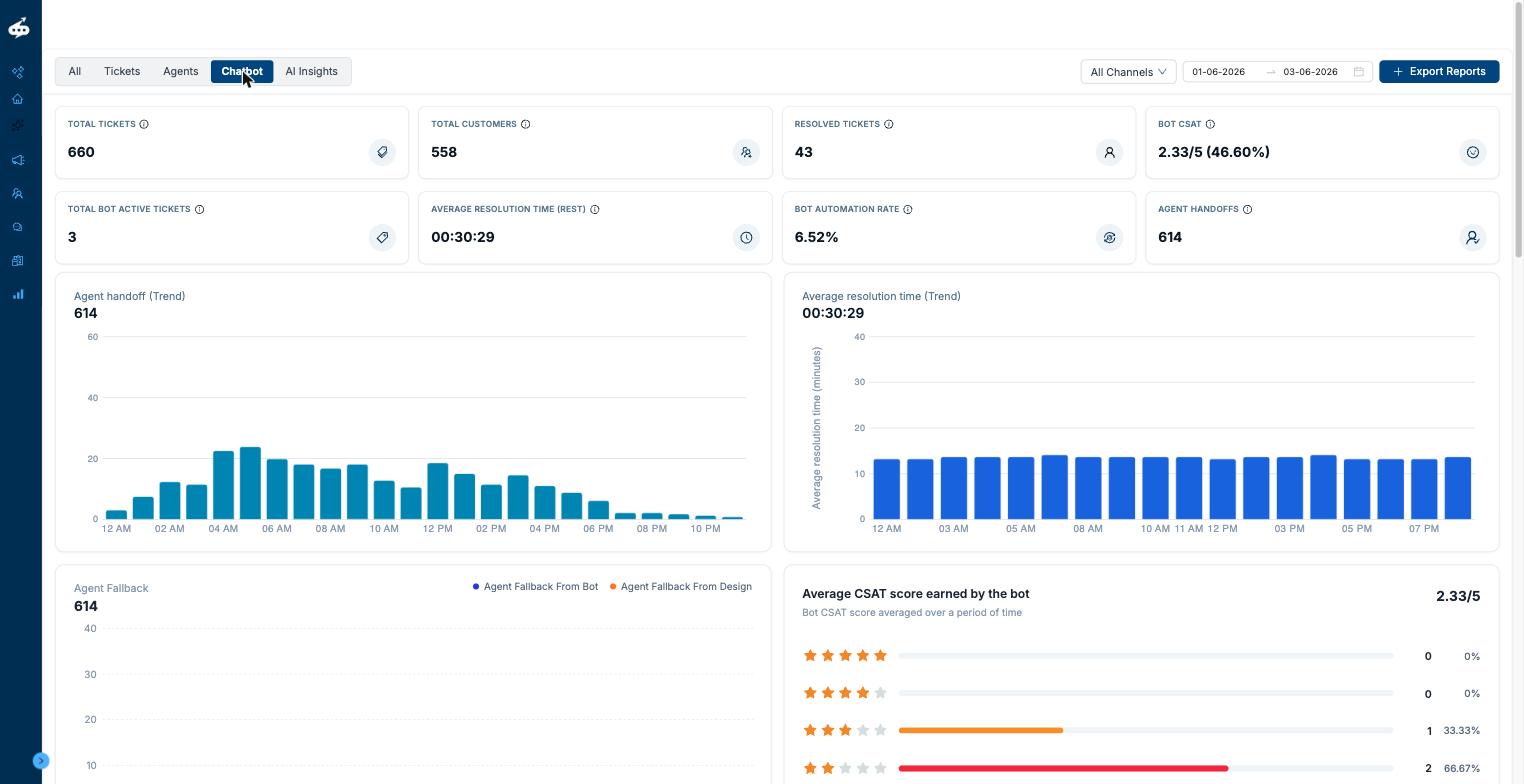
KPI Tiles
- Total Tickets: Total tickets handled (at least partially) by the bot.
- Total Customers: Unique customers who interacted with the bot.
- Resolved Tickets: Tickets the bot fully resolved without any agent intervention.
- Bot CSAT: Customer satisfaction score specifically for bot-handled interactions.
- Total Bot Active Tickets: Tickets currently being handled by the bot.
- Average Resolution Time (REST): Average time for the bot to resolve tickets.
- Bot Automation Rate: Percentage of tickets the bot handled completely on its own.
- Agent Handoffs: Total number of tickets where the bot transferred the conversation to a human agent.
Agent Handoff Trend
A bar chart showing hourly bot-to-agent handoffs across the day (12 AM–10 PM). Use this to identify when the bot is most frequently unable to resolve queries on its own — typically indicating high support demand or complex queries during those hours.
Average Resolution Time Trend
A bar chart showing how the bot's average resolution time varies across different hours of the day. Helps identify whether certain times of day lead to longer bot resolution times.
Agent Fallback
Two lines in this chart show the total number of Agent Fallbacks, broken down by: fallbacks triggered by the Bot (where the bot itself initiated the handoff), and fallbacks triggered by the Chatbot Design (where the escalation was built into the conversation flow). This helps diagnose whether escalations are happening as designed or unexpectedly.
Average CSAT Score Earned by the Bot
A star-rating breakdown showing customer feedback for bot-resolved tickets, from 1 to 5 stars. Compare this to the agent CSAT to understand whether customers prefer bot or human resolution for different types of queries.
Bot Resolved Tickets Trend
A bar chart showing bot-resolved ticket volume across the day. Helps understand at what hours the bot is most successful at resolution.
Bot Automation Rate Trend
Shows how the bot automation rate fluctuates across the day. A high automation rate at certain hours may reflect simpler queries during those times.
Section 5: AI Insights (NEW)
The AI Insights tab uses artificial intelligence to provide deeper qualitative analytics about customer interactions — sentiment, query intent, and topic distribution. This is particularly useful for understanding the "why" behind your ticket volumes.
Note: please reach out to kcs@gokwik.co or your account manager to access this feature
Customer Sentiment (Donut Chart)
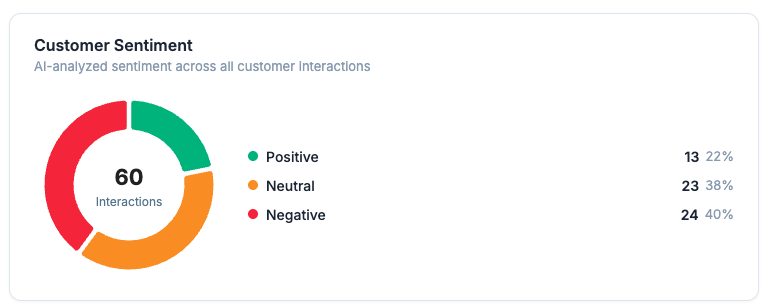
An AI-classified donut chart showing the sentiment distribution of customer interactions in the selected period. The centre shows the total interactions analysed. Three segments indicate: Positive (green) — interactions where the customer expressed satisfaction; Neutral (orange) — mixed or neutral language; Negative (red) — interactions where the customer expressed frustration or complaint. Each segment shows count and percentage. This helps you understand the overall emotional tone of your customer support beyond what star ratings alone capture.
Category Distribution
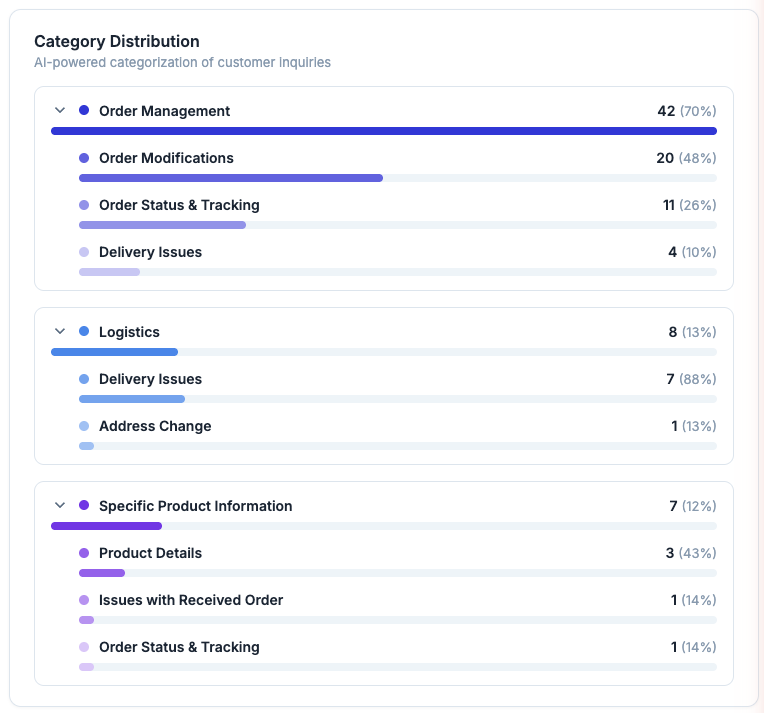
An AI-powered horizontal bar chart showing how customer inquiries are categorised (e.g. Order Management, Logistics, Specific Product Information). Each category shows the count and percentage of interactions. Expand any category to see sub-categories. Use this to understand the most common topics driving your support volume — ideal for product and operations teams to proactively address recurring issues.
Query Type Distribution
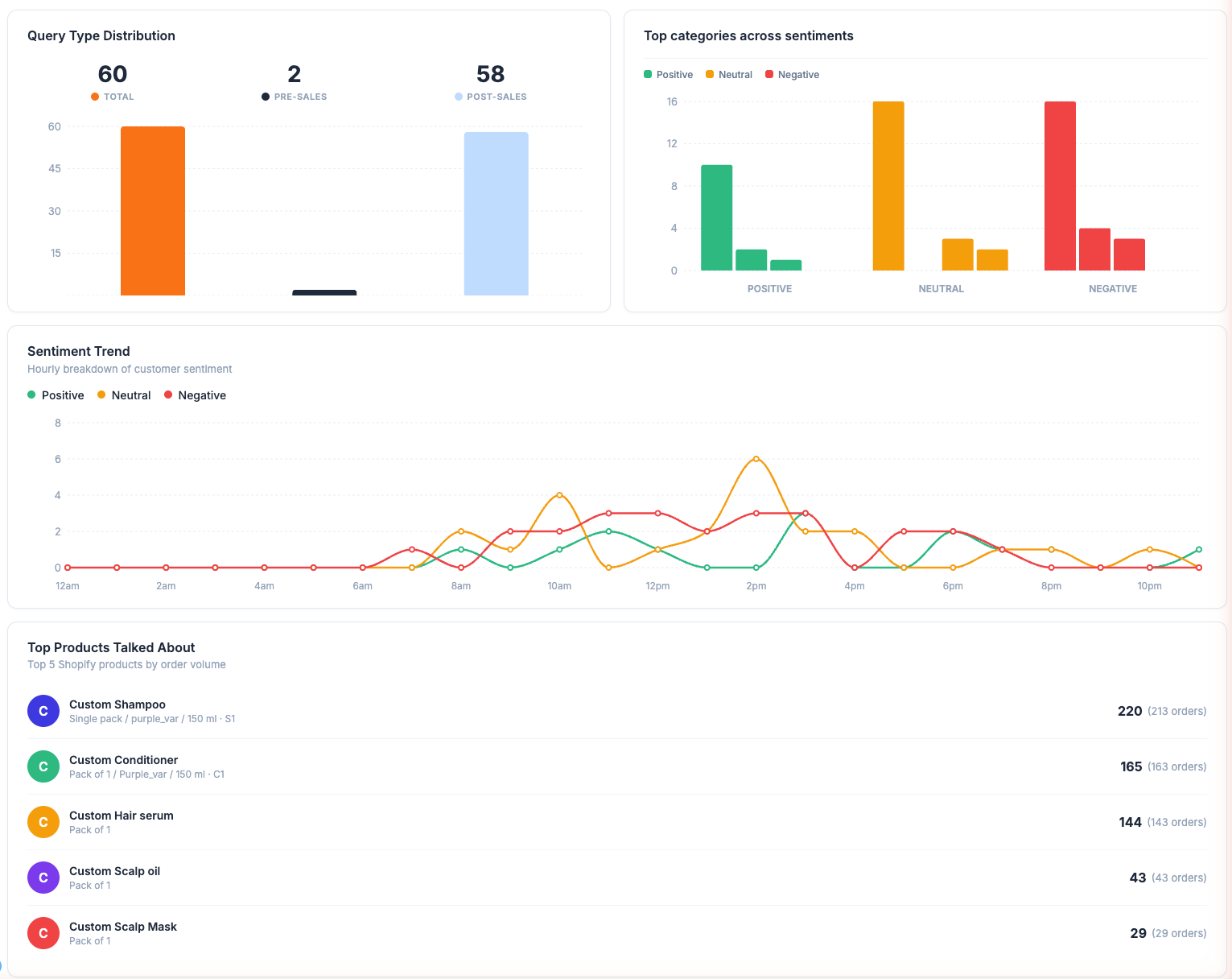
Breaks down all interactions by query type: Pre-Sales (questions about products before purchase) vs. Post-Sales (queries related to orders, deliveries, or returns after purchase). Shows the total count for each type as a bar chart. Useful for understanding whether your support volume is driven more by pre-purchase or post-purchase customer needs.
Top Categories Across Sentiments
A grouped bar chart showing the top issue categories broken down by customer sentiment (positive, neutral, negative). Use this to identify which topics are associated with the most negative customer experiences — these are high-priority areas for improvement.
Sentiment Trend (Multi-Line Chart)
A line chart with three coloured lines plotted across hours of the day (12 AM–10 PM): Green for positive sentiment interactions per hour, Orange for neutral, and Red for negative. Hovering over a time point shows the exact counts for each sentiment at that hour. This helps identify whether certain times of day consistently attract more negative interactions — useful for scheduling additional support during high-tension hours.
Top Products Talked About
A ranked list of the top 5 Shopify products most frequently mentioned in customer support interactions, derived from Shopify order data integration. For each product it shows: Product name and variant, Total mentions/interactions, and Orders associated with those interactions in parentheses. This helps identify which products are generating the most support volume — valuable for product teams to address recurring issues with specific items.
Was this article helpful?
That’s Great!
Thank you for your feedback
Sorry! We couldn't be helpful
Thank you for your feedback
Feedback sent
We appreciate your effort and will try to fix the article