Assignment logic decides which agent gets a new ticket in your Kwik Engage Inbox. This article covers the three assignment modes and Customer Continuity (Sticky Agent), which sends returning customers back to the agent they spoke to last.
In this article
1. Where to find Ticket Assignment Logic
Go to Setup → Tickets → Assignment Logic.
Use the Assigning Status toggle at the top to turn automatic assignment on or off. When it's off, new tickets are not assigned to agents automatically.
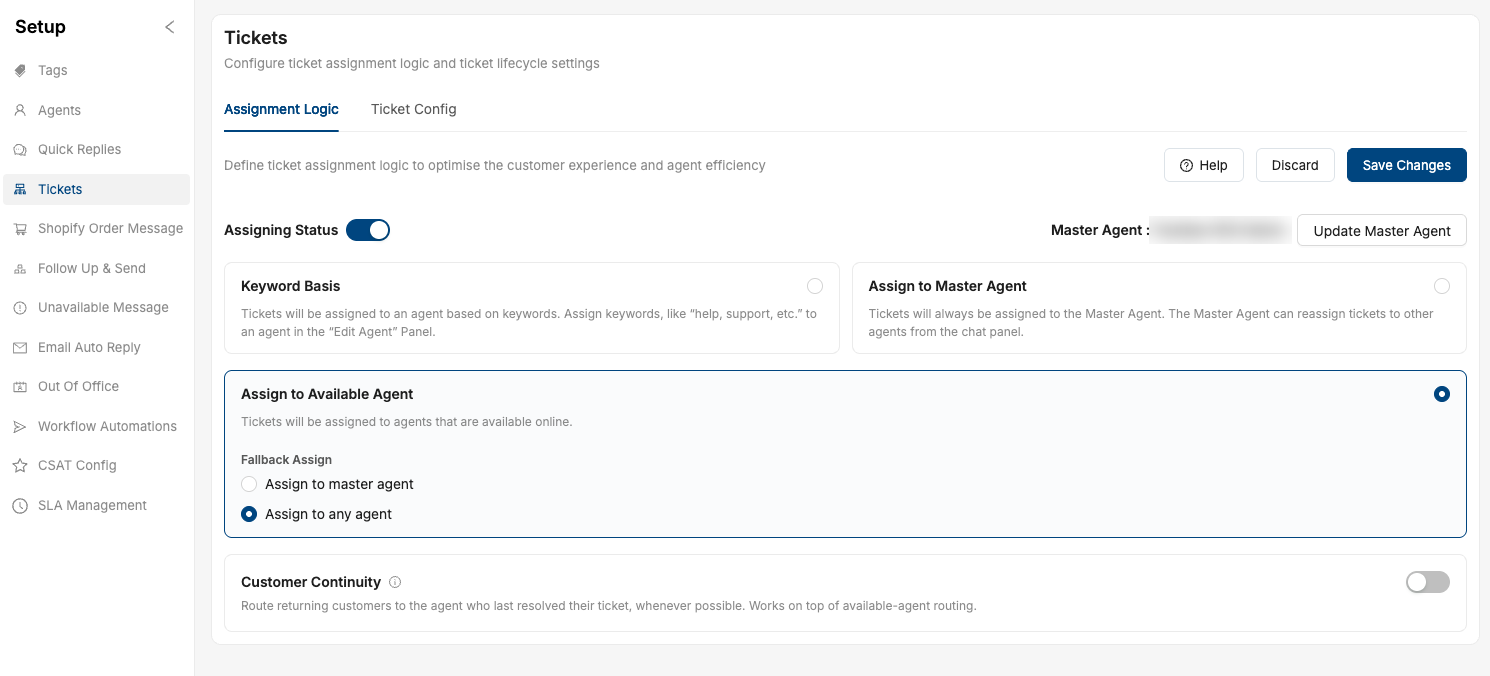 The Assignment Logic page with the three assignment modes
2. The three assignment modes
You can choose one mode at a time.
Keyword Basis
Tickets go to an agent based on the keywords in the customer's message. For example, you can map keywords like "help" or "support" to a specific agent.
- Set each agent's keywords in the Edit Agent panel.
- Best for: teams where agents handle specific topics, such as returns, payments or product queries.
Assign to Available Agent
Tickets go to agents who are online, shared between them in turn (round robin).
- Fallback Assign:choose what happens as a fallback:
- Assign to master agent: the ticket goes to your Master Agent.
- Assign to any agent: the ticket goes to any agent on your team.
- Best for: teams with more than one agent who want work shared evenly.
- This is the only mode that supports Customer Continuity (Sticky Agent).
Assign to Master Agent
All tickets go to the Master Agent. The Master Agent can then reassign tickets to other agents from the chat panel.
- The current Master Agent is shown at the top right of the page. Click Update Master Agent to change it.
- Best for: a team with one agent, or a team lead who wants to review and hand out every ticket.
Which mode should I use?
| Mode | Who gets the ticket | Best for |
|---|---|---|
| Keyword Basis | The agent mapped to a keyword in the customer's message | Agents who handle specific topics |
| Assign to Available Agent | Online agents, in turn (round robin) | Multi-agent teams. Supports Customer Continuity (Sticky Agent). |
| Assign to Master Agent | The Master Agent, who can reassign | Single-agent teams, or a lead who distributes tickets |
3. How to set up an assignment mode
- Go to Setup → Tickets → Assignment Logic.
- Turn on the Assigning Status toggle.
- Select Keyword Basis, Assign to Available Agent or Assign to Master Agent.
- If you chose Assign to Available Agent, pick a Fallback Assign option.
- Click Save Changes.
4. Customer Continuity (Sticky Agent)
What it does
Customer Continuity (Sticky Agent) routes a returning customer to the agent who last resolved their ticket, whenever possible.
It is not a separate assignment mode. It works on top of Assign to Available Agent.
Why use it
- Customers don't repeat themselves. The agent already knows the order, the issue and the earlier conversation.
- Faster resolution on repeat contacts. This helps most with returns, exchanges, order issues and disputes, where customers often write in more than once.
- Better customer relationships. Customers talk to someone they've already spoken with.
Before you start
- Assign to Available Agent must be your selected assignment mode. With any other mode selected, the Customer Continuity (Sticky Agent) panel is disabled.
- Customer Continuity (Sticky Agent) is available to all Kwik Engage merchants.
How to turn on Customer Continuity (Sticky Agent)
- Go to Setup → Tickets → Assignment Logic.
- Make sure Assign to Available Agent is selected.
- Find the Customer Continuity panel below the assignment modes and turn on its toggle. The panel expands to show two settings: Continuity Policy and Look Back Period.
- Choose a Continuity Policy (see below).
- Optional: set a Look Back Period (see below).
- Click Save Changes.
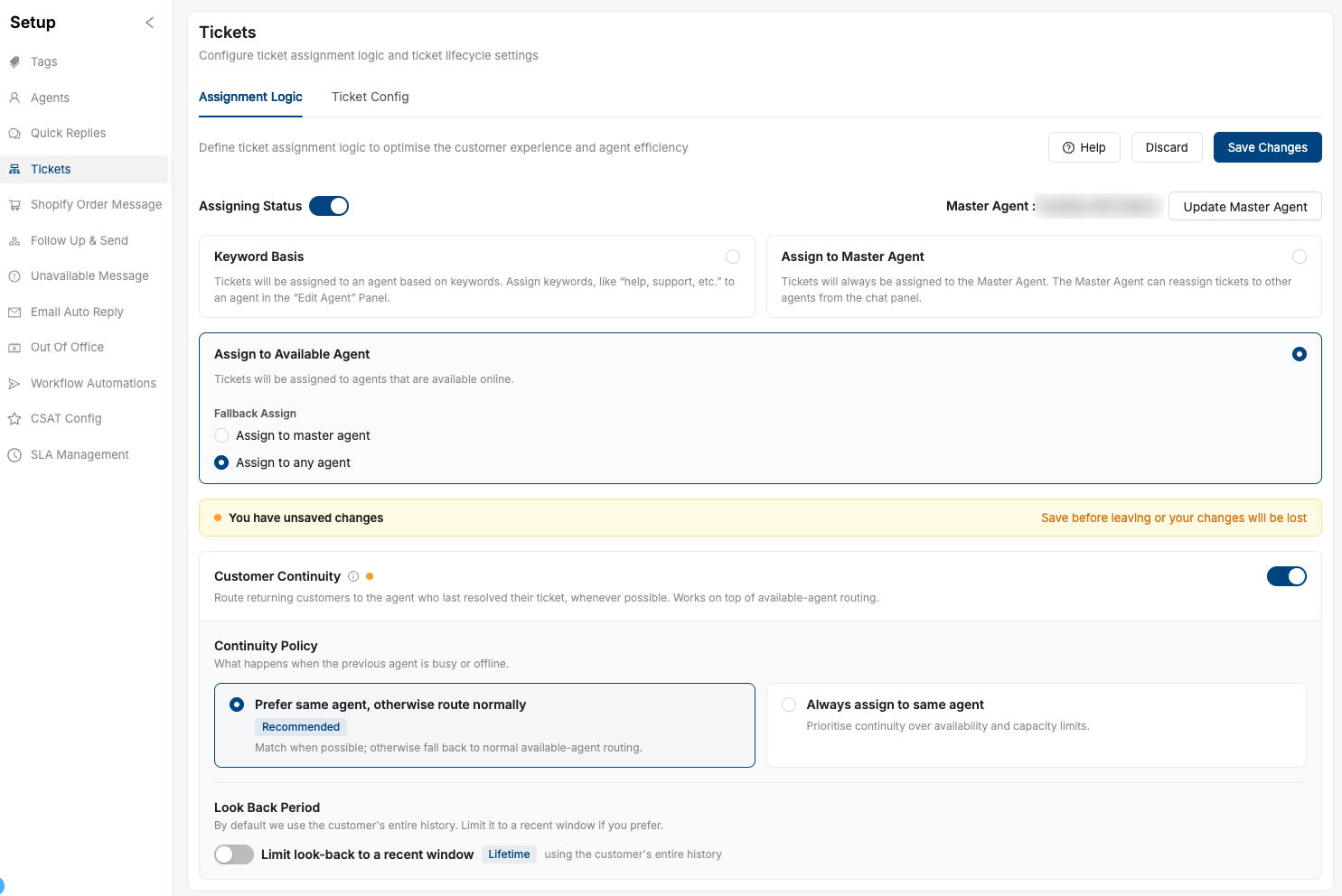 Customer Continuity (Sticky Agent) turned on, with the recommended policy and no look-back limit set
Continuity Policy
The policy decides what happens when the customer's previous agent is busy or offline.
| Previous agent is… | Prefer same agent, otherwise route normally (Recommended) | Always assign to same agent |
|---|---|---|
| Online, below their ticket limit | Assigned to the previous agent | Assigned to the previous agent |
| Online, at their ticket limit | Normal Assign to Available Agent routing | Still assigned to the previous agent. The ticket limit is not applied. |
| Offline | Normal Assign to Available Agent routing | Waits in the queue for the previous agent and is assigned when they come online |
Prefer same agent, otherwise route normally (Recommended)
- Selected by default when you first turn on Customer Continuity (Sticky Agent).
- The ticket goes to the previous agent only if they are online and below their ticket limit.
- If not, it is assigned as usual under Assign to Available Agent, so customers don't wait longer for a first response.
Always assign to same agent
This policy puts continuity ahead of availability and capacity limits.
- If the previous agent is online, they get the ticket, even if they have reached their ticket limit.
- If the previous agent is offline, the ticket waits in the queue for them. It is not given to anyone else, and is assigned to them as soon as they come online.
- Supervisors can still see queued tickets and reassign them manually.
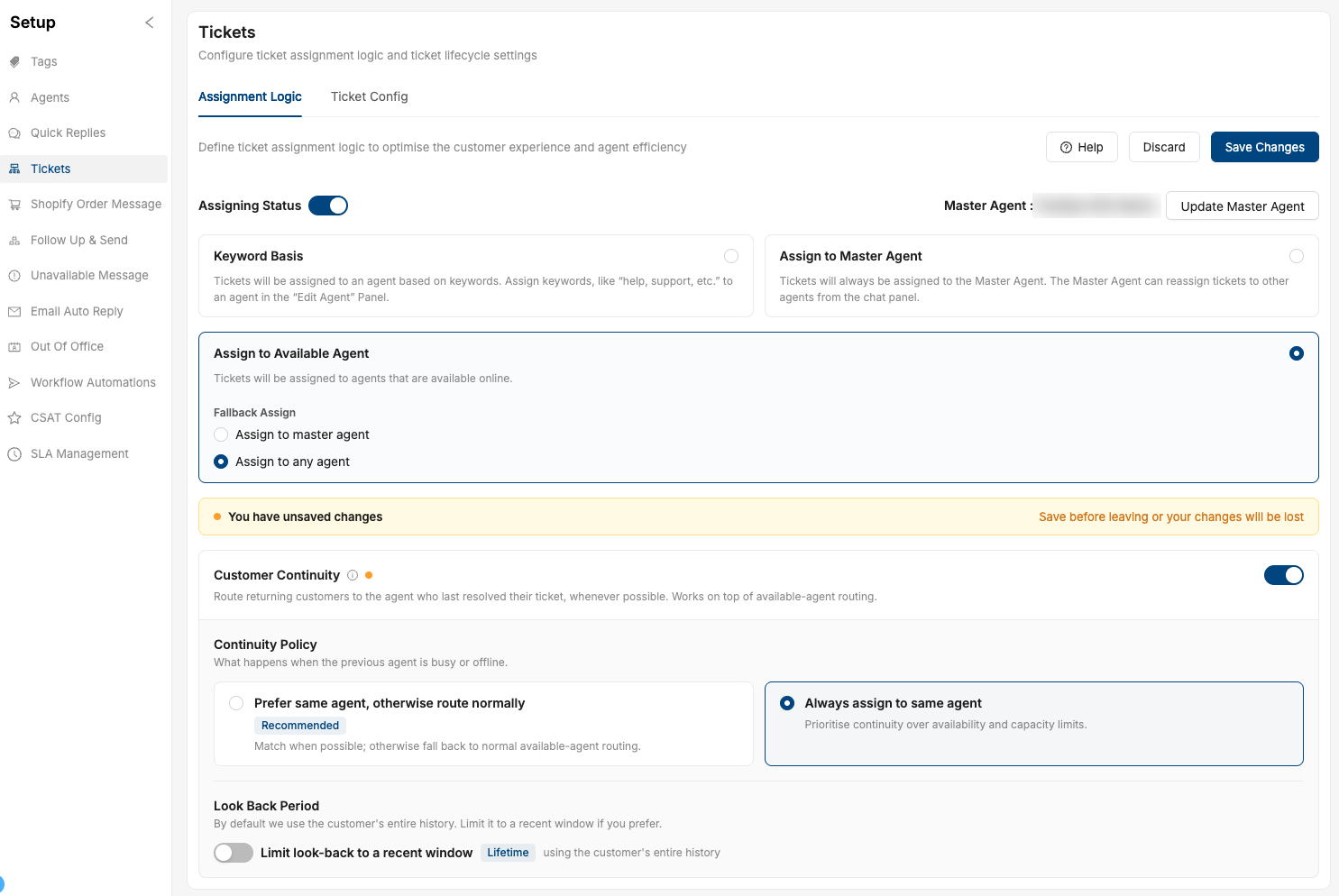 The "Always assign to same agent" policy selected
Look Back Period
The Look Back Period decides how far back to look for the customer's previous ticket.
- Last 90 days (default): with Limit look-back to a recent window turned off, Customer Continuity (Sticky Agent) checks the customer’s tickets from the last 90 days.
- Recent window: turn on Limit look-back to a recent window and set Only match if the previous ticket was within N days.
- The value is set to 30 days when you first turn this on.
- You can set any value from 1 to 90 days.
- If the customer's previous ticket is older than this window, the ticket is assigned as usual.
- If you enter a value outside 1–90 days, an error shows and Save Changes stays disabled until you correct it.
- Turn the limit off again to go back to the default of 90 days.
- Customer Continuity (Sticky Agent) never looks back more than 90 days, whether or not you set a limit.
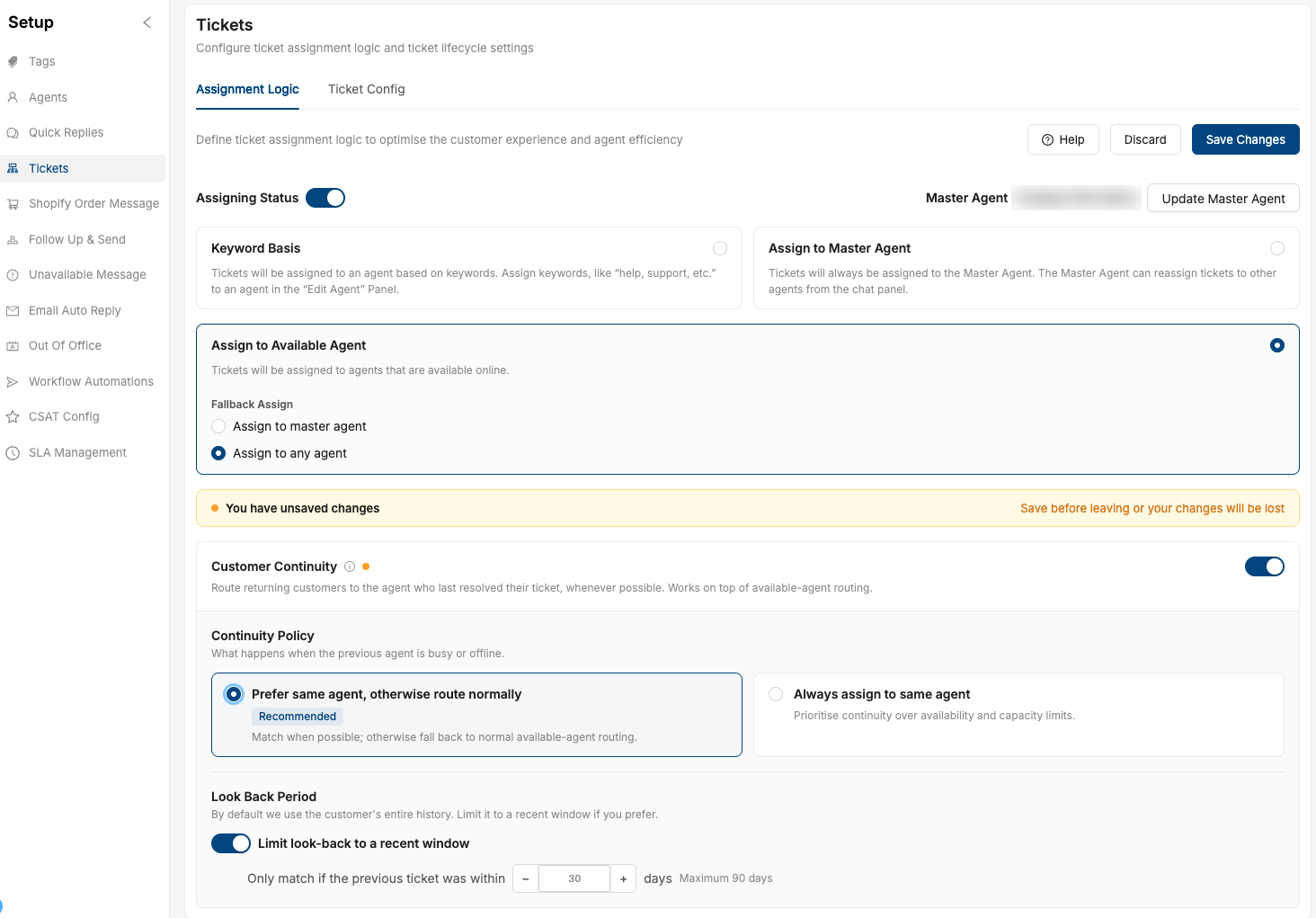 Look-back limited to the last 30 days
Saving your changes
- When you change any setting, a "You have unsaved changes" banner appears and an amber dot shows next to the Customer Continuity title.
- Click Save Changes to apply, or Discard to go back to your last saved settings.
- If you try to leave the page with unsaved changes, you'll be asked to confirm.
Example
Your team uses Assign to Available Agent with Customer Continuity (Sticky Agent) turned on and the recommended policy selected.
- A customer messages about a delayed order. Agent A resolves the ticket.
- A week later, the same customer writes in about an exchange.
- If Agent A is online and below their ticket limit, the new ticket goes to Agent A, who already has the context.
- If Agent A is offline or at their ticket limit, the ticket is assigned to another available agent as usual.
5. Good to know
- Only automatic assignment is affected. Manual assignment, bulk assignment and reassignment work exactly as before.
- Changes can take a few minutes. After you save, a change can take up to about 10 minutes to take effect.
- Works on all channels. A customer is matched to their previous agent on the same channel, using the same contact (for example, the same WhatsApp number or email address).
- Facebook and Instagram comments are not matched to a previous agent. They are assigned as usual.
- Conversations handled only by your bot don't count. The customer is matched to the last agent who handled their ticket, not to the bot.
- If the previous agent can't take tickets (for example, they have been removed, ticket assignment is turned off for them, or they are a supervisor), the ticket is assigned as usual.
- Only with Assign to Available Agent. If you switch to Keyword Basis or Assign to Master Agent, Customer Continuity (Sticky Agent) does not apply.
6. FAQs
Q. Is Customer Continuity (Sticky Agent) a new assignment mode?
No. It works on top of Assign to Available Agent and only changes who gets a returning customer's ticket.
Q. Which policy should I choose?
- Start with Prefer same agent, otherwise route normally. It keeps customers with their previous agent when possible, without delaying first response.
- Choose Always assign to same agent only if continuity matters more to you than response time.
Q. What happens to a new customer?
A customer with no previous ticket is assigned as usual under Assign to Available Agent.
Q. Will "Always assign to same agent" overload an agent?
It can. While the previous agent is online, they receive their returning customers even above their ticket limit. Keep an eye on agent workload when you use this policy.
Q. An agent is on leave. What happens to their returning customers?
- Prefer same agent, otherwise route normally: the tickets go to other available agents.
- Always assign to same agent: the tickets wait in the queue for that agent. A supervisor can reassign them manually.
Q. Can I still reassign a ticket manually?
Yes. Manual assignment and reassignment are not affected.
Q. Why is the Customer Continuity panel greyed out?
It only works with Assign to Available Agent. Select that mode to turn it on.
Q. I saved my changes, but tickets are still being assigned the old way. Why?
Changes can take up to about 10 minutes to take effect.
Q. I saved my changes, but tickets are still being assigned the old way. Why?
Changes can take up to about 10 minutes to take effect.
Q. Does it check tickets older than 90 days?
No. Customer Continuity (Sticky Agent) only looks at the customer’s tickets from the last 90 days, even when no look-back limit is set. If their last ticket is older, the new ticket is assigned as usual.
Was this article helpful?
That’s Great!
Thank you for your feedback
Sorry! We couldn't be helpful
Thank you for your feedback
Feedback sent
We appreciate your effort and will try to fix the article