Overview
Workflow Automations in Kwik Engage allow merchants to create automated rules that trigger actions based on specific events and conditions across their customer support channels. Instead of manually handling every incoming ticket or message, you can set up automations to automatically assign agents, add tags, resolve tickets, or trigger handoffs — saving your team time and ensuring a consistent customer experience.
Each automation follows a simple three-step logic:
- WHEN — the trigger event and channel
- IF — optional conditions that must match
- THEN — the actions to execute
How to Access Workflow Automations
To navigate to Workflow Automations, go to the left-hand navigation menu and click on Chats > Setup. In the Setup sidebar, scroll down and click Workflow Automations.
You will land on the Workflow Automations main page, which displays a list of all your existing automations along with their status (Active or Inactive).
Screen 1: The Automation List
This is the main landing page for Workflow Automations. Here you can see, manage, and organise all your automation rules.
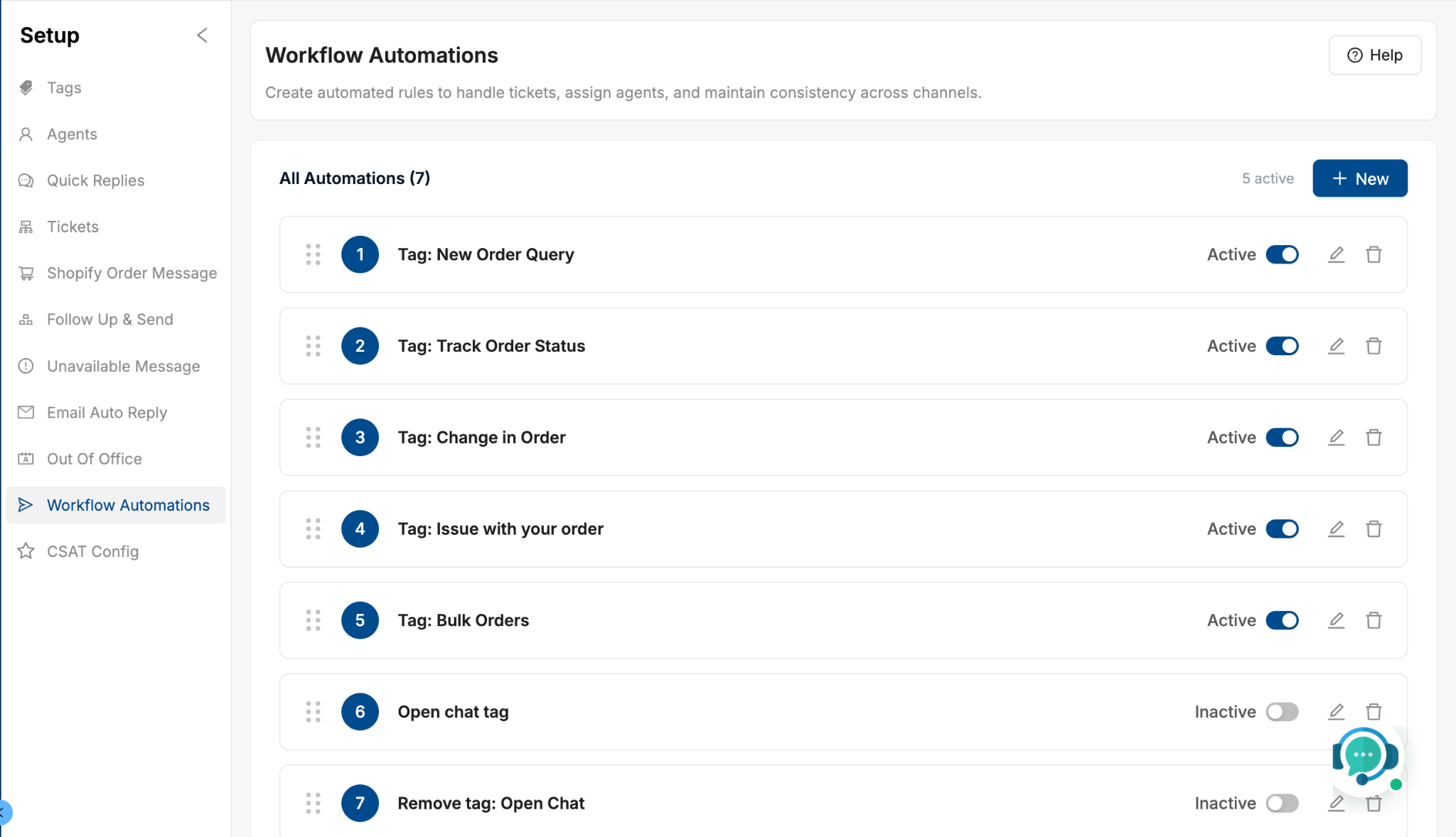
What You See on This Screen
- Page Title & Description: The heading reads "Workflow Automations" with a brief description: "Create automated rules to handle tickets, assign agents, and maintain consistency across channels."
- All Automations Counter: Displays the total number of automations (e.g., "All Automations (17)") and how many are currently active (e.g., "0 active").
- New Button: Located in the top-right of the list panel. Click this to create a brand new automation.
- Automation List Items: Each automation appears as a row with a numbered label, the automation name, an Active/Inactive status toggle, an Edit button (pencil icon), and a Delete button (trash icon). Automations can be reordered by dragging the drag handle (six-dot icon) on the left of each row.
- Help Link: A "Help" button in the top-right corner of the page links to the official documentation.
Managing Automations from the List
- Activating / Deactivating an Automation: Each automation row has a toggle switch. When the toggle is off (grey), the automation is Inactive and will not run. When toggled on (blue/active), the automation becomes live and will automatically trigger when its conditions are met. You can activate or deactivate any automation at any time without deleting it.
- Editing an Automation: Click the pencil (edit) icon on any automation row to open the Edit Automation screen. This allows you to modify the automation name, trigger event, channel, conditions, and actions.
- Deleting an Automation: Click the trash (delete) icon on any automation row to permanently delete that automation. This action cannot be undone, so use it carefully.
- Reordering Automations: Automations are executed in the order they appear in the list. To change the priority order, hover over an automation row to reveal the six-dot drag handle on the left side, then drag and drop the row to its new position. The number labels update automatically to reflect the new order.
Screen 2: The Automation Editor (Create / Edit)
When you click + New or the edit (pencil) icon, you are taken to the Automation Editor. This screen is where you define the full logic for an automation rule. The editor is divided into three numbered sections: WHEN, IF, and THEN.

Automation Name (Required)
At the top of the editor, there is a required text field labelled Automation Name. Enter a clear, descriptive name so you and your team can easily identify what this automation does (e.g., "Auto-Assign Refund Queries", "WhatsApp Ticket Auto-Resolve", "Email Shipment Tag"). The placeholder text shows an example: "e.g., Auto-assign urgent tickets".
Step 1 – WHEN: Define the Trigger
This section defines what event starts the automation and which channel it applies to. Both fields are required.
Trigger Event (Required)
Select the event that will trigger the automation from the dropdown. There are two options:
- Ticket Created — The automation fires when a new support ticket is created in the system. Use this for automations that should happen at the very start of a conversation or ticket.
- Message Received — The automation fires when a new inbound message is received from a customer. Use this for automations that should respond to ongoing messages in a conversation.
Channel (Required)
Select which communication channel this automation should apply to. The available channels are:
- WhatsApp — Applies to tickets or messages received via WhatsApp.
- Instagram DM — Applies to tickets or messages received via Instagram Direct Messages.
- Email — Applies to tickets or messages received via Email.
- Facebook DM — Applies to tickets or messages received via Facebook Direct Messages.
Each automation is scoped to a single channel, so if you need to handle the same logic for multiple channels, create separate automations for each.
Step 2 – IF: Define Matching Conditions
The IF section allows you to add conditions that must be satisfied before the automation's actions are triggered. Conditions help you narrow down exactly which tickets or messages the automation should act on. Conditions are optional — if you do not add any, the automation will fire for all events matching the trigger and channel.
Condition Logic: Matches AND / Matches OR
When multiple conditions are added, you must choose how they are evaluated:
- Matches AND — All conditions must be true simultaneously for the automation to trigger. For example: Message Body contains "refund" AND Email Subject contains "urgent".
- Matches OR — At least one condition must be true for the automation to trigger. For example: Message Body contains "refund" OR Message Body contains "return".
Condition Fields
Each condition row consists of three parts: the attribute to check, the operator, and the value to match against. The available condition attributes depend on the channel selected:
- Message Body — Checks the content/body of the incoming message or ticket.
- Email Subject — Checks the subject line of an email (applicable for Email channel).
- Sender Email — Checks the email address of the sender (applicable for Email channel).
The operator for all condition attributes is currently Contains, meaning the selected attribute must include the specified value as a substring. The value is a free-text field where you type the keyword or phrase to match (e.g., "refund", "track order", "delivery").
Adding and Removing Conditions
To add a new condition, click the + Add Condition button below the existing conditions. A new blank condition row will appear. To remove a condition, click the trash (delete) icon at the end of that condition row.
Step 3 – THEN: Define Actions to Execute
The THEN section defines what should happen automatically when the trigger event fires and all conditions are met. You can add one or more actions to each automation.
Available Action Types
Each action has an Action Type dropdown. The following action types are available:
- Assign to Agent — Automatically assigns the ticket or conversation to a specific agent on your team. Useful for routing specific types of inquiries (e.g., refund queries) directly to the right team member.
- Add Tags — Automatically adds one or more tags to the ticket or conversation. Tags help categorise and filter conversations for reporting and triage.
- Remove Tags — Automatically removes one or more specified tags from the ticket or conversation.
- Reset Tags — Removes all existing tags from the ticket or conversation and starts fresh. Useful when you want to ensure a clean tagging state after a trigger event.
- Auto Resolve Ticket — Automatically marks the ticket as resolved without any manual agent intervention. Ideal for tickets that match patterns you know do not require human follow-up.
- Trigger Handoff — Initiates a handoff workflow, transferring the conversation from an automated flow to a live agent or another workflow. Useful when you want to escalate specific types of messages to human support.
Adding Multiple Actions
You can chain multiple actions together in a single automation. Click the + Add Another Action button to add a new action. Actions execute in the order they are listed — for example, you could first Add Tags to a ticket and then Assign it to a specific Agent in the same automation. To remove a specific action, click the trash icon in the top-right corner of that action card.
Saving and Cancelling
At the bottom of the Automation Editor are two buttons:
- Save Changes — Saves the automation. New automations are saved in an Inactive state by default — you must toggle them on from the list view to activate them.
- Cancel — Discards any unsaved changes and returns to the automation list. If you have unsaved changes, a "Discard Changes?" confirmation dialog will appear.
Step-by-Step: How to Create a New Automation
- Navigate to Chats > Setup > Workflow Automations in the left navigation menu.
- Click the + New button in the top-right area of the automations list.
- Type a descriptive name in the Automation Name field.
- Under WHEN, select a Trigger Event from the dropdown (either "Ticket Created" or "Message Received").
- Select a Channel from the dropdown (WhatsApp, Instagram DM, Email, or Facebook DM).
- Under IF, optionally add one or more conditions. Select Matches AND or Matches OR depending on your logic. Click + Add Condition to add additional conditions.
- Under THEN, select an Action Type and configure any additional fields that appear.
- Optionally click + Add Another Action to chain multiple actions.
- Click Save Changes to save the automation. It will appear in the list in Inactive state.
- To activate the automation, toggle the switch on its row from Inactive to Active.
Example Automations
Below are real-world examples of automations you can create in Kwik Engage to streamline your customer support operations.
Example 1: Auto-Resolve WhatsApp Refund Queries
Use Case: You receive high volumes of WhatsApp messages asking to track orders. You want to automatically resolve these tickets since they are handled by your bot.
- Automation Name: Whatsapp Refund queries
- WHEN: Trigger Event = Ticket Created | Channel = WhatsApp
- IF (Matches AND): Message Body Contains "track order"
- THEN: Action Type = Auto Resolve Ticket
Result: Any new WhatsApp ticket containing the phrase "track order" is automatically resolved, keeping your inbox clean.
Example 2: Auto-Acknowledge Email Tickets
Use Case: When an email ticket is created and the message body contains a specific keyword, automatically resolve the ticket to confirm acknowledgement.
- Automation Name: emaill_ACK
- WHEN: Trigger Event = Ticket Created | Channel = Email
- IF (Matches AND): Message Body Contains "test1" AND Email Subject Contains "e"
- THEN: Action Type = Auto Resolve Ticket
Result: Email tickets that match both conditions are automatically resolved.
Example 3: Tag and Assign Instagram Shipment Queries
Use Case: You want all Instagram DM tickets about shipments to be tagged as "Shipment" and assigned to your logistics support agent automatically.
- Automation Name: Instagram Shipment related
- WHEN: Trigger Event = Ticket Created | Channel = Instagram DM
- IF (Matches OR): Message Body Contains "shipment" OR "delivery" OR "tracking"
- THEN (Action 1): Action Type = Add Tags — select "Shipment" tag
- THEN (Action 2): Action Type = Assign to Agent — select logistics agent
Result: Instagram shipment-related tickets are automatically tagged and routed to the right agent.
Tips and Best Practices
- Name automations clearly: Use names that describe what the automation does and which channel it applies to (e.g., "WA - Auto Resolve Order Queries"). This makes it much easier to manage a large list.
- Start with automations inactive: Build and save your automation first, then test it by activating it temporarily. Once confirmed it works correctly, keep it active.
- Order matters: Automations are evaluated in list order. Use the drag-to-reorder feature to set priority if two automations could match the same ticket.
- Use specific conditions: The more specific your conditions, the fewer false positives. For example, match "track order" instead of just "order" for more targeted handling.
- Create per-channel automations: Since each automation is scoped to a single channel, create separate automations if you need the same logic for WhatsApp and Email.
- Chain actions thoughtfully: When chaining multiple actions (e.g., Add Tags then Assign to Agent), ensure actions are ordered logically.
- Use "Auto Resolve" carefully: Only use Auto Resolve when you are confident the ticket does not need human intervention. Incorrectly auto-resolving tickets can frustrate customers.
Frequently Asked Questions
Q: Can I create an automation without any conditions in the IF section?
A: Yes. Conditions are optional. If you leave the IF section empty, the automation will apply to all events matching the selected trigger and channel without any filtering.
Q: What happens if multiple automations match the same ticket?
A: Automations are evaluated in the order they appear in your list. When a ticket matches multiple automations, each matching automation will execute in sequence from top to bottom. Use the drag-to-reorder feature to control execution priority.
Q: Can I apply an automation to all channels at once?
A: No. Each automation is scoped to a single channel (WhatsApp, Instagram DM, Email, or Facebook DM). To apply the same logic across multiple channels, create a separate automation for each channel.
Q: Will new automations be active immediately after saving?
A: No. After saving, new automations are Inactive by default. You must manually toggle the switch on the automation row to Active for it to start executing.
Q: Can I undo a deleted automation?
A: No. Deleting an automation is permanent and cannot be undone. If you want to temporarily disable an automation, use the toggle switch to set it to Inactive rather than deleting it.
Was this article helpful?
That’s Great!
Thank you for your feedback
Sorry! We couldn't be helpful
Thank you for your feedback
Feedback sent
We appreciate your effort and will try to fix the article