Pre-condition - KwikEngage has to be integrated with your Klaviyo App (Install from here)
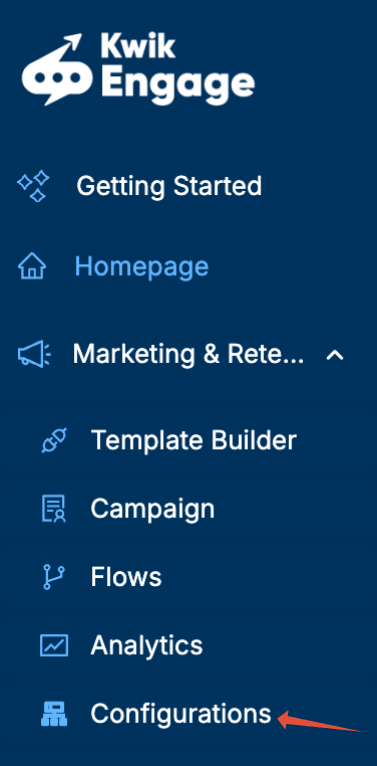
1. Open Configurations -> Consent Management on your GoKwik Dashboard
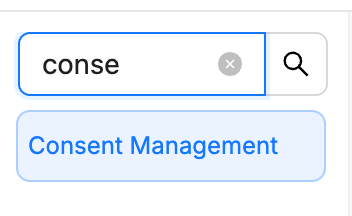
2. Enable Klaviyo custom field and add the name of the consent field. We suggest whatsapp_marketing_consent

3. Create a list on Klaviyo called Whatsapp Subscribers. It can be empty.
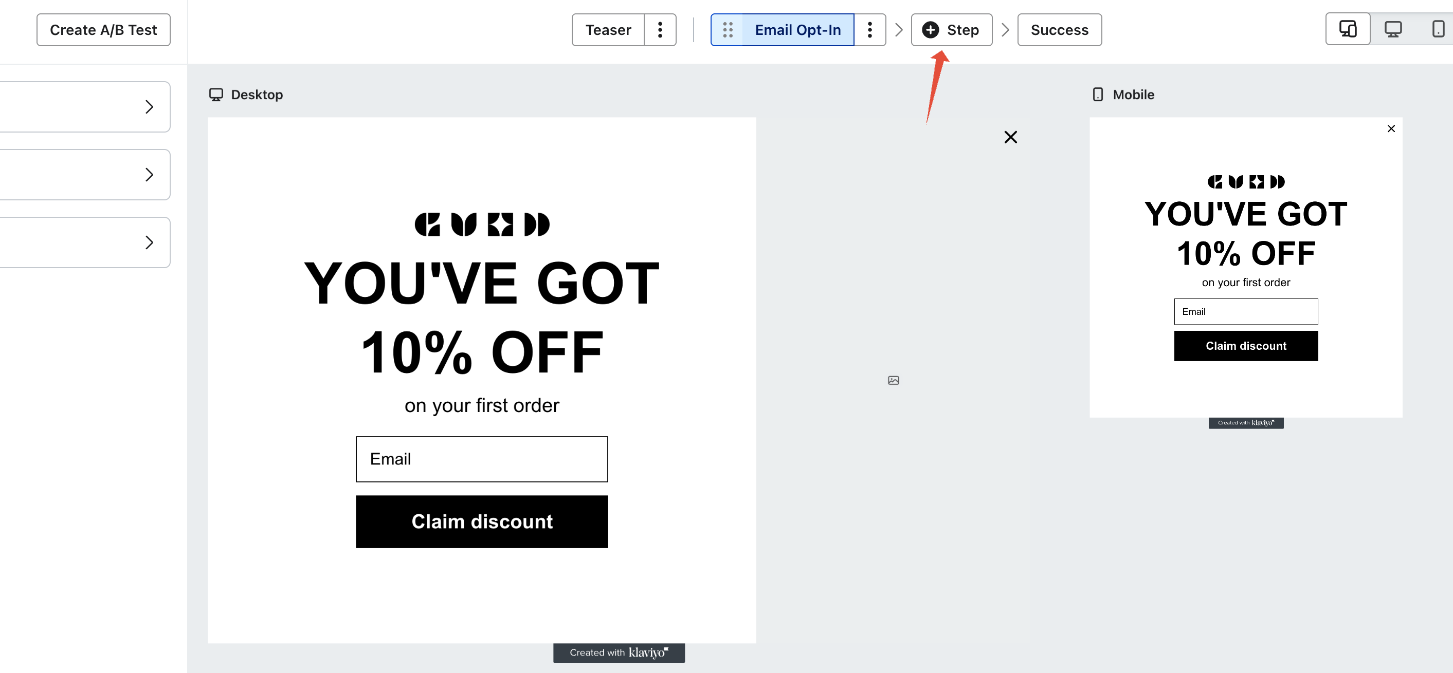
4. On Klaviyo, open your main active pop-up and follow these steps.
1. Add a step after email opt in

2. Mobile opt-in and choose Whatsapp as the channel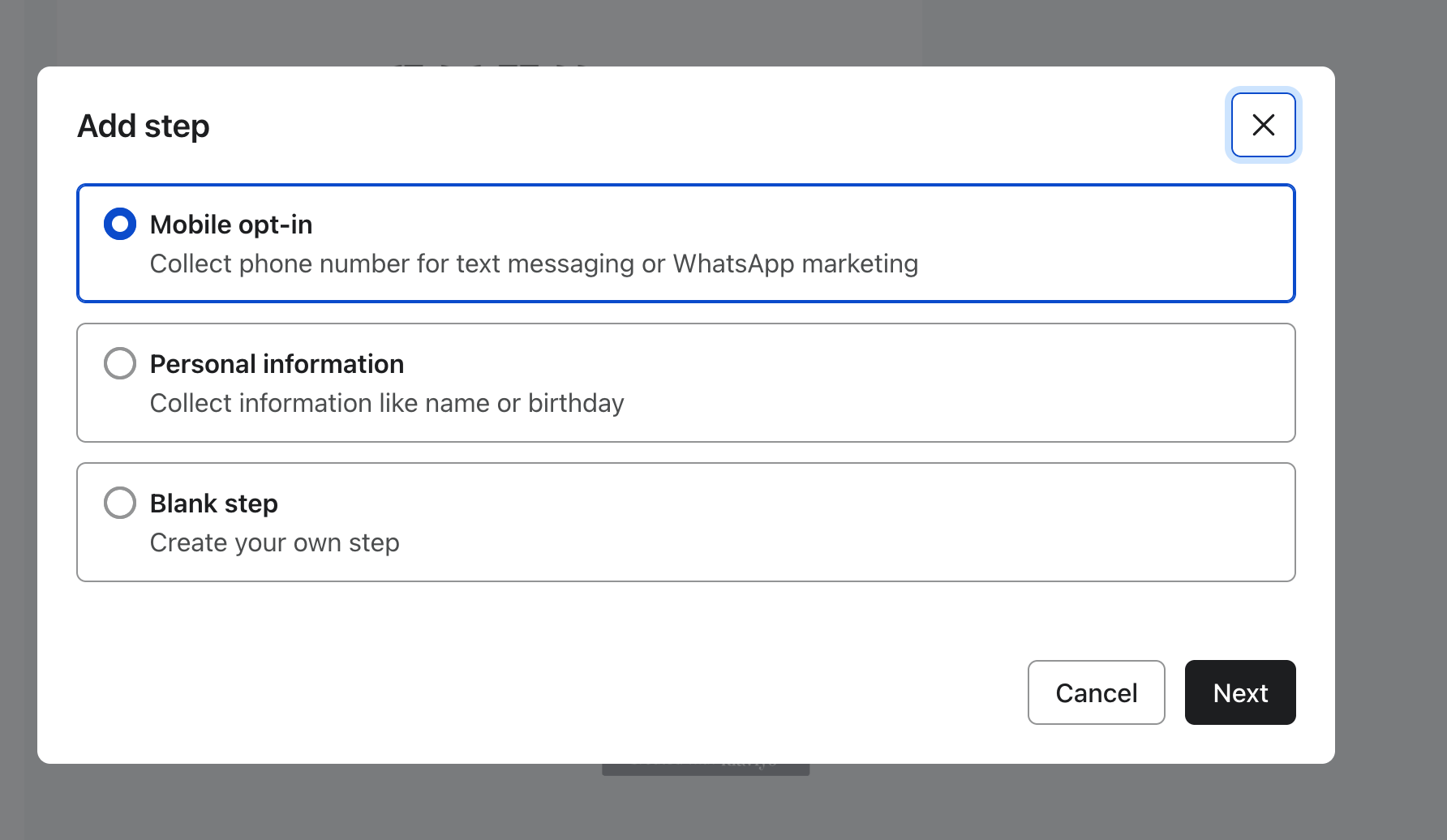
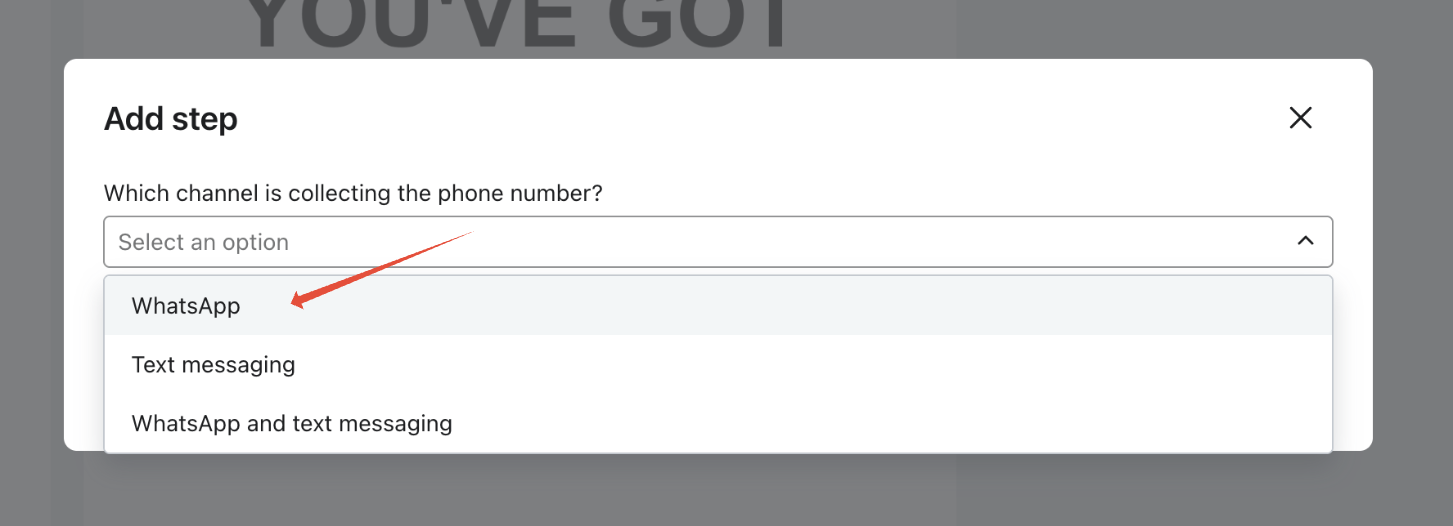
3. Choose a list to add Whatsapp Subscribers to and name it Whatsapp Subscribers or Whatsapp List. This list has to be created before your pop-up edits start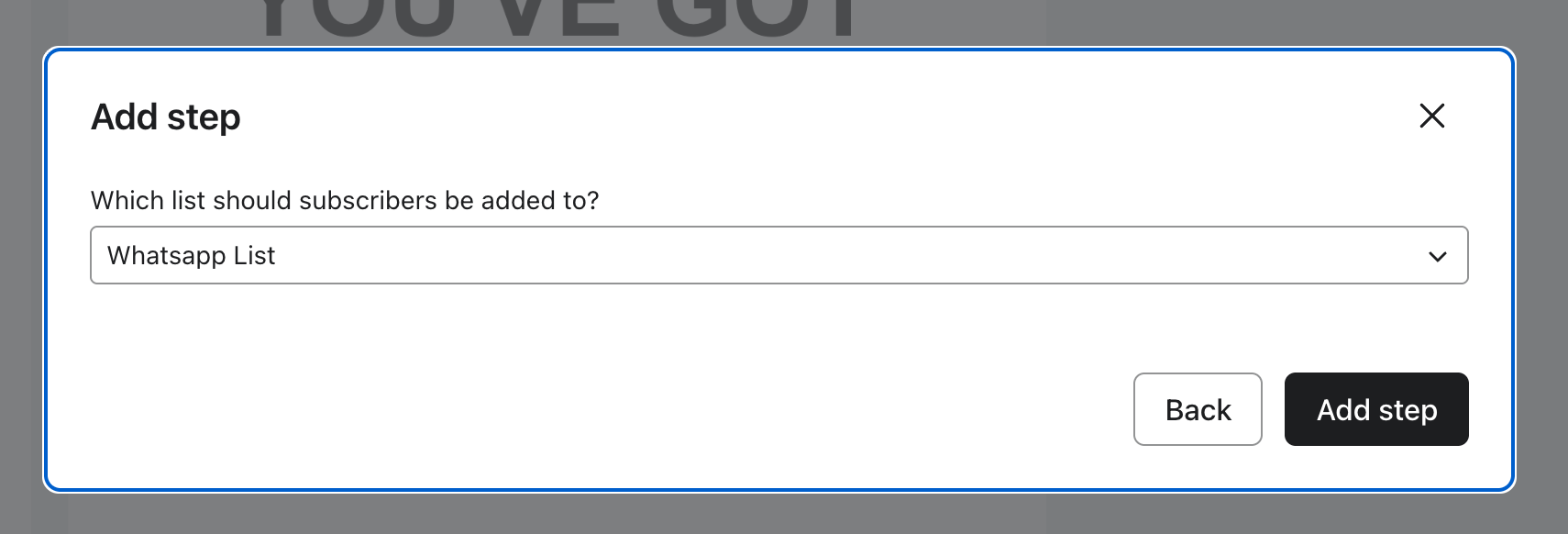
4. Change the phone number channel for whatsapp back to phone number only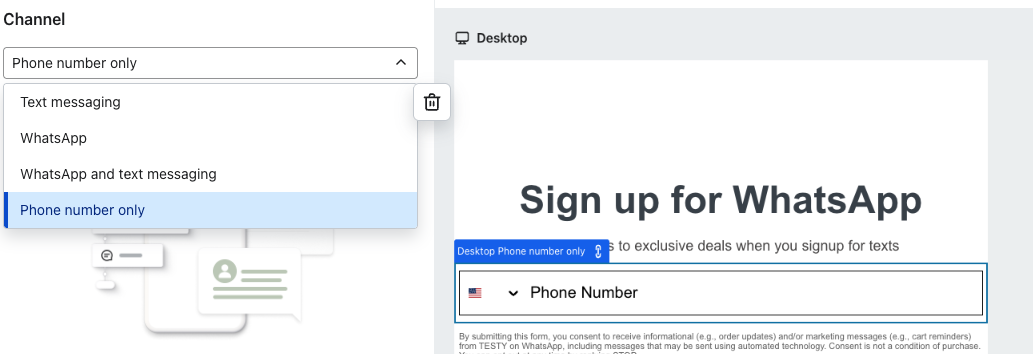
5. Change the sub headings and disclaimer text to reflect the Whatsapp specificity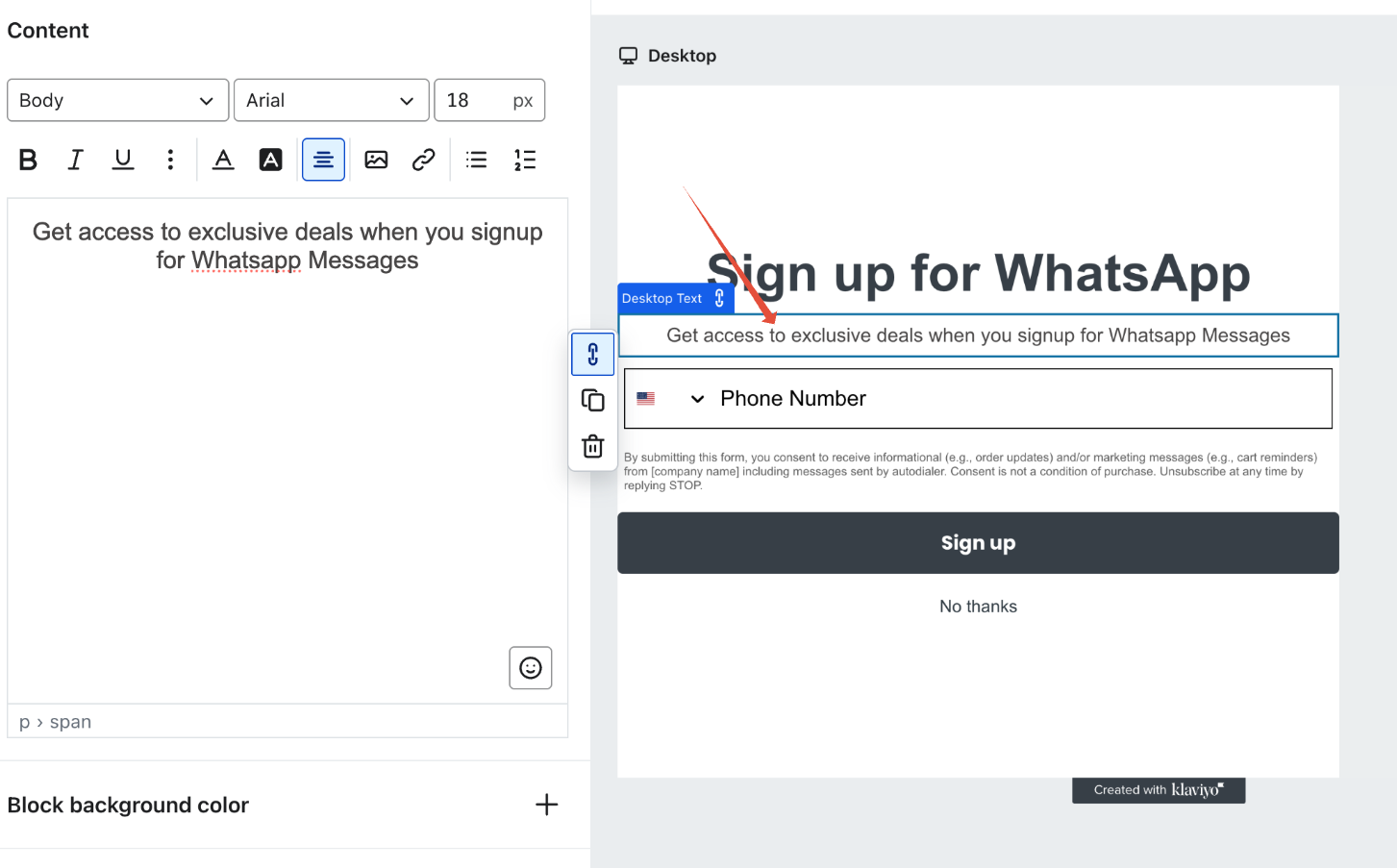
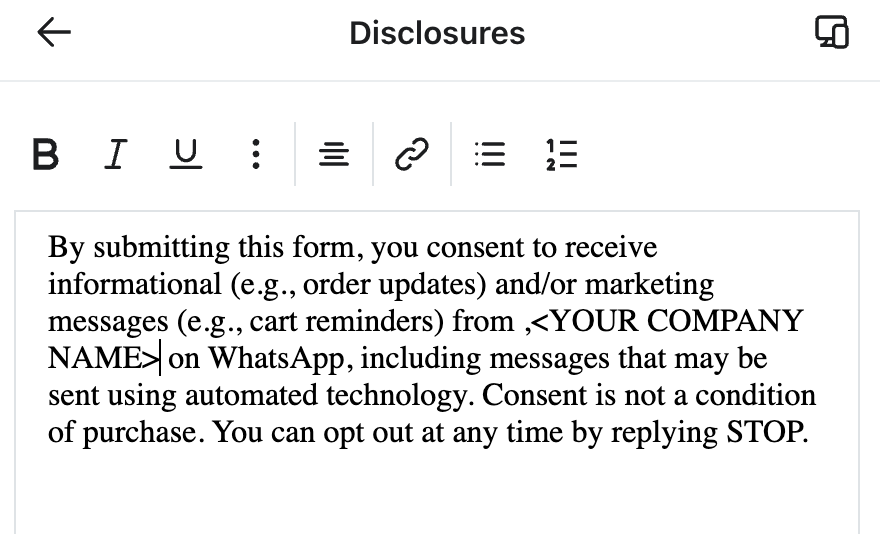
We have added a sample disclosure but update it under advisement. Remember to update your company name correctly
By submitting this form, you consent to receive informational (e.g., order updates) and/or marketing messages (e.g., cart reminders) from <your company name> on WhatsApp, including messages that may be sent using automated technology. Consent is not a condition of purchase. You can opt out at any time by replying STOP.
5. Configure the hidden fields of the CTA as below
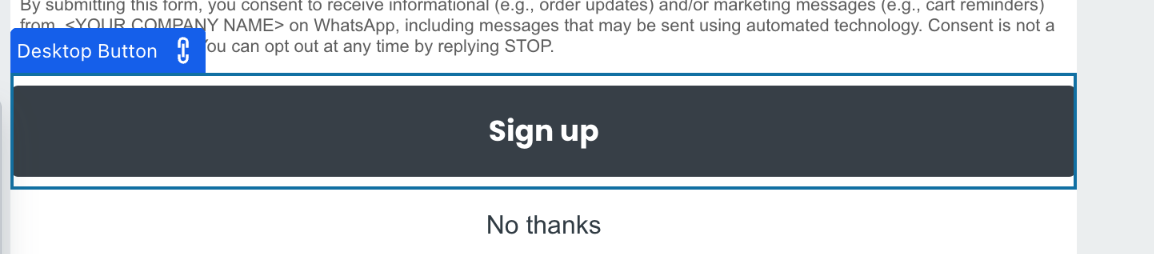
1. Add whatsapp_marketing_consent as a custom field(this should match the name on KwikEngage)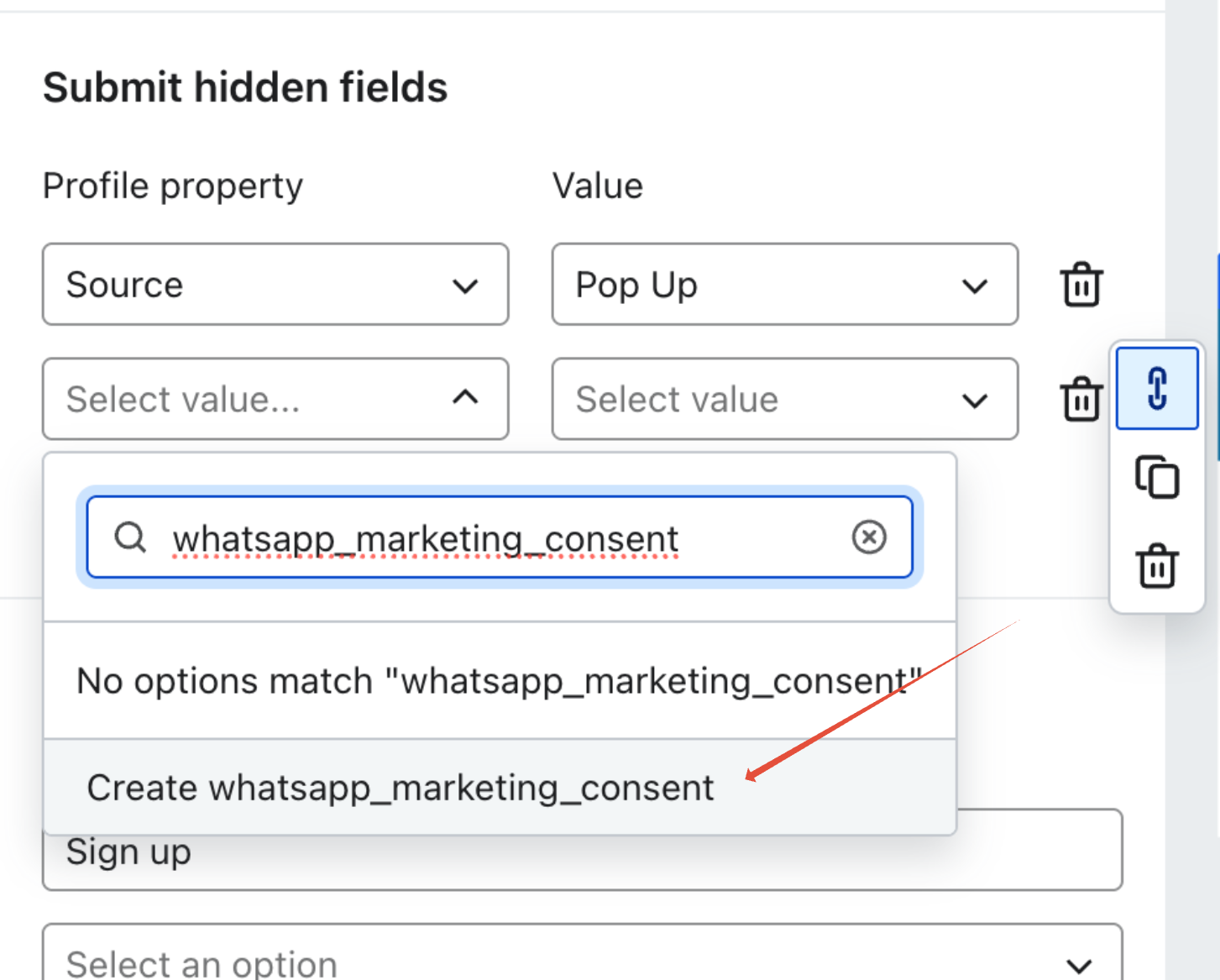
2. Add subscribed as a value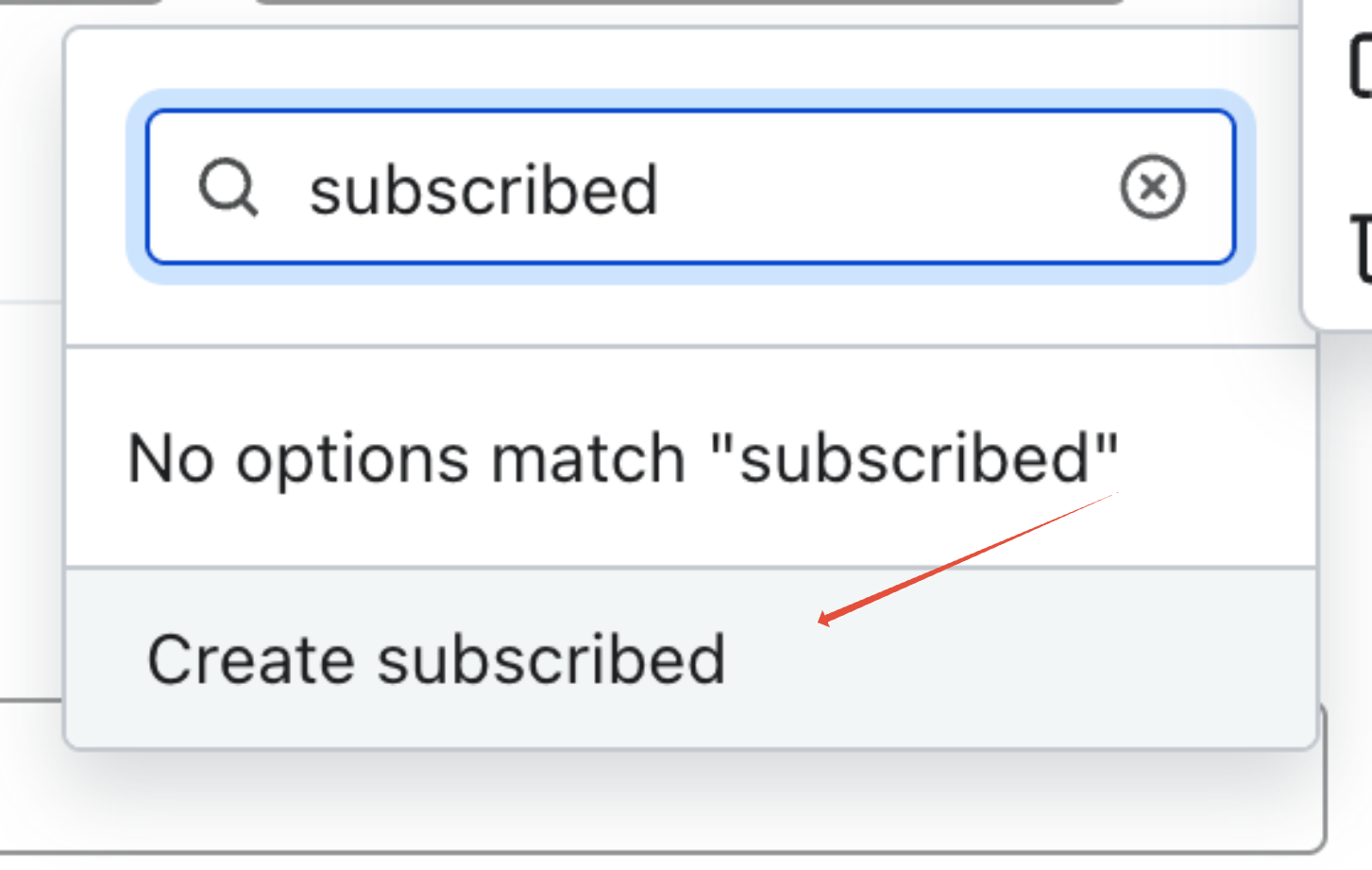
6. Publish the changes to your form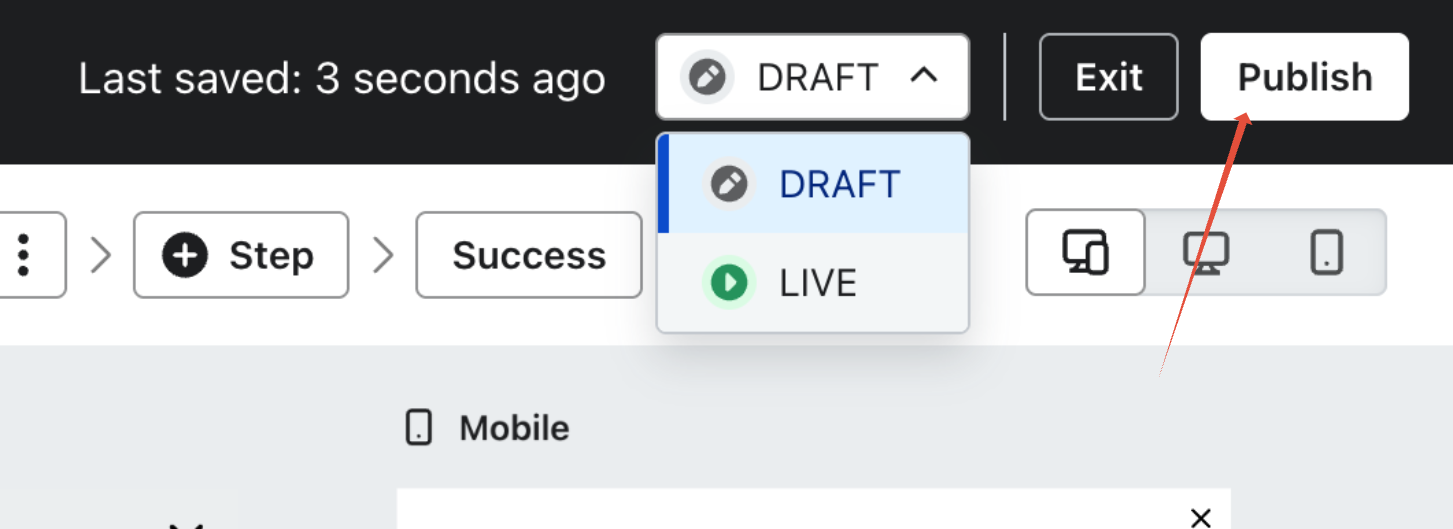
Was this article helpful?
That’s Great!
Thank you for your feedback
Sorry! We couldn't be helpful
Thank you for your feedback
Feedback sent
We appreciate your effort and will try to fix the article