SLA (Service Level Agreement) Management lets you define response and resolution time targets for your support team, track breaches in real time, and monitor SLA performance across channels — directly inside Kwik Engage.
This article covers what SLA Management does, how to set it up, and how to read SLA indicators in your Inbox and Analytics.
What is SLA Management?
SLA Management lets you set time-bound targets for two things:
First Response Time (FRT) — how quickly an agent should send the first reply after a ticket is assigned to them.
Resolution Time (RT) — how quickly a ticket should be resolved after it’s assigned, excluding time spent waiting on the customer.
Once configured, Kwik Engage automatically tracks every ticket against these targets, flags warnings before a breach happens, marks tickets as breached when a target is missed, and surfaces this data in your Inbox and Analytics so you always know where your team’s response performance stands.
SLA policies can be configured independently for each channel — WhatsApp, Email, Instagram (DM and Comments), and Facebook (DM and Comments) — since response expectations typically differ by channel.
Note: SLA Management is visible to all merchants but is not enabled by default. You need to set up at least one policy to start using it.
How FRT and RT are calculated
This is the most important thing to understand before setting thresholds, since it affects how your numbers will look in practice.
FRT is calculated from the time a ticket is assigned to an agent — not from when the ticket is created. If a ticket sits in an unassigned queue for an hour before being picked up, that hour does not count against FRT.
RT is calculated from the time a ticket is assigned to an agent until it’s resolved, with time spent waiting on the customer subtracted. If an agent replies and then the conversation is sitting with the customer awaiting their response, that waiting period does not count against your RT clock.
Both timers currently run on a 24/7 (calendar hours) basis — they do not yet account for business hours, weekends, or holidays. A ticket assigned at 11 PM on a Friday is evaluated against the same threshold as one assigned at noon on a Monday.
Setting up an SLA policy
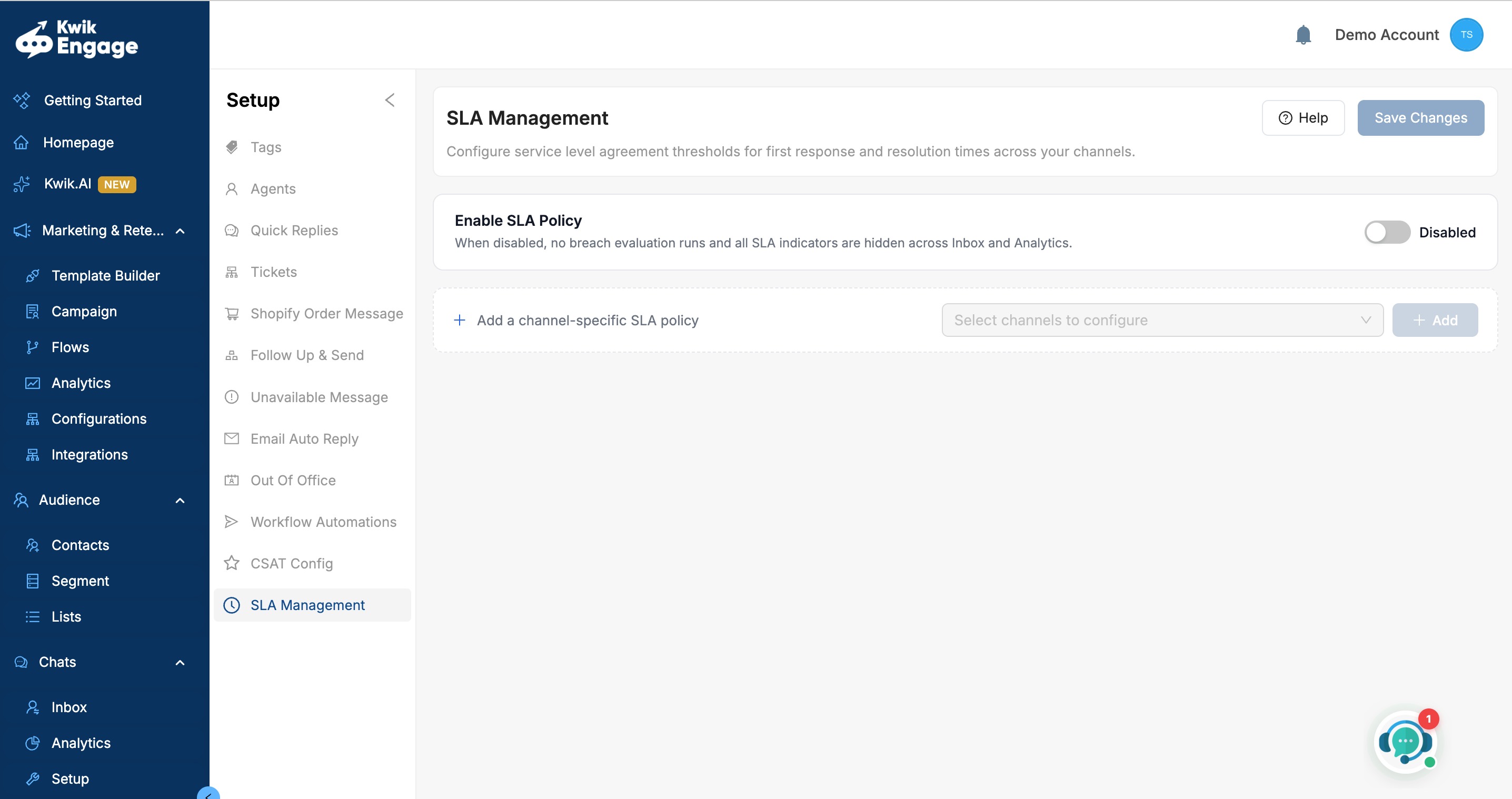
Go to Setup → SLA Management > Enable SLA Policy
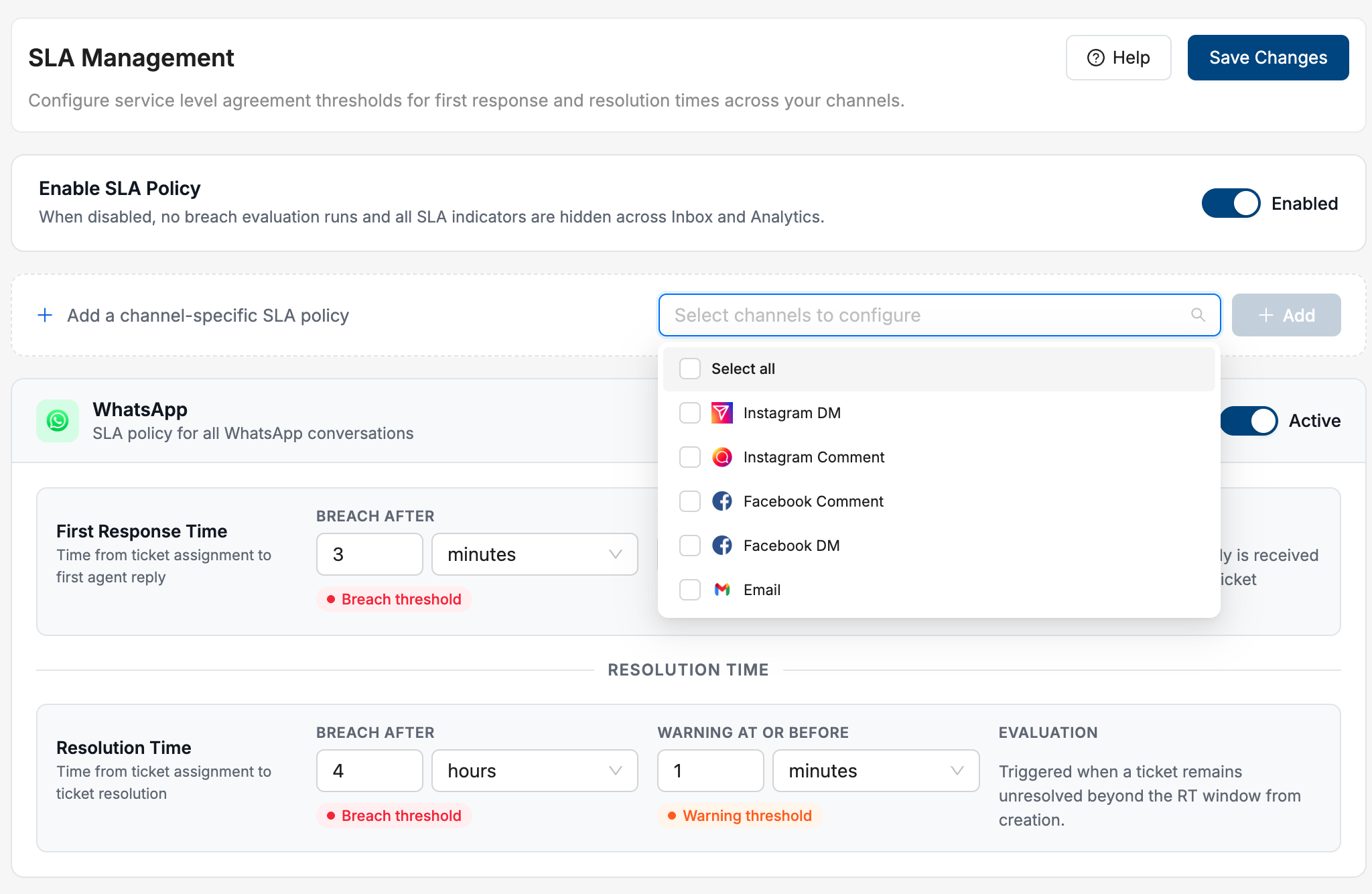
Use the channel selector to add the channel(s) you want to configure a policy for. You can select one, several, or all six channels at once (WhatsApp, Email, Instagram DM, Instagram Comments, Facebook DM, Facebook Comments) and add them together.
Each channel you add appears as its own card with two timers:
First Response Time (FRT) — set a breach threshold (in minutes, hours, or days) and a warning time before breach.
Resolution Time (RT) — set a breach threshold and a warning time before breach, the same way.
For each timer, you’ll set two values:
Breach threshold — the point at which the ticket is marked as SLA-breached. For example, an FRT breach threshold of 30 minutes means any ticket unanswered 30 minutes after assignment is breached.
Warning time — how long before the breach a warning should appear. For example, a warning time of 10 minutes means the warning indicator appears 10 minutes before the 30-minute breach threshold is hit (i.e., at the 20-minute mark).
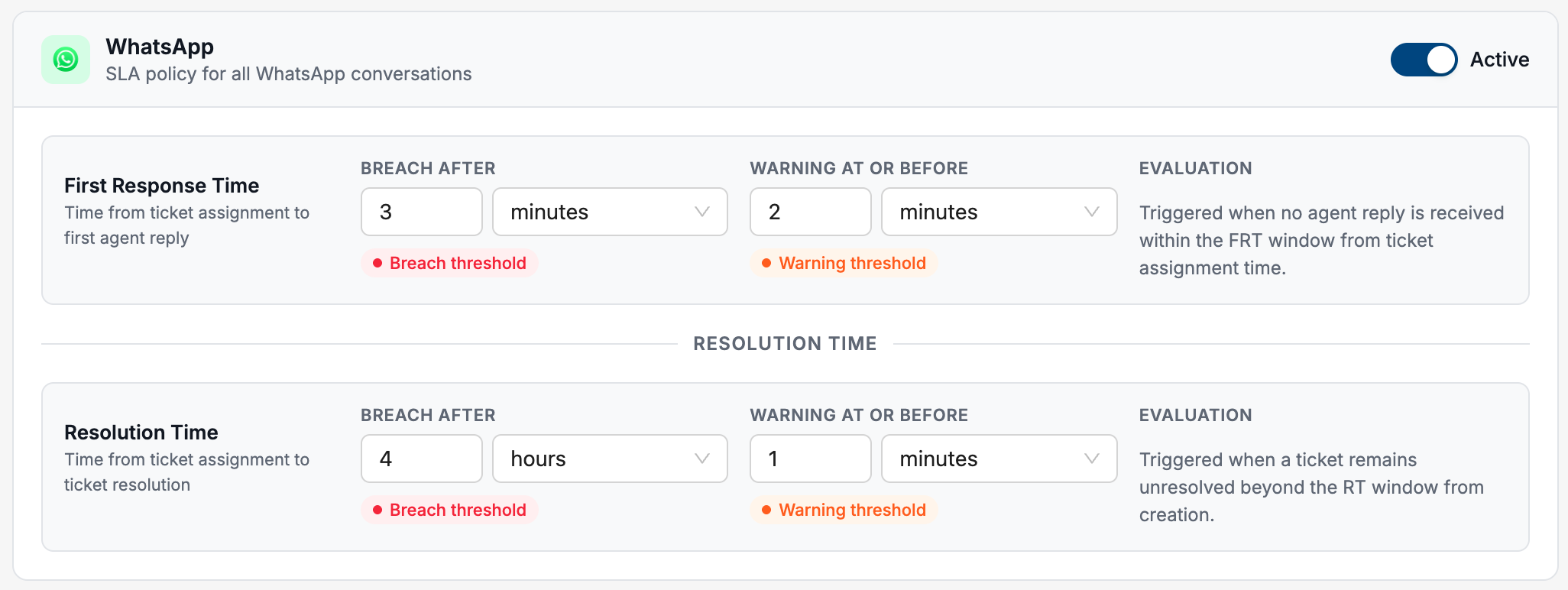
Use the Active toggle on each channel card to enable or disable that channel’s policy independently — useful if you want to pause SLA tracking for one channel without affecting others.
Click Save once you’re done configuring a channel.
A few validation rules to keep in mind:
The warning time must always be smaller than the breach threshold. Kwik Engage will block saving and show an error if your warning time is equal to or greater than the breach threshold (this is checked correctly across units too — e.g., a 1-hour warning against a 120-minute breach threshold will be flagged).
Minimum values are enforced — you can’t set a breach threshold of zero or a negative number; these are automatically corrected to a minimum of 1 minute.
Decimal values (e.g., 1.5 hours) are accepted and rounded during conversion.
Turning SLA Management on or off globally
There’s a global enable/disable toggle for SLA Management at the top of the Setup page.
When disabled, no breach evaluation runs anywhere — this includes the Inbox filter, breach icons, and Analytics SLA metrics. Everything is hidden until you turn it back on.
When you toggle it back on, all configured channel policies resume evaluating tickets in real time.
While a save is in progress, the toggle shows a loading state and is temporarily locked; if the save fails, the toggle automatically reverts to its previous state and shows an error message.
Identifying SLA breaches and warnings in the Inbox
Once a policy is active, Kwik Engage automatically evaluates every assigned ticket against it and surfaces the status visually in your Inbox.
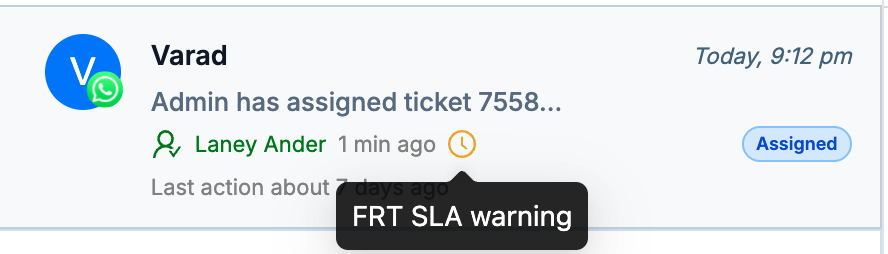
Breach and warning icons appear directly on chat cards in the Inbox’s left panel — you don’t need to apply any filter to see them. This is true for both agents and admins.
Red indicates a breach (the threshold has been crossed).
Yellow indicates a warning (approaching breach, but not yet crossed).
A separate icon style is used for FRT versus RT, so you can tell at a glance which timer triggered the indicator.
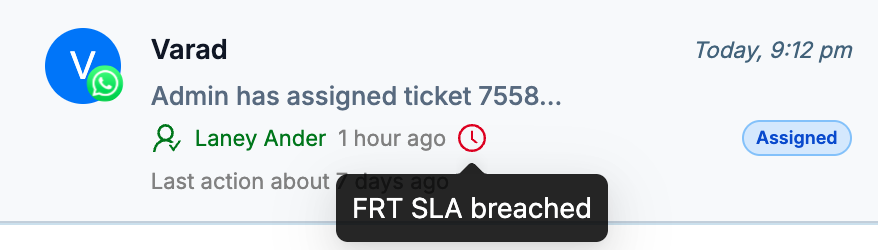
Filtering: Use the SLA Breached filter in the Inbox filter panel (Yes / No) to see only tickets that have breached. Note that this filter currently only supports breached vs. not breached — there isn’t a separate filter for warnings yet, since warnings are designed to be a subtle, in-workflow nudge rather than a primary filtering category.
Once a ticket is marked as breached, it stays marked as breached even if the agent later responds or the ticket is resolved. This is intentional — it preserves an accurate historical record for reporting.
Agents vs. Admins default views: By default, agents see only open tickets in their Inbox, so breach indicators naturally stay relevant to their active workload. Admins, by default, see all tickets (including resolved/closed ones) — this lets admins audit historical SLA performance, including on tickets that have already been closed.
SLA performance in Analytics
SLA breach data is available in two places inside Analytics > Tickets tab, shows two metrics for the selected date range and filters:
- Escalations (SLA Breaches) — total count of tickets that breached SLA
Escalations Rate (SLA Breach Rate) — breaches as a percentage
Note that the denominator is tickets assigned to an agent, not all tickets created — since a ticket isn’t eligible for an SLA breach until it’s been assigned.
Inside Analytics > Tickets tab
Shows the same SLA Breaches and SLA Breach Rate metrics, broken down per agent, so you can see which agents have the most breaches and what their individual breach rate looks like. Use the Agent filter within the Agents tab to view this. Both views respect whatever date range and filters you already have applied elsewhere in Analytics.
What’s excluded from SLA evaluation
A few scenarios are deliberately excluded so your SLA numbers stay fair and accurate:
Tickets that are auto-resolved by workflow automation are excluded from SLA evaluation.
Tickets that are resolved without the agent ever sending a message are excluded.
Time spent in a “waiting on customer” state is subtracted from the Resolution Time clock (it does not subtract from FRT).
Coming soon: SLA Phase 2
We’re actively working on a set of enhancements that will make SLA tracking more flexible and actionable. These are not live yet, but here’s a preview of what’s planned:
Business Hours-aware SLA — define working hours and holidays per account, so SLA timers pause outside business hours instead of running 24/7. You’ll be able to choose calendar hours or business hours independently per channel.
Every Response Time (ERT) — track agent responsiveness on every customer follow-up message in a conversation, not just the first reply.
Pre-breach reminders and breach notifications — in-app notifications for agents before a breach happens, and for admins/managers when one occurs, with direct links to the relevant conversation.
We’ll publish a separate article with full details once Phase 2 is ready to roll out.
Was this article helpful?
That’s Great!
Thank you for your feedback
Sorry! We couldn't be helpful
Thank you for your feedback
Feedback sent
We appreciate your effort and will try to fix the article