Here’s a clear step-by-step explanation for connecting Shopify store with the KwikEngage panel ?
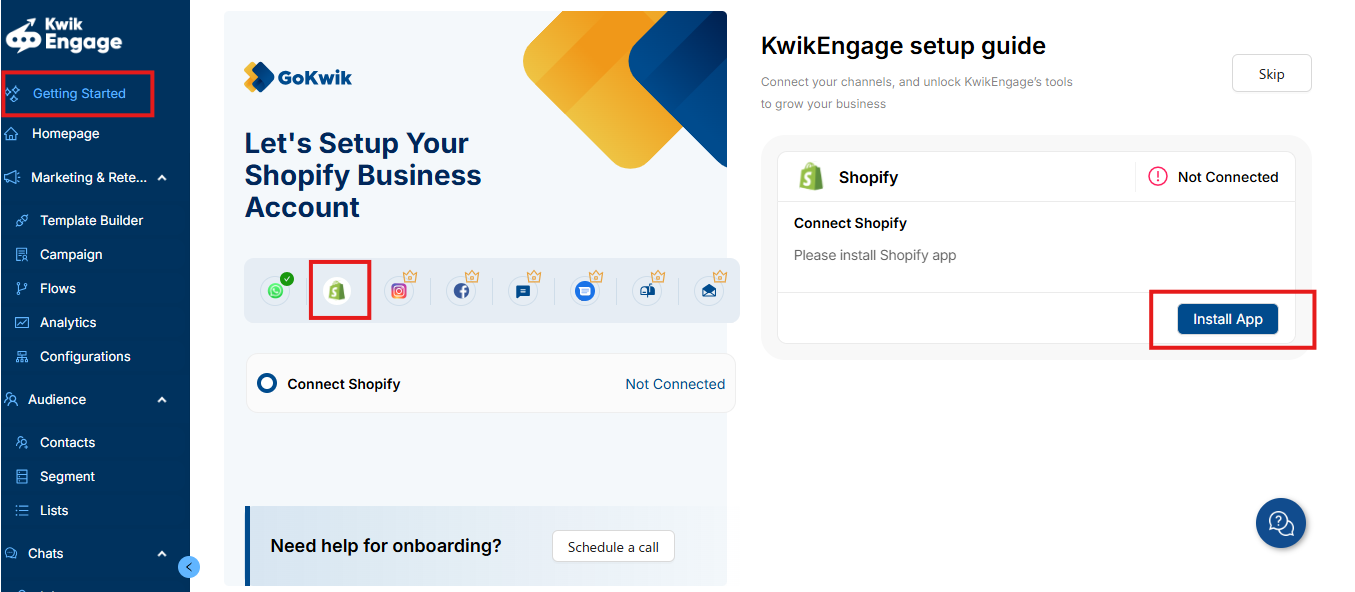
Step 1: Go to “Getting Started”
- From the left-hand menu, click on “Getting Started”.
Step 2: Select Shopify
- On the setup screen, you’ll see multiple platform icons (like WhatsApp, Shopify, Instagram, etc.).
- Click on the Shopify icon (highlighted with the green logo).
Step 3: Connect Shopify
- Under the “Connect Shopify” section, you’ll see the message:
“Please install Shopify app.” - The connection status will show as “Not Connected.”
Step 4: Install App
- Click on the “Install App” button (highlighted on the right side of the screen).
- This will redirect you to Shopify to authorize and install the KwikEngage app.
Step 5: Complete Installation on Shopify
- Log in to your Shopify Admin panel (if not already logged in).
- Approve and install the app by following the on-screen steps.
- Once the installation is complete, you’ll be redirected back to KwikEngage.
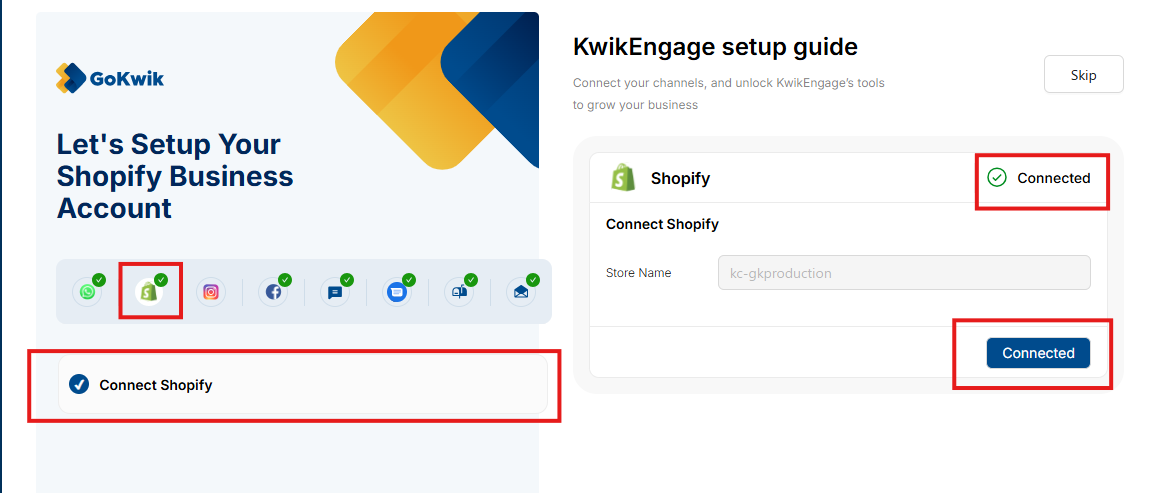
Step 6: Verify Connection
- After returning to the KwikEngage panel, the Shopify connection status should now show as “Connected.”
Was this article helpful?
That’s Great!
Thank you for your feedback
Sorry! We couldn't be helpful
Thank you for your feedback
Feedback sent
We appreciate your effort and will try to fix the article
