Overview
KwikEngage's DIY Bot Builder lets you create automated WhatsApp chatbots without any coding. This guide walks you through creating a bot flow from scratch, including a welcome message, quick reply menus, product browsing, order tracking, and agent handoff.
Step 1: Navigate to Bot Flows
Log in to your KwikEngage account at https://app.kwikengage.ai/
In the left sidebar, click BOT Builder under Chats
When you click on Bot Builder and select Build from Scratch, you’ll find several predefined bot flows available, including:
Welcome Bot Flow
Track Order Flow
Cancel Order Flow
Agent Connect Flow
And more
Among these, the most commonly used by merchants are the Welcome Bot, Track Order, and Agent Connect flows. Each bot must be created separately, after which you can update the intent of each bot within the Welcome Bot Flow.

Important Pre-Setup Step: Sandbox Configuration
Before creating the bot:
Go to Sandbox Config.
Enter the test phone number.
⚠️ Do not proceed with bot creation without completing this step.
Once a bot is created, the sandbox number cannot be manually changed in the bot section

Step 2: Create a New Bot Flow
- Click the + Create Bot Flow button in the top-right corner
- A screen appears showing Pre-Defined Bot Flow templates

Creating the Welcome Bot Flow
Step 2.1: Select Bot Intent Type
Since we’re creating a welcome bot, select Welcome Bot as the intent type.
Other available intents include:
Cancel Order
Track Order
Agent Connect
Update Phone
Fallback Bot
The intent type you select depends entirely on the bot’s purpose.
 Once selected:
The sandbox mobile number (from sandbox settings) will auto-populate.
Click on Manage Intent.

3. Define and save the trigger phrase for the Welcome Bot.
Step 2.2: Configure the Welcome Message
You can choose the first message type as either a Session Message or a Template Message.
Recommendation:
If your bot will include more than 3–4 sub-menus, use a Session Message.
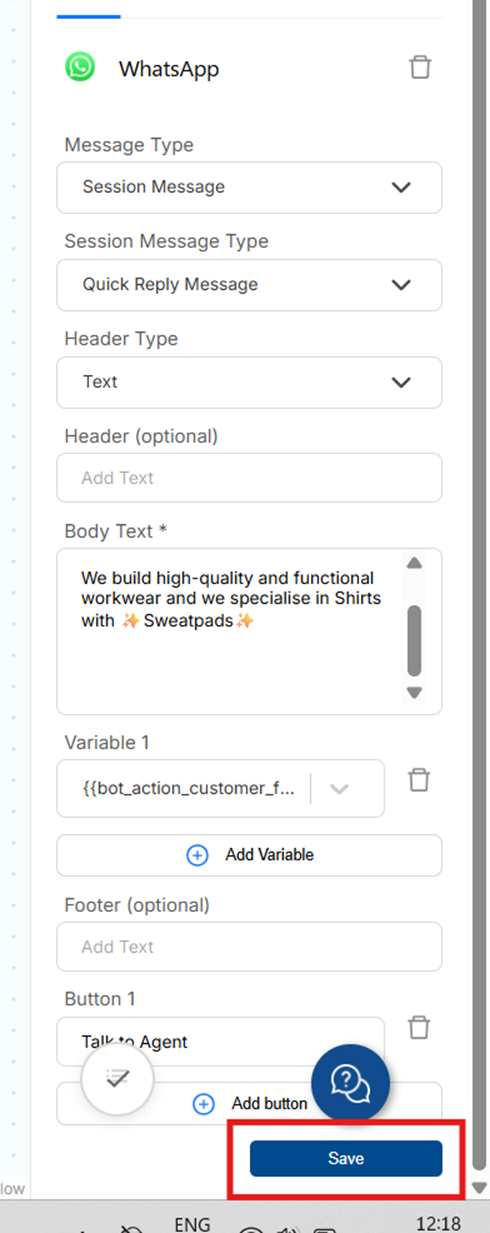
After selecting the message type, make sure to save the message.
Session Message Options:
Message: Simple text with no options.
Quick Reply Message: Text with up to 3 reply options.
Interactive List: For more than 3 options (up to 10).
⚠️ Always click Save after entering details.
Unsaved changes will be lost if you click elsewhere.
Step 3: Connect Branches to Each Button
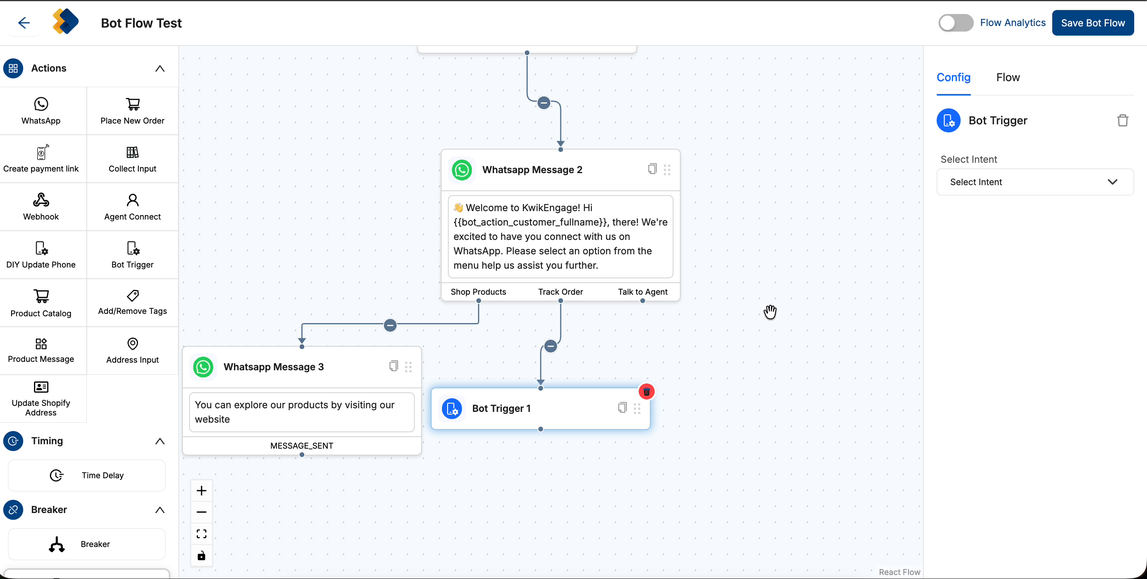
Each quick reply button becomes a branch in your flow. After saving the WhatsApp Message node, you'll see 3 connection points at the bottom — one per button. Connect each to its next action.
3.1 Branch 1 - "Shop Products" Button
- Drag from the Shop Products connection point on the WhatsApp Message node
- Drop onto a new Product Message node
- This branch handles the product browsing/shopping experience
3.2 Branch 2 - "Track Order" Button
- Drag from the Track Order connection point
- Connect to a Bot Trigger node
- In the right panel Config tab, set Select Intent = Track Order
3.3 Branch 3 - "Talk to Agent" Button
- Drag from the Talk to Agent connection point
- Connect to a Collect Input node to capture the user's query before routing to an agent
Step 4: Adding Secondary Bots
If your Welcome Bot includes options such as Track Order or Connect to an Agent, these are treated as secondary bots.
Create a separate bot for each secondary intent (e.g., Track Order, Agent Connect).
The creation process remains the same; only the intent type changes.
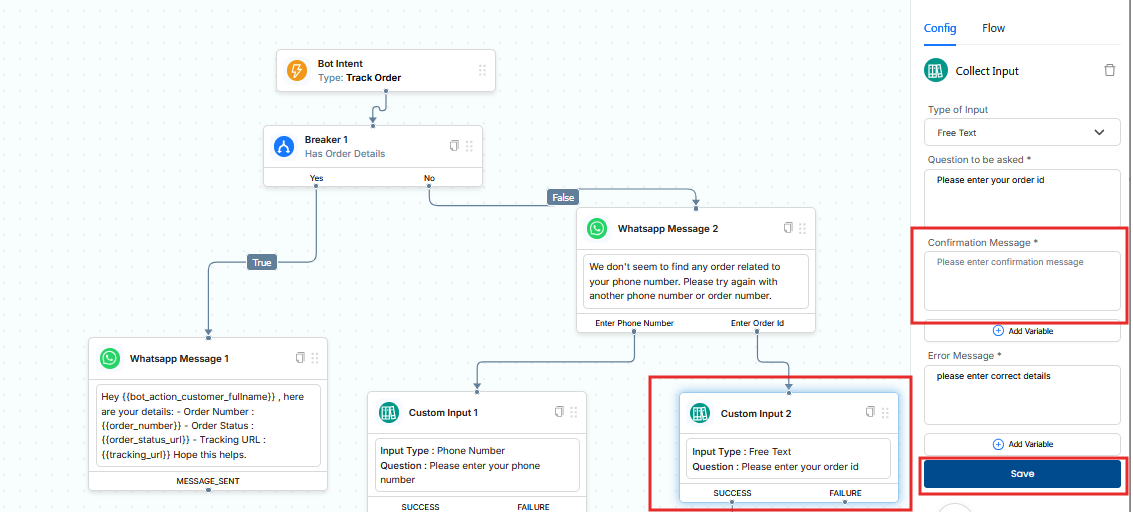
For Track Order bots, ensure the confirmation message field is filled.
The bot will not function properly without it.
Step 4: Set Up the Product Catalog
The Product Catalog needs to be configured before your Product Message nodes in the bot flow can display products. Once the catalog is set up, Product Message nodes automatically fetch the catalog data.
Please note, Before configuring the catalog in the panel, our team will first connect the catalog from the backend.
Once the backend connection is completed successfully, the catalog will become available for use within the dashboard and bot builder.
4.1 Navigate to the Catalog Section
- In the left sidebar, scroll down to the Others section
- Click Catalog to open the Product Catalog page (https://app.kwikengage.ai/product-catalog)

4.2 Configure Catalog
Click the gear/settings icon in the top-right corner of the Catalog page to open the Catalog Details dialog.
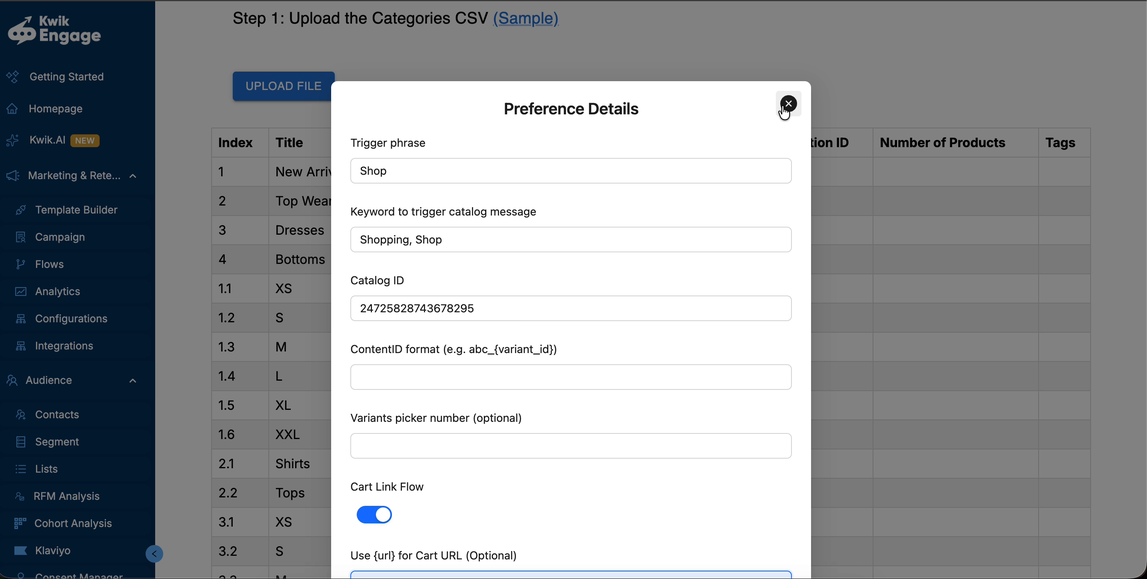
Fill in the following fields:
Trigger phrase - The intent name that launches the catalog (e.g., "Shop")
Keyword to trigger catalog message - Keywords customers can type to trigger the catalog (e.g., "Shopping, Shop")
Catalog ID - Your Facebook/WhatsApp Commerce Catalog ID
Cart Link Flow - Toggle ON if you want to enable automatic cart link generation
Click Submit to save the catalog preferences
Step 5: Add Product Message Nodes (Shop Products Branch)
Once your catalog is configured (Step 4) & Catalog is connected to your KwikEngage's WABA ID (usually done from the KwikEngage's team), Product Message nodes in the flow automatically fetch and display the catalog data on WhatsApp.
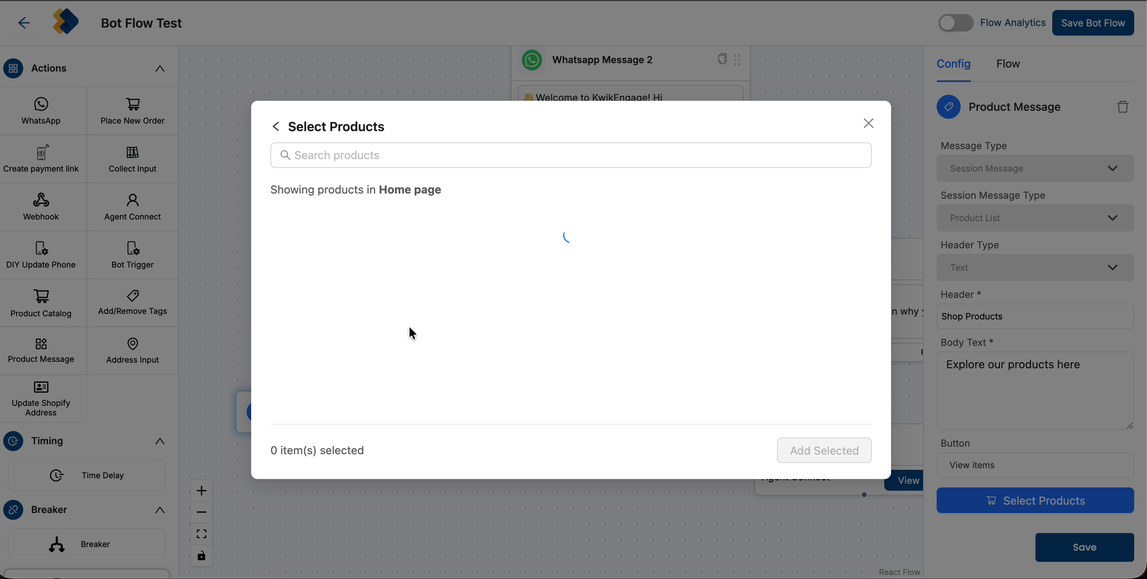
Connect it to the Shop Products branch (below the initial WhatsApp message node)
Click the node to configure in the right panel:
Message Type - Session Message
Session Message Type - Product List
Header Type - Text
Header* - Enter the collection name (e.g., "New Arrivals", "Top Wear")
Body Text* - Enter a description (e.g., "Explore our New Arrivals collection here")
Button - "View Items" (default label, auto-populated)
Select Products - "select the products you want to display under that particular collection".
Click Save — the node will automatically pull product data from your configured catalog

Step 6: Review the Complete Flow
Before saving, use the zoom controls (bottom-left of canvas) to zoom out and review your full bot flow structure.
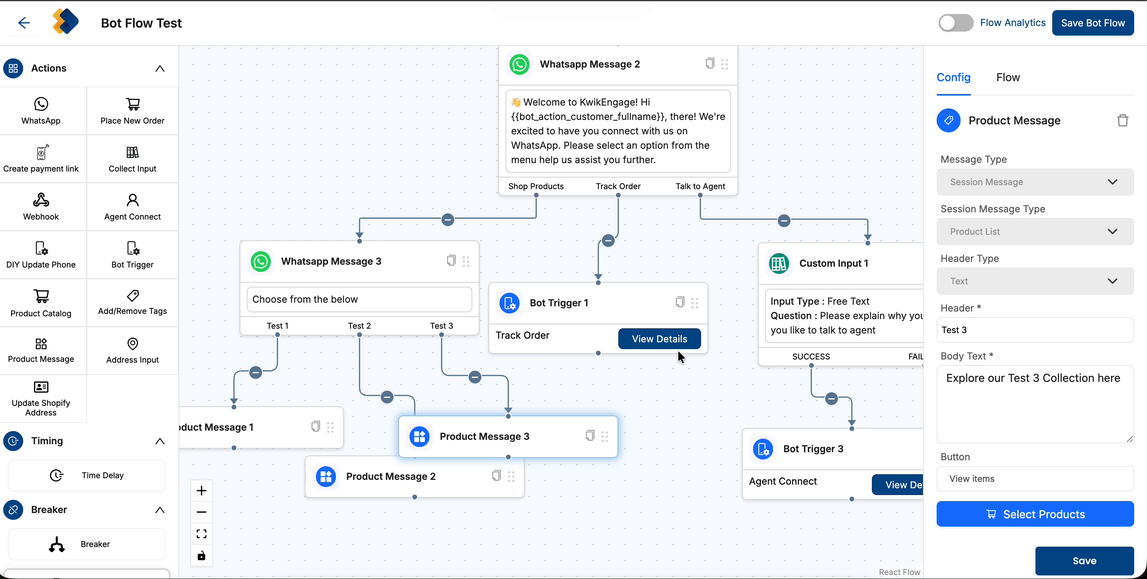
Step 7: Save and Activate the Bot Flow
7.1 Save the Flow
- Click the Save Bot Flow button in the top-right corner of the canvas
- A green "Saved successfully" toast notification will appear at the top of the screen
7.2 Activate the Flow
- Click the back arrow to return to the Bot Flows list
- Find your newly created bot flow in the list
- Toggle the Status switch to ON (blue/green) to activate the bot, or set it to Orange (middle position) for testing mode.
- Once you've completed testing, you can switch the toggle to blue to activate it. Your bot will then be live and ready to respond to customers on WhatsApp.
Step 8: Test Your Bot (Sandbox) - IMPORTANT
Always test your bot before going live to ensure all branches work correctly.
Go to the Sandbox Config tab on the Bot Flows page
Enter your test mobile number in the Sandbox Mob. No. field
Send "Hi" (or any configured trigger phrase) to your WhatsApp Business number
Verify all branches work correctly:
Welcome message displays with the correct greeting and variable substitution
Quick reply buttons (Shop Products, Track Order, Talk to Agent) appear and are tappable
Shop Products branch shows the product catalog correctly
Track Order branch redirects to the Track Order flow
Talk to Agent branch connects to an agent
Frequently Asked Questions
Q: How many buttons can I add to a Quick Reply message?
A: Up to 3 buttons. For more options (up to 10), use the Interactive List message type instead.
Q: Can I use the same bot flow for multiple intents?
A: No, each bot flow is tied to one primary intent. Create separate flows and link them using Bot Trigger nodes.
Q: What is the difference between Session Message and Template Message?
A: Session Messages can only be sent within 24 hours of the customer's last message. Template Messages are pre-approved by WhatsApp and can be sent anytime.
Q: How do I link the Track Order or Agent Connect flows?
A: Use the Bot Trigger node and select the appropriate intent (e.g., "Track Order" or "Agent Connect"). These pre-defined flows handle the logic automatically.
Q: Can I preview the bot before activating it?
A: Yes - use the Sandbox Config tab to set a test mobile number and test the bot on your own phone before going live.
Q: What happens if a user sends a message the bot doesn't understand?
A: The Default Fallback flow handles unrecognised messages. Ensure you have a Default Fallback bot flow configured and activated.
Was this article helpful?
That’s Great!
Thank you for your feedback
Sorry! We couldn't be helpful
Thank you for your feedback
Feedback sent
We appreciate your effort and will try to fix the article