Customer Experience Segments let you build marketing segments using data from your support tickets — CSAT scores, sentiment, categories, response times, and more — alongside your existing order and customer data. This means you can target customers based on how their support experience went, not just what they bought.
This feature currently works on WhatsApp tickets. Support for other channels is in progress — we'll update this article when it's available.
Here's what this unlocks in practice: you could send a personalised recovery campaign to customers who gave a CSAT of 2 or below on a WhatsApp support ticket in the last 7 days — before they churn. Or identify customers with a 4+ CSAT, 3 or more orders, and a ticket closed in the last 30 days, and reach out for a review or referral.
This article covers what the feature does, six ready-to-use segment templates, how to build a segment step by step,
What is this feature?
Until now, Kwik Engage segments could only be built using Order, Customer, Checkout, Message Properties, KwikPass; with Customer Experience Segments, a new property type — Ticket Properties — is added to the segment builder, letting you filter and segment customers based on their support ticket history. This means you can now create segments like “customers who had a bad support experience and are at risk of churning” or “happy, repeat customers worth asking for a review” — entirely from data your support team already generates.
How it helps you
Set clear, channel-aware targeting based on real support outcomes — CSAT, sentiment, and resolution speed — instead of guessing who’s happy or upset.
Recover at-risk customers by catching low-CSAT, high-value customers before they churn.
Turn happy customers into advocates by identifying repeat buyers with great, recent support experiences.
Act on product or quality issues by segmenting customers by ticket category, not just by what they bought.
Combine support data with order data using AND/OR logic, so segments reflect both behaviour and experience.
Building a segment with Ticket Properties
Go to Marketing → Segments → Create Segment.
Click the Property Type dropdown. You’ll now see Ticket Properties listed.
Select Ticket Properties, then open the Select a Property dropdown. You’ll see exactly three options: Ticket created time, Ticket closed time, and Ticket created frequency.
Pick a date-based option (Ticket created time or Ticket closed time) to set your primary condition. A date filter appears with Before / After / Between / On options and a calendar picker.
Add as many Where conditions as you need, and combine your overall segment with AND/OR logic against Customer, Order, or other property types.
Click Save to name and store your segment, or Cancel to discard your changes and return to the segment list without saving.
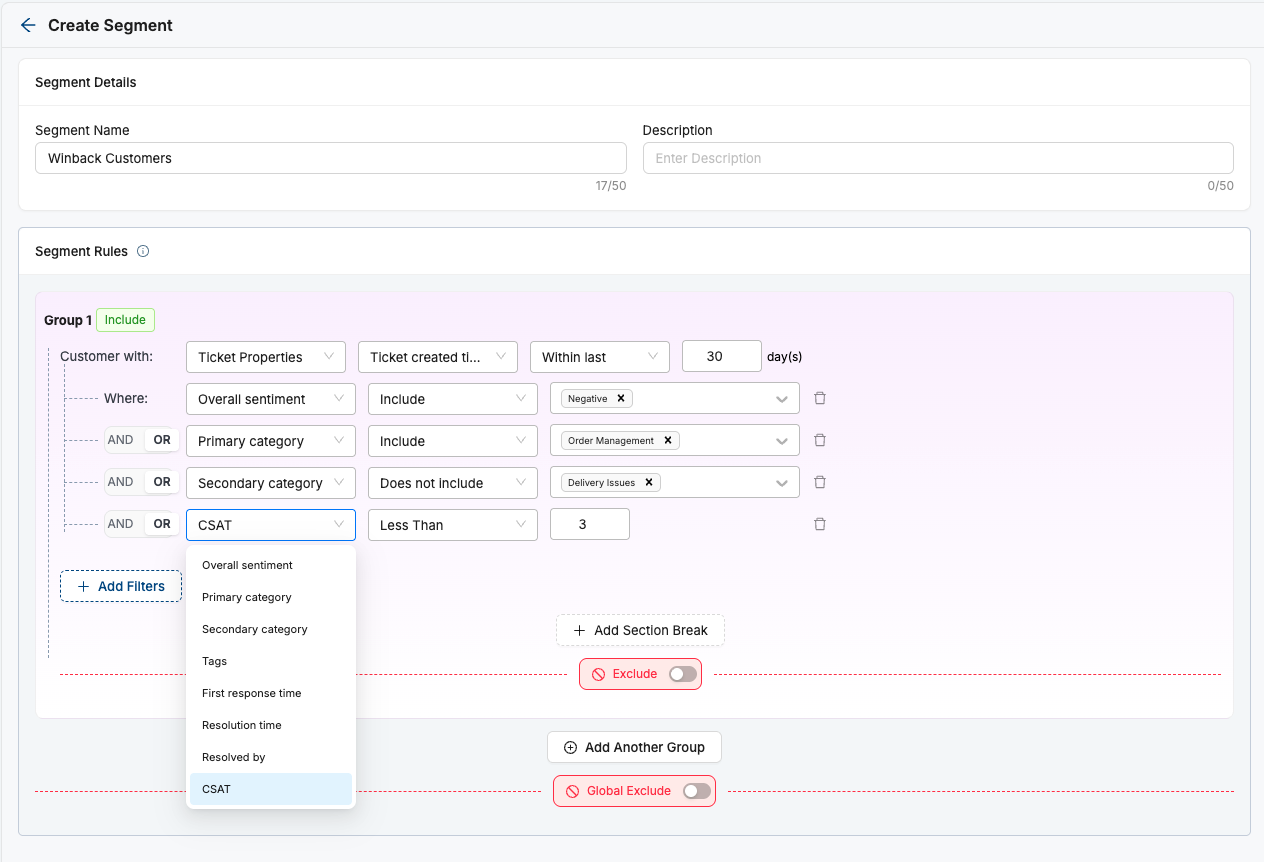
Available Where attributes
Once a ticket date condition is set, the following attributes become available to filter on:
| Attribute | Type | What it filters on |
| Overall Sentiment | Requires AI Insights Add-on | Include / Does not include Positive, Neutral, or Negative sentiment, as detected on the ticket |
| Primary Category | Requires AI Insights Add-on | Your merchant-specific list of primary ticket categories (dynamic — shows only categories active on your account) |
| Secondary Category | Requires AI Insights Add-on | Your merchant-specific list of secondary ticket categories (dynamic, active categories only) |
| Tags | Standard | Any currently active tags applied to tickets (archived tags are excluded automatically) |
| First Response Time (FRT) | Standard | Greater than / Less than / Between a given number of minutes, hours, or days |
| Resolution Time (RT) | Standard | Greater than / Less than / Between a given number of minutes, hours, or days |
| Resolved By | Standard | Include a specific agent, the bot, or select all |
| CSAT | Standard | Equals / Greater than / Less than / Between a score of 1–5 |
Note: Sentiment, Primary Category, and Secondary Category only appear if your account has the “AI Insights Add-on". If you don’t have this, connect with your account manager to get it enabled, you can still build a complete segment using CSAT, FRT, RT, Tags, and Resolved By.
Six ready-to-use segment templates
These are common, high-value segments built entirely from Ticket Properties (sometimes combined with Customer Properties). Use them as starting points, or adjust thresholds to match your brand.
| Segment name | Conditions used | Best for |
| Irate & High Value | CSAT ≤ 2 AND Ticket closed in last 7 days AND Customer total spend above your chosen threshold | Recovering high-value customers who had a recent bad support experience, before they churn |
| Happy Loyalists | CSAT ≥ 4 AND Ticket closed in last 30 days AND Total orders placed ≥ 3 | Reviews, referrals, loyalty or advocacy campaigns |
| Product Quality Complainers | Secondary Category = “Product Quality” AND Ticket closed in last 30 days | Quality-related win-back offers, replacement nudges, or QA feedback loops |
| Classic Win-Back | Last order date 90+ days ago AND Total orders placed ≥ 2 AND CSAT ≥ 3 | Reactivating lapsed but previously satisfied repeat customers |
| Low-CSAT Win-Back | CSAT ≤ 3 AND Ticket closed in last 30 days AND Total orders placed ≥ 1 | Customers with an unresolved or middling support experience who still ordered at least once |
| Advocacy Candidates | CSAT ≥ 4 AND Overall Sentiment = Positive AND Ticket closed in last 14 days AND Total orders placed ≥ 2 | Repeat customers with a recent great support experience — ideal for review requests and UGC asks |
Was this article helpful?
That’s Great!
Thank you for your feedback
Sorry! We couldn't be helpful
Thank you for your feedback
Feedback sent
We appreciate your effort and will try to fix the article