How the Follow-up Status Works?
The Follow-up status is used when an agent wants to revisit a ticket after a specified period. While moving a ticket to the Follow-up status, the agent can configure a timer (for example, 5 minutes, 1 hour, or 1 day).
The ticket remains in the Follow-up state until the timer expires. Once the timer expires, the ticket is automatically reopened and made available for further action based on the assignment rules below.
Ticket Reassignment Behavior
Scenario 1: Assigned Agent is Online
If the originally assigned agent is online when the follow-up timer expires:
- The ticket is reopened.
- The ticket is assigned back to the same agent and appears in their bucket.
Scenario 2: Assigned Agent is Offline
If the originally assigned agent is offline when the follow-up timer expires:
- The ticket is reopened and placed in the queue.
- Once the assigned agent comes online, the ticket is automatically assigned back to them.
Scenario 3: Assigned Agent's Bucket is Full
If the originally assigned agent has reached their ticket assignment limit when the follow-up timer expires:
- The ticket is reopened.
- The ticket is still assigned back to the same agent and appears in their bucket.
How to setup Follow up timer?
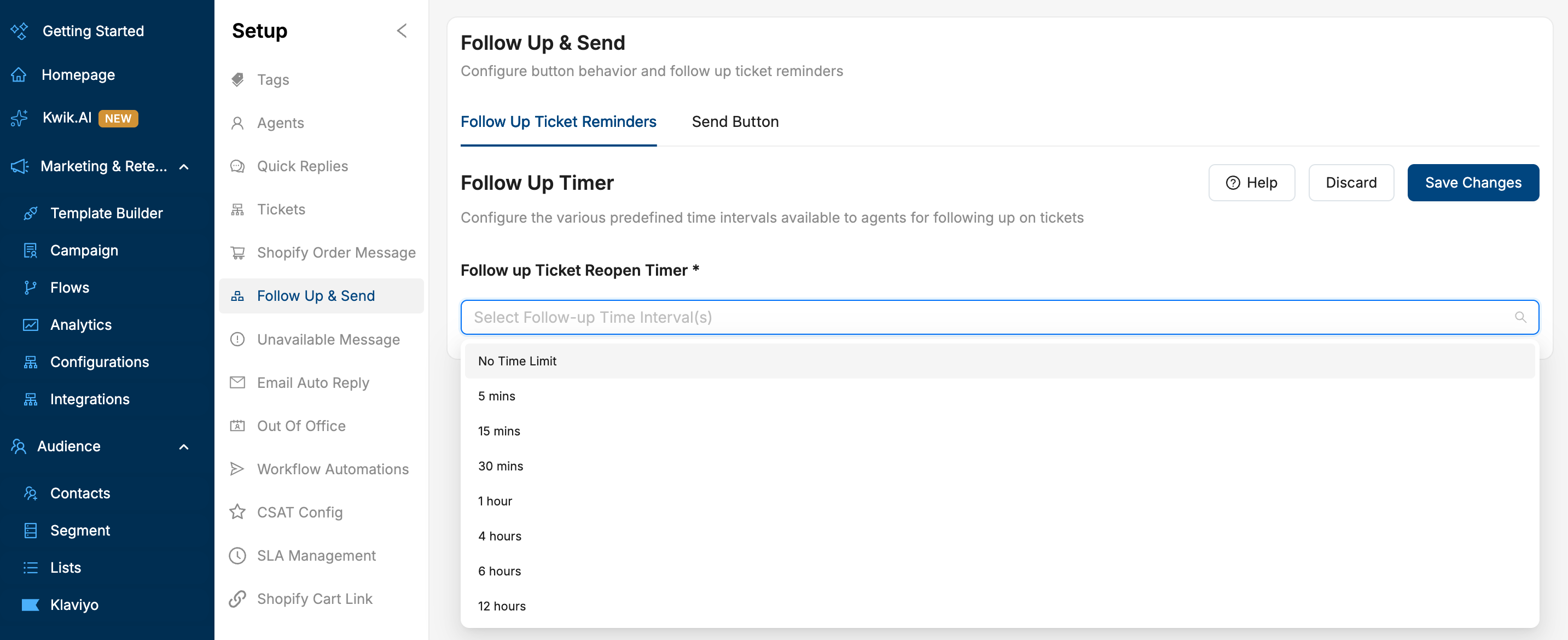
In the setup section, the account admin can set up to multiple followup timers in mins. The tickets put on followup by the agent will be back in his/her mail bucket once the followup time is over.
For Example - 5 min, 30 mins, 60 mins, and there will be a No Time limit option.
Steps to set up Follow up timer -
- Login to the account and choose : ttps://app.kwikengage.ai > Chats > Settings > Follow up timer
- Click on the followup timer icon on the left.
- Please select the “Followup Ticket Reopen Timer” as per your requirement, e.g. 5mins, 10mins, No timer limit.
- Once selected please click on the “ Save Changes” on the top of the right corner.
Was this article helpful?
That’s Great!
Thank you for your feedback
Sorry! We couldn't be helpful
Thank you for your feedback
Feedback sent
We appreciate your effort and will try to fix the article