Create a Custom Marketing Popup in Minutes
- Go from Configuration, to Marketing popup
- Now go to Smart Conversion Popups (as visible on left panel) and then Select any popup of your choice:
- Choose the popup type you want to display.
- On the right, select the triggers—like scroll, time on page, or specific URLs—to control when it shows up.
- Personalize it: upload your logo, tweak the background, and customize the text to match your brand.
- Hit Publish—and you're live!
How to collect additional details of a user via a popup OR how to create a form?
Note: You need to be on premium plan for this!
- Go to configuration from the left navigation of the dashboard
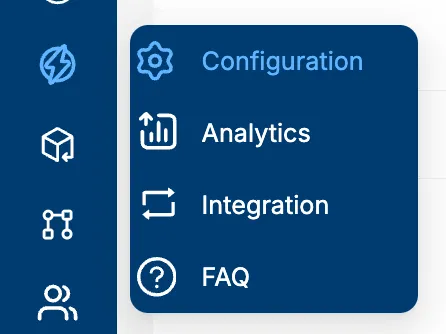
2. Now go to Smart Conversion Popups (as visible on left panel) and then Select any popup of your choice: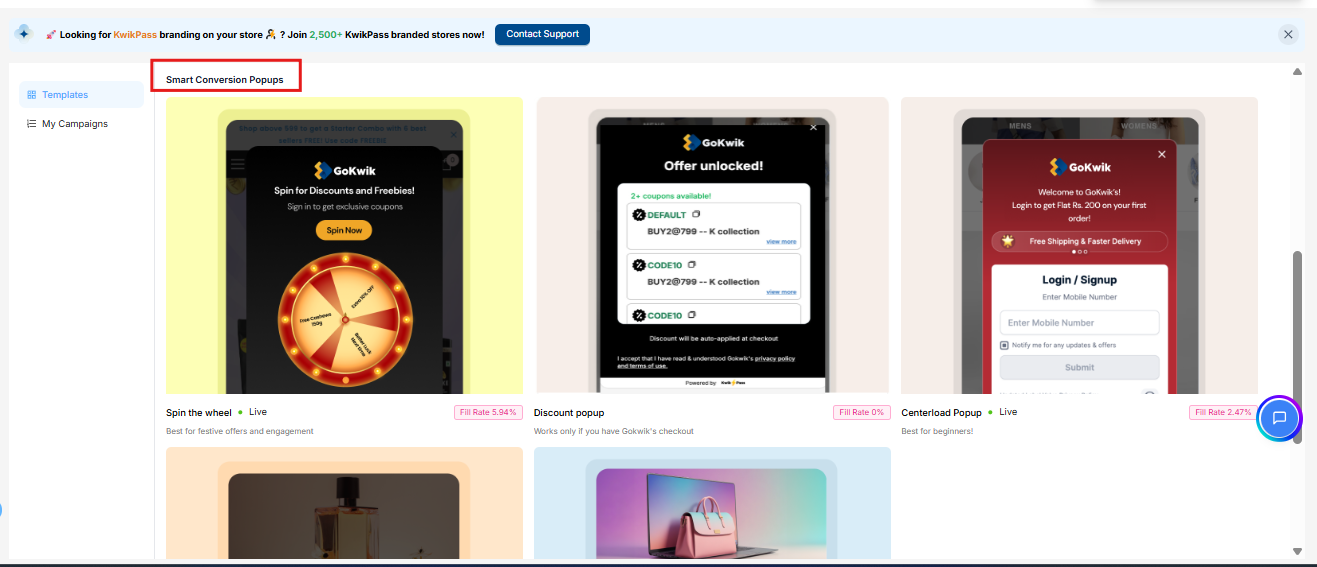
3. Now go to Advanced setting on the right side of the popup window.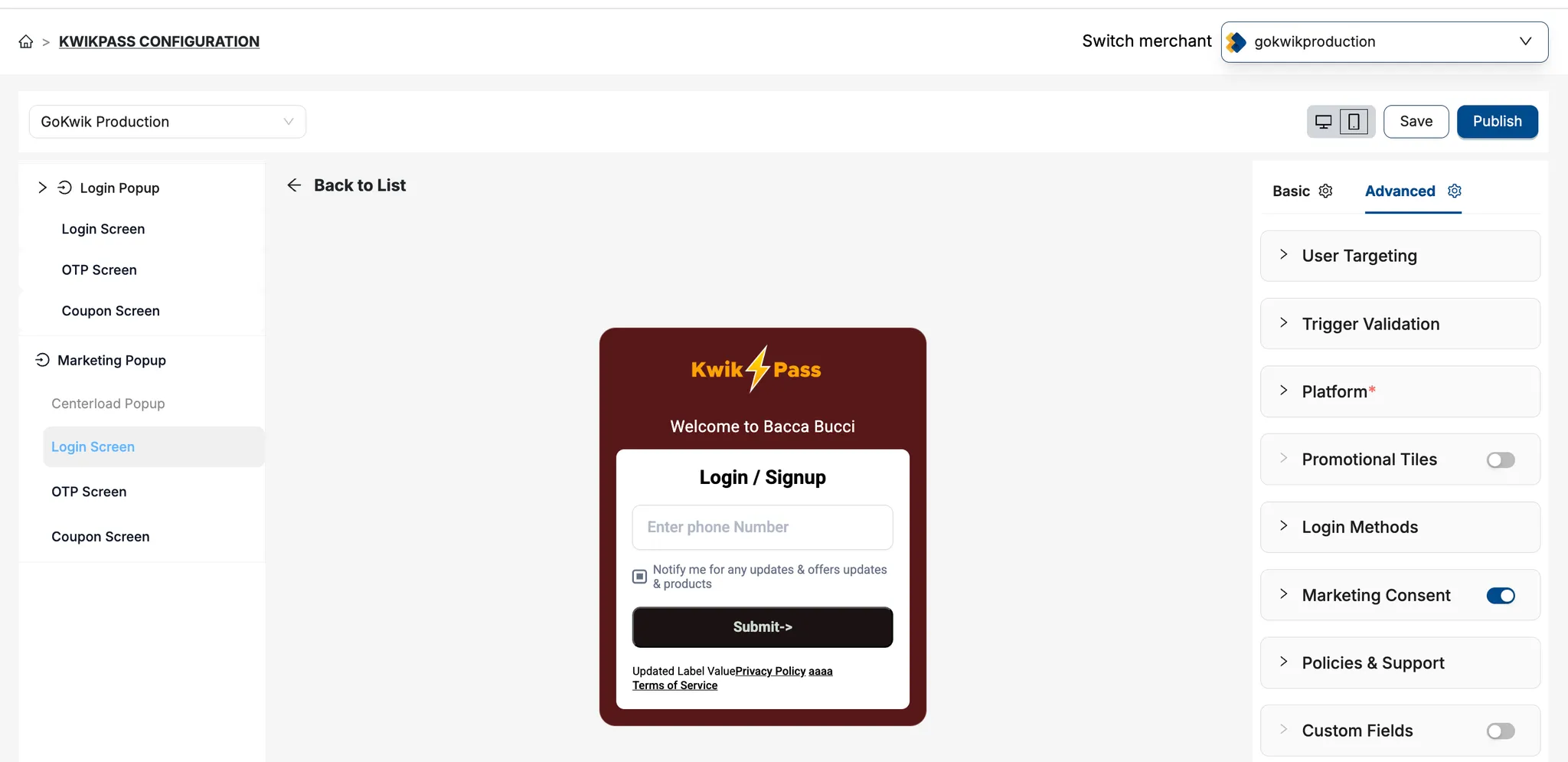
4. Now notice, custom fields at the bottom: turn it on; now you can select as many as 4 fields.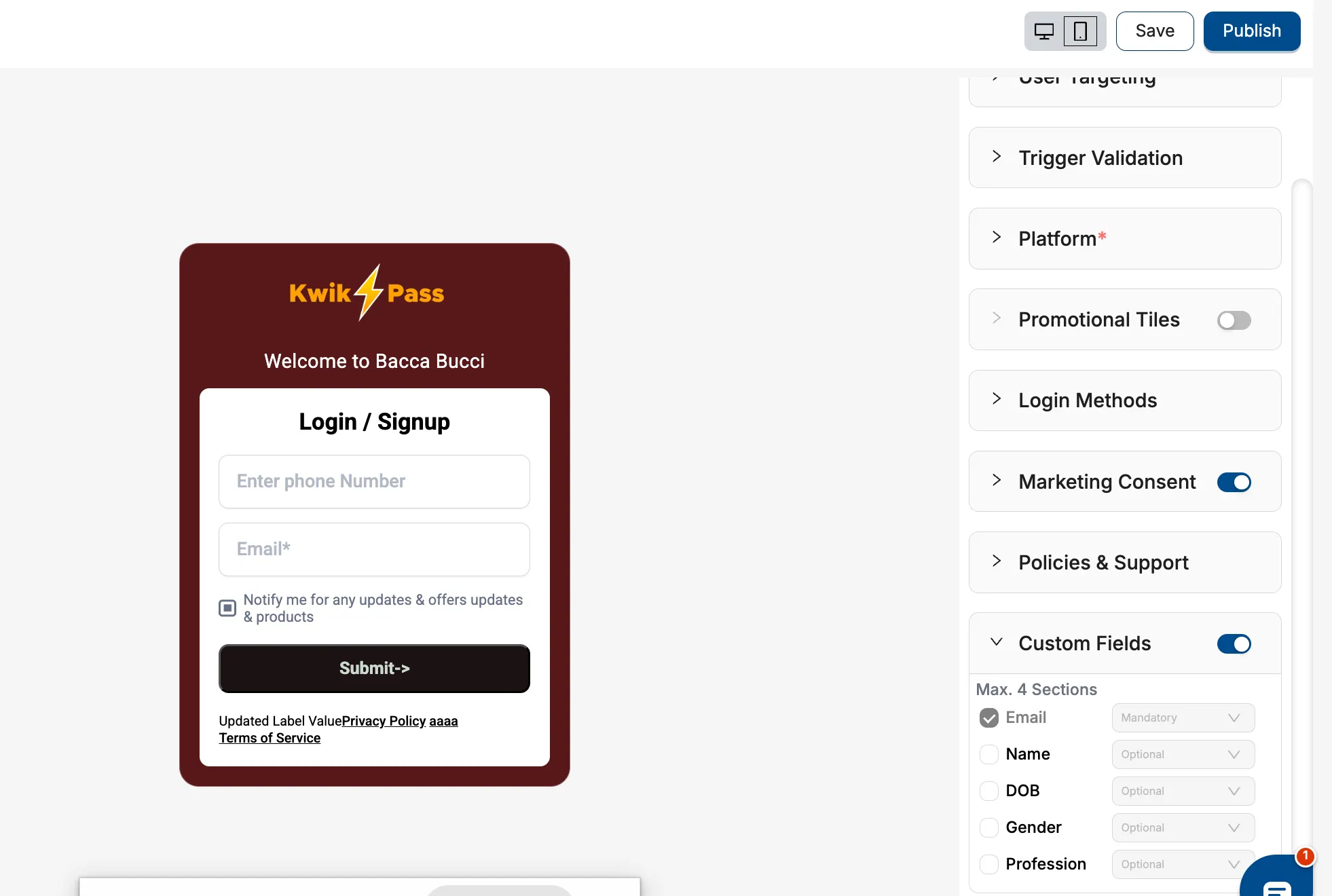
5. Finally, go back to basic settings, setup the triggers, and finally just publish the popup!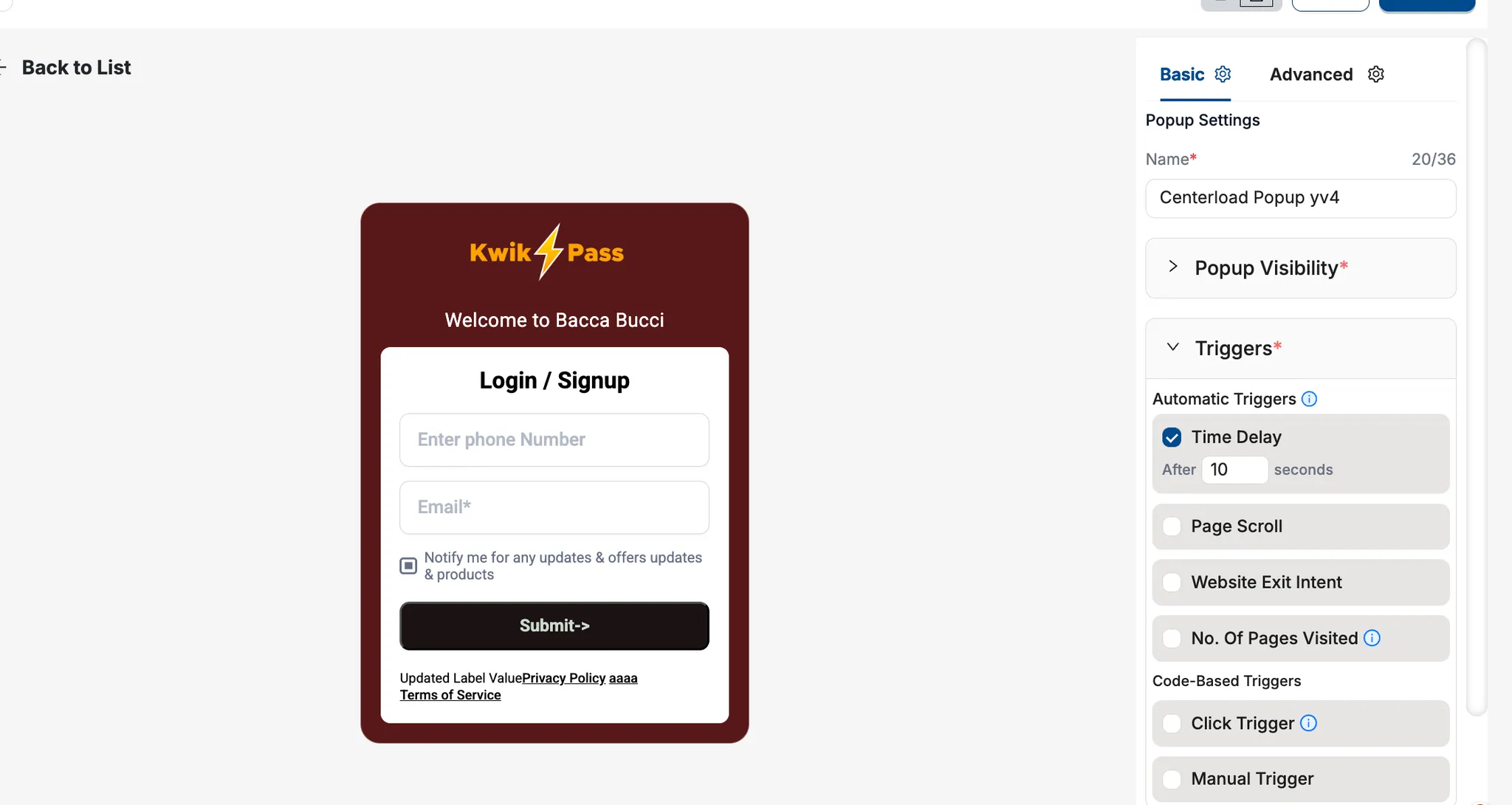
Was this article helpful?
That’s Great!
Thank you for your feedback
Sorry! We couldn't be helpful
Thank you for your feedback
Feedback sent
We appreciate your effort and will try to fix the article