

Collecting Whatsapp consent on your Shopify Checkout and Thank you page

Modified on Mon, 3 Aug at 3:23 PM

Note: Steps 3–8 (editing checkout pages) only work on Shopify Plus. If you're not on Plus, those steps won't work for you — skip directly to step 9.

This guide covers adding the KwikEngage WhatsApp consent checkbox to your Shopify checkout — first on the Checkout Information page where the customer enters their details, and then on the Thank you page, where a confirmation message can be shown after they opt in.

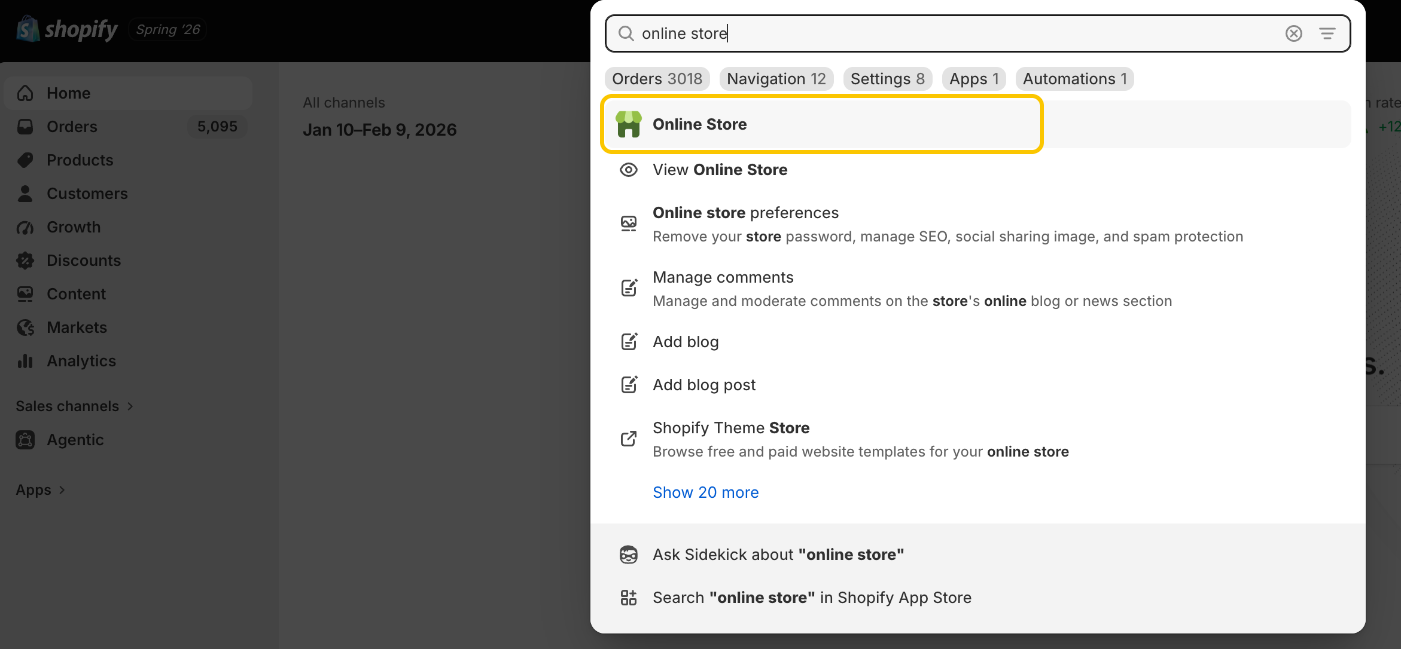
  1. In Shopify admin, search "online store" and open the Online Store section.

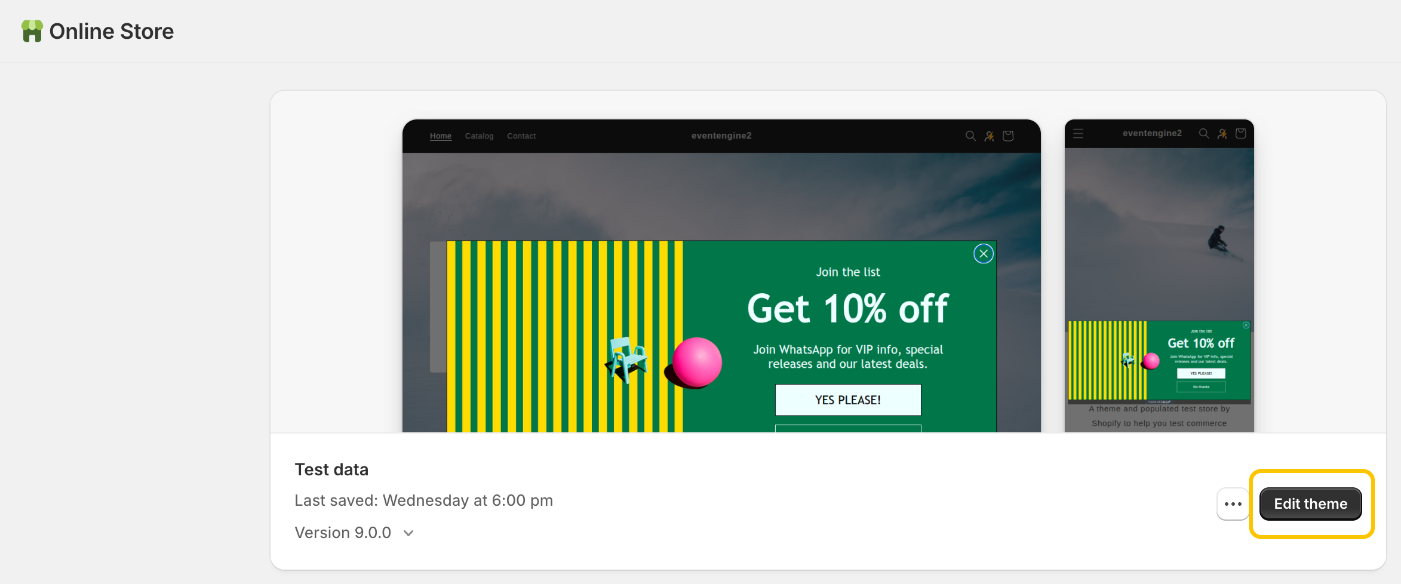
  2. On the Online Store page, find your theme and click Edit theme.


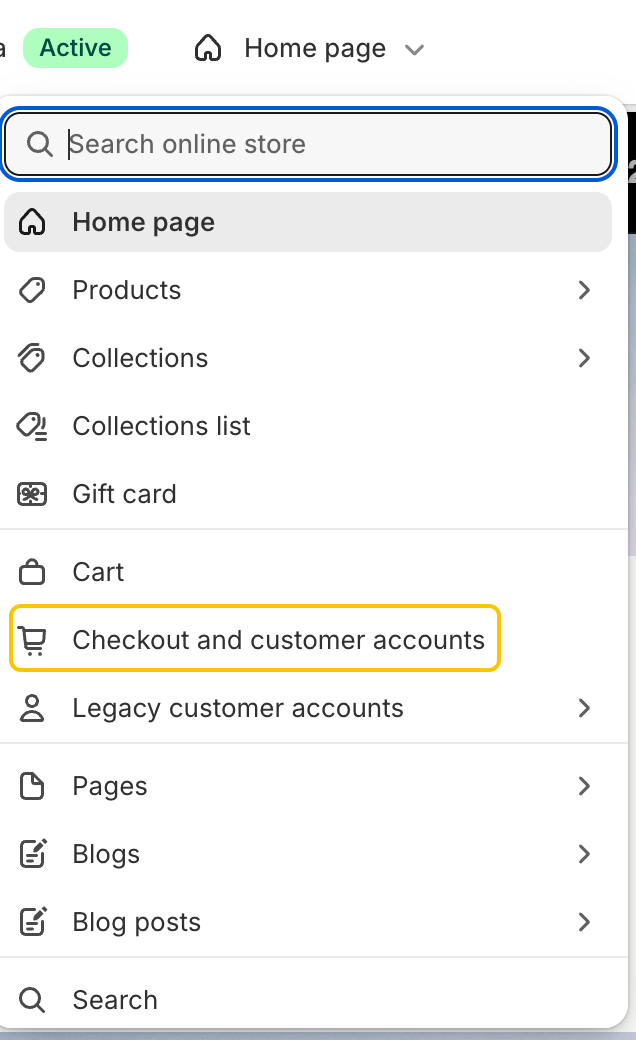
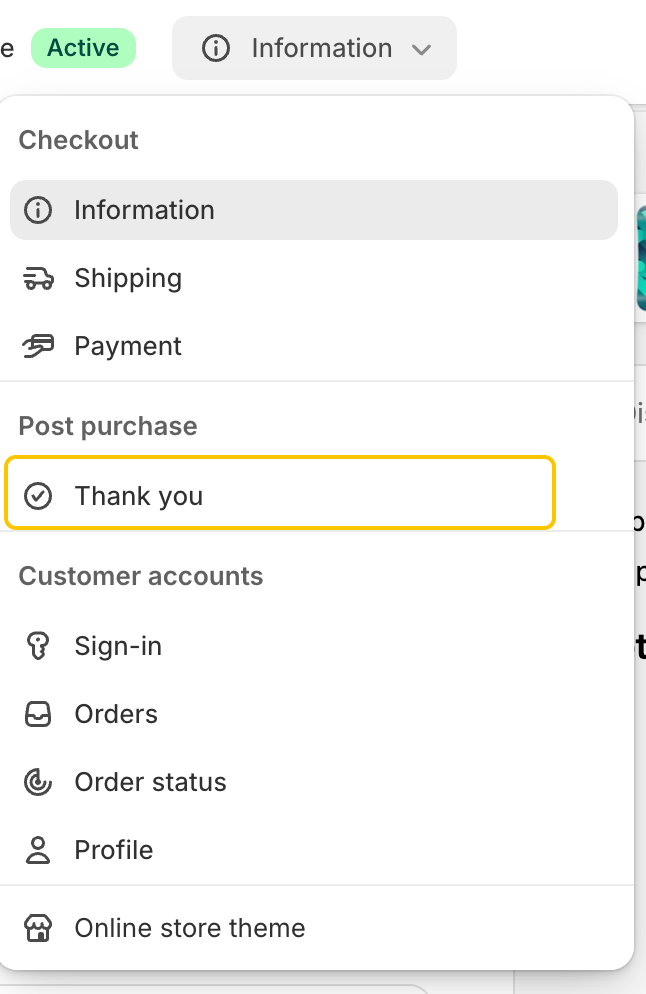
  3. In the theme editor, go to the checkout section via the page dropdown (top of the editor) and select Information.


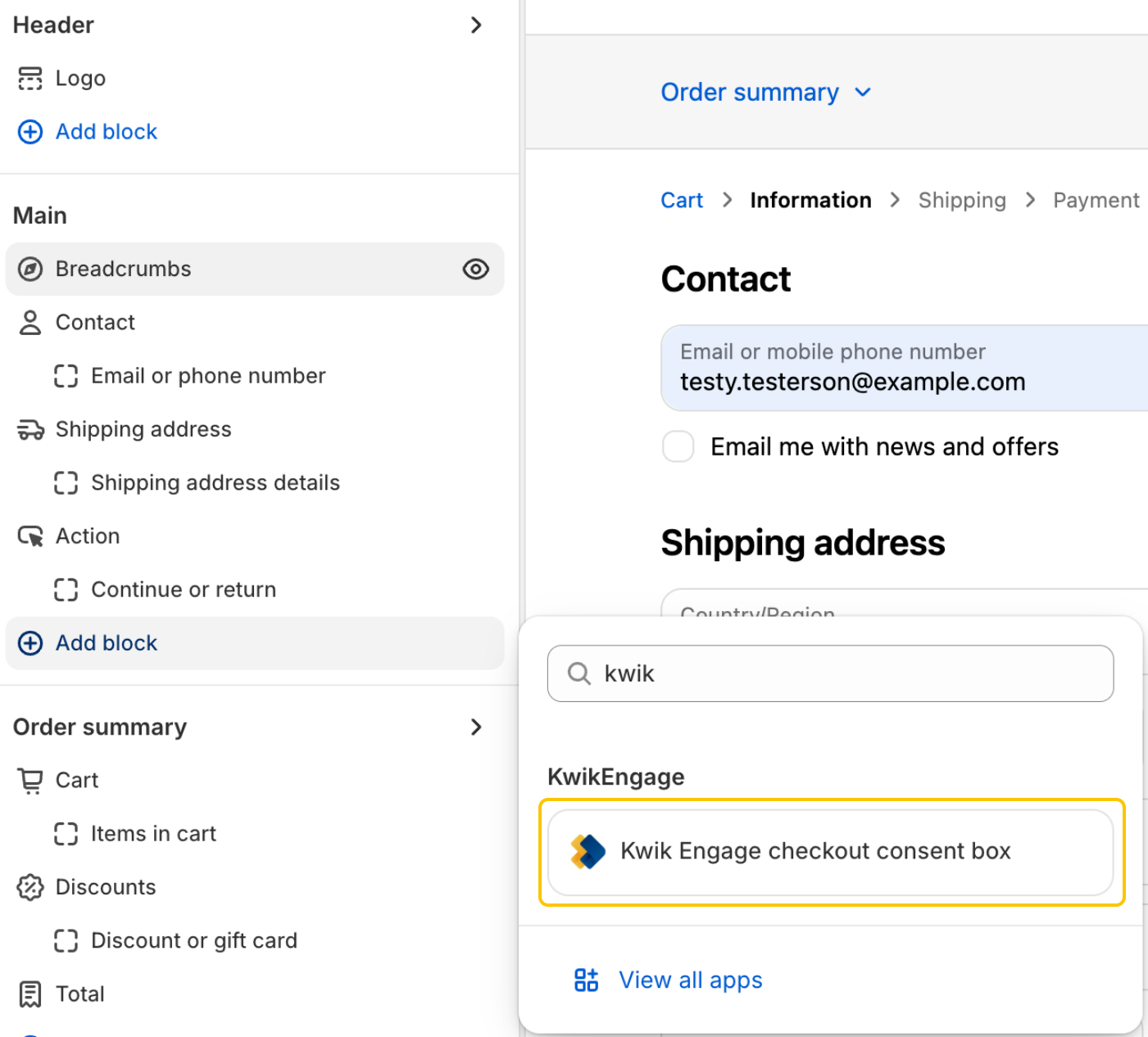
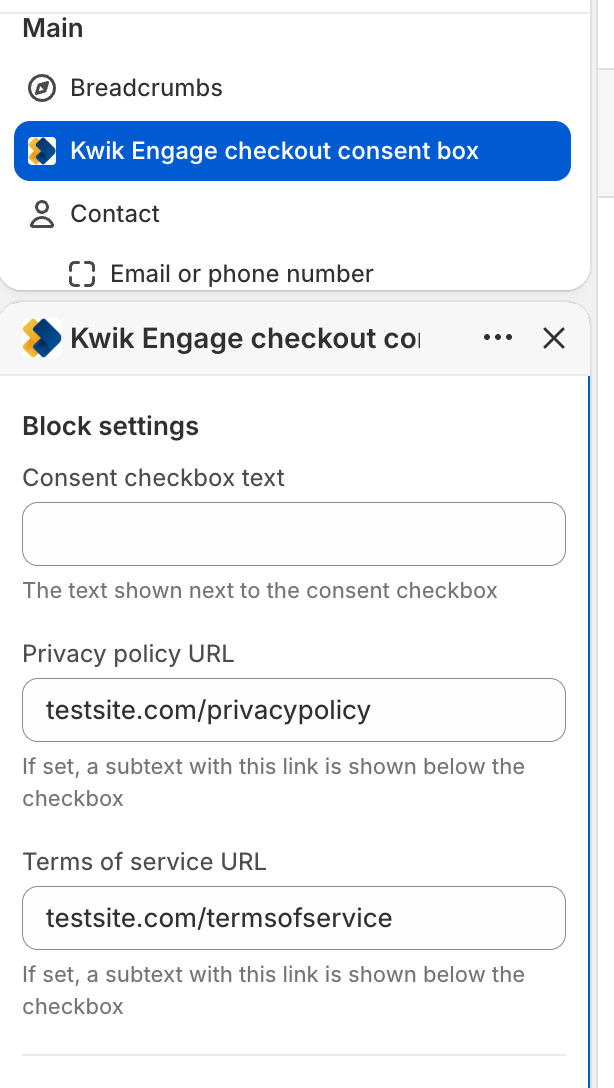
  4. On the Information page, in the left panel under Main, click Add block, then search for and select KwikEngage → Kwik Engage checkout consent box. Please note you will not be able to do this if you are not a Shopify Plus merchant. 


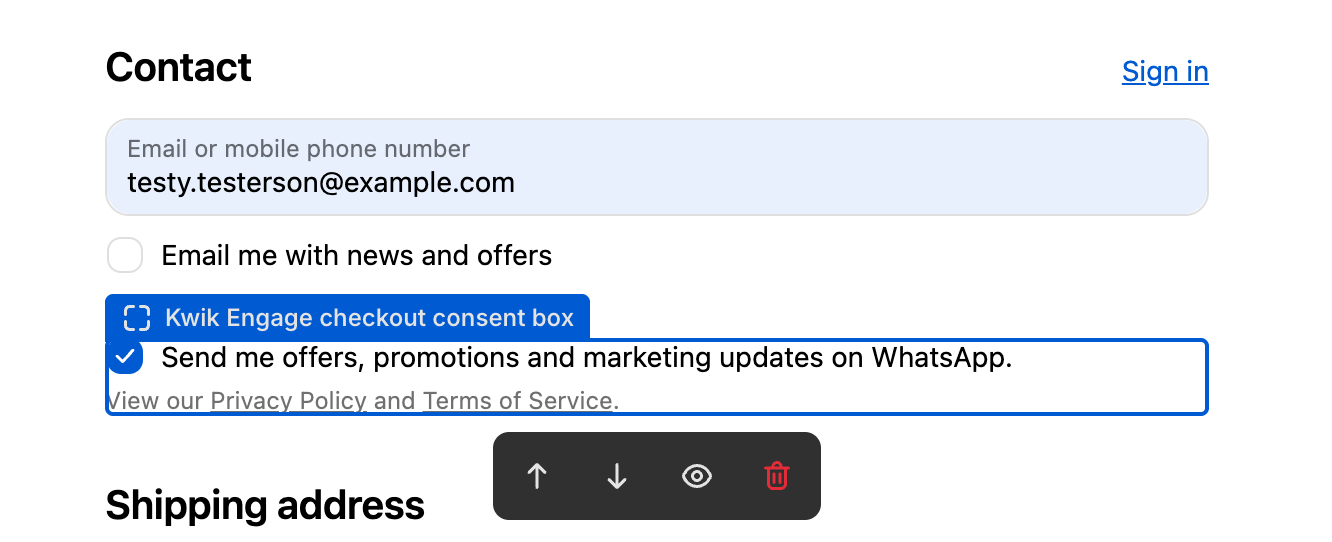
  5. Add the block right after the Contact section so it sits above Shipping address. You can move it using the arrows.


  6. Open the block's settings and fill in the Consent checkbox text, Privacy policy URL, and Terms of service URL (e.g. testsite.com/privacypolicy and testsite.com/termsofservice).


  7. Check the live preview to confirm the checkbox now reads "Send me offers, promotions and marketing updates on WhatsApp." with working Privacy Policy and Terms of Service links.
  8. Click Save.


  9. Skip to here if not on Plus: in the theme editor, switch to the Thank you page using the page dropdown (under Post purchase).


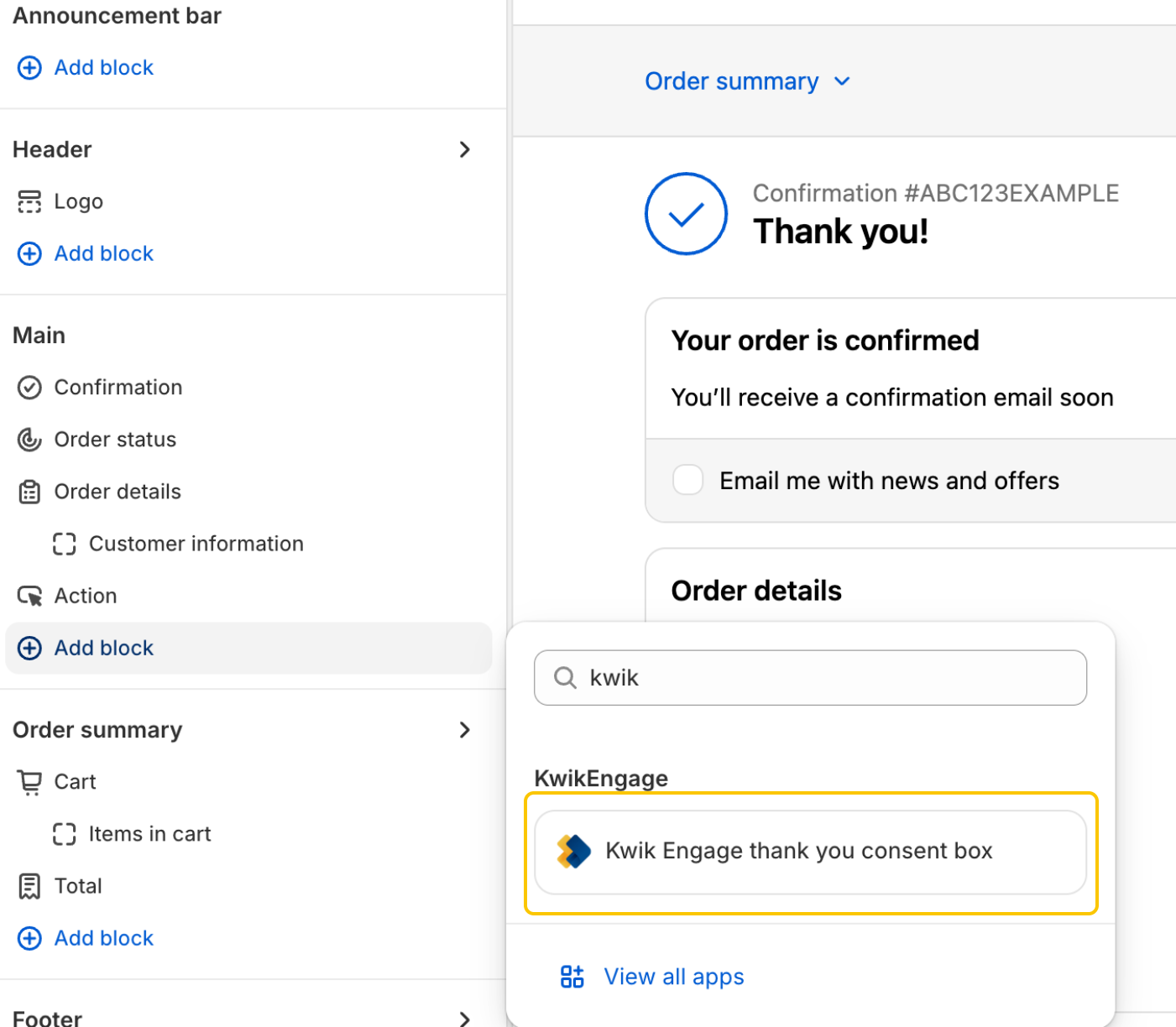
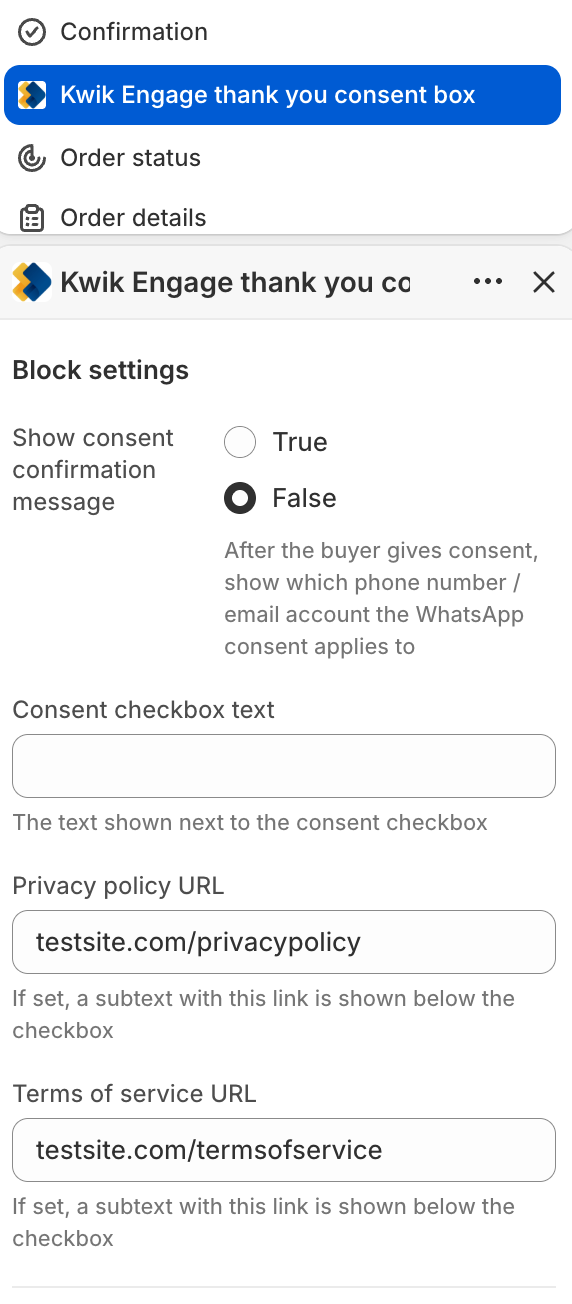
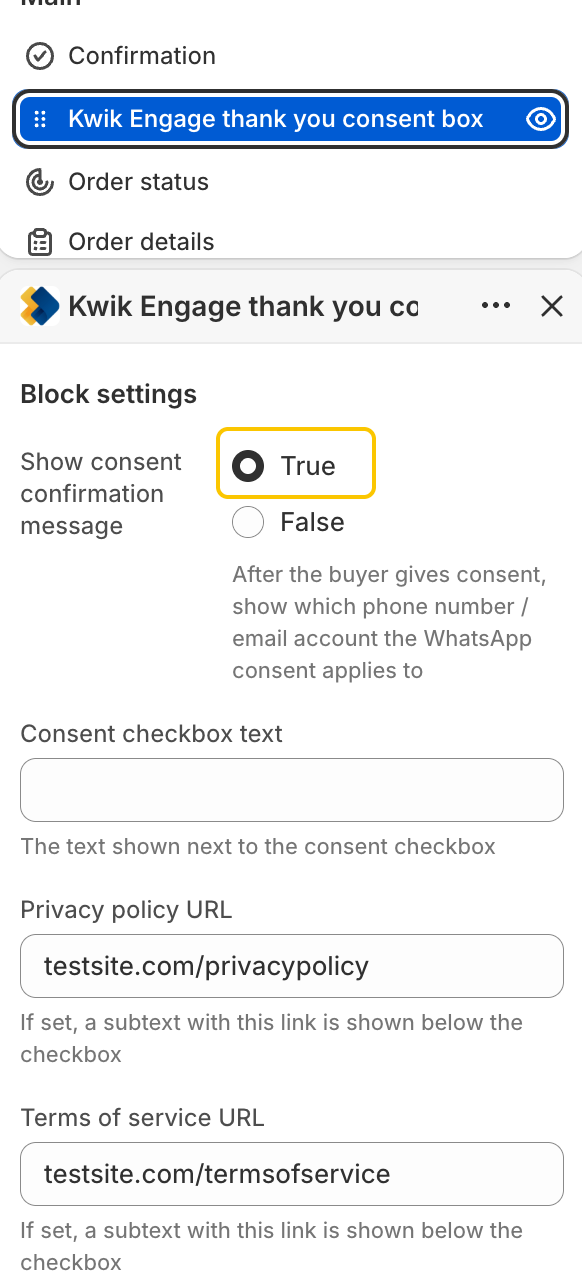
  10. Under Main, click Add block, search "kwik", and select KwikEngage → Kwik Engage thank you consent box.


  11. Open its block settings and fill in the Privacy policy URL and Terms of service URL.


  12. (Optional) Set "Show consent confirmation message" to True — this makes the page display which phone number/email the WhatsApp consent applies to after the buyer opts in.


  13. Click Save.


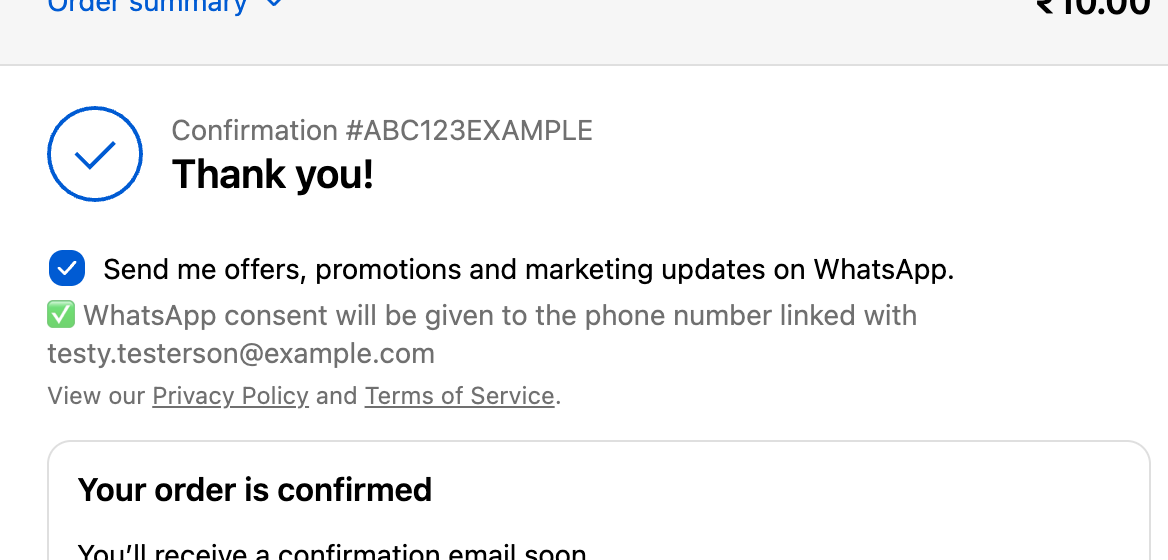
  14. Verify on the Thank you page preview: the checkbox appears checked, followed by a confirmation line like "WhatsApp consent will be given to the phone number linked with [email]/[phone number](Depending on which of these was entered on the checkout page) ."


Was this article helpful?

That’s Great!

Thank you for your feedback

Sorry! We couldn't be helpful

Thank you for your feedback

Let us know how can we improve this article!

Select at least one of the reasons
CAPTCHA verification is required.

Feedback sent

We appreciate your effort and will try to fix the article