We've rebuilt how email tickets look in the Kwik Engage Inbox. You get more room to read, every email is its own clean card, long threads collapse, and a new Reader mode lets you read a long conversation from start to finish without distractions.
In this article
1. What's new at a glance
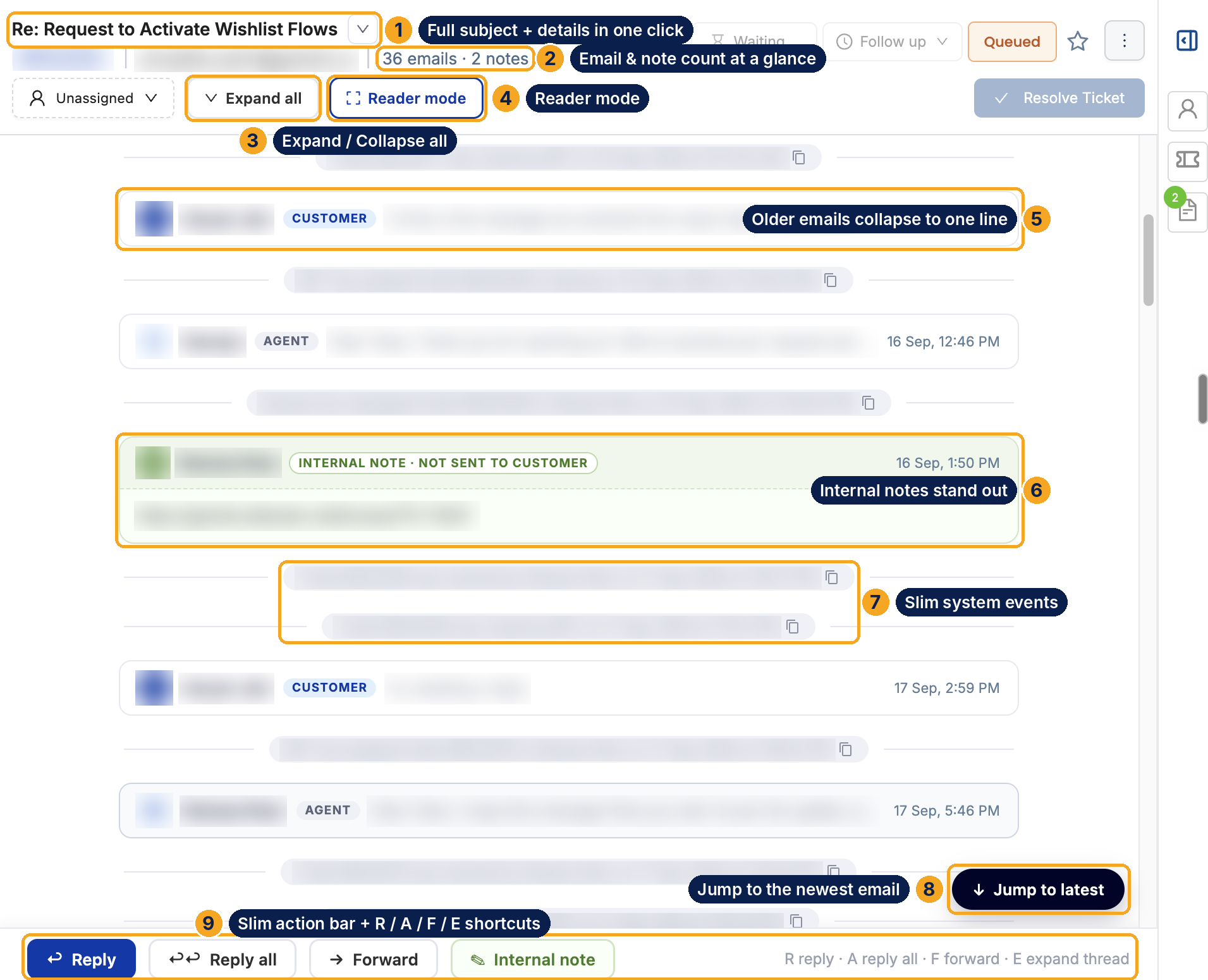 An email ticket in the new layout. The numbers match the list below.
| 1 | Full subject and details in one click, using the chevron next to the subject |
| 2 | Email and note count always visible under the subject |
| 3 | Expand all / Collapse all for the whole thread |
| 4 | Reader mode for distraction-free reading |
| 5 | Older emails collapse to one line, each with a Customer or Agent tag |
| 6 | Internal notes stand out, clearly marked "not sent to customer" |
| 7 | System events are slim dividers, not full messages |
| 8 | Jump to latest takes you straight to the newest email |
| 9 | Slim action bar with Reply, Reply all, Forward, Internal note and keyboard shortcuts |
2. More room to read
The reply box used to stay open and take up almost half the screen, even when you were only reading. Now it sits as a slim action bar at the bottom:
- Reply, Reply all, Forward and Internal note are one click away.
- The editor opens only when you click one of them. Close it and the space goes back to the email thread.
- The full-screen composer works just as before.
3. Email cards and collapsible threads
Every email now sits in its own card, so it's easy to see where one email ends and the next begins.
- Each card shows the sender, a Customer or Agent tag, who it was sent to, and the time.
- When you open a ticket, the newest email is expanded and older ones collapse into one-line rows, so even a long thread fits on one screen.
- Click any row to open that email. Use the arrow on a card to collapse it again.
- Click Expand all to open every email at once, and Collapse all to close them.
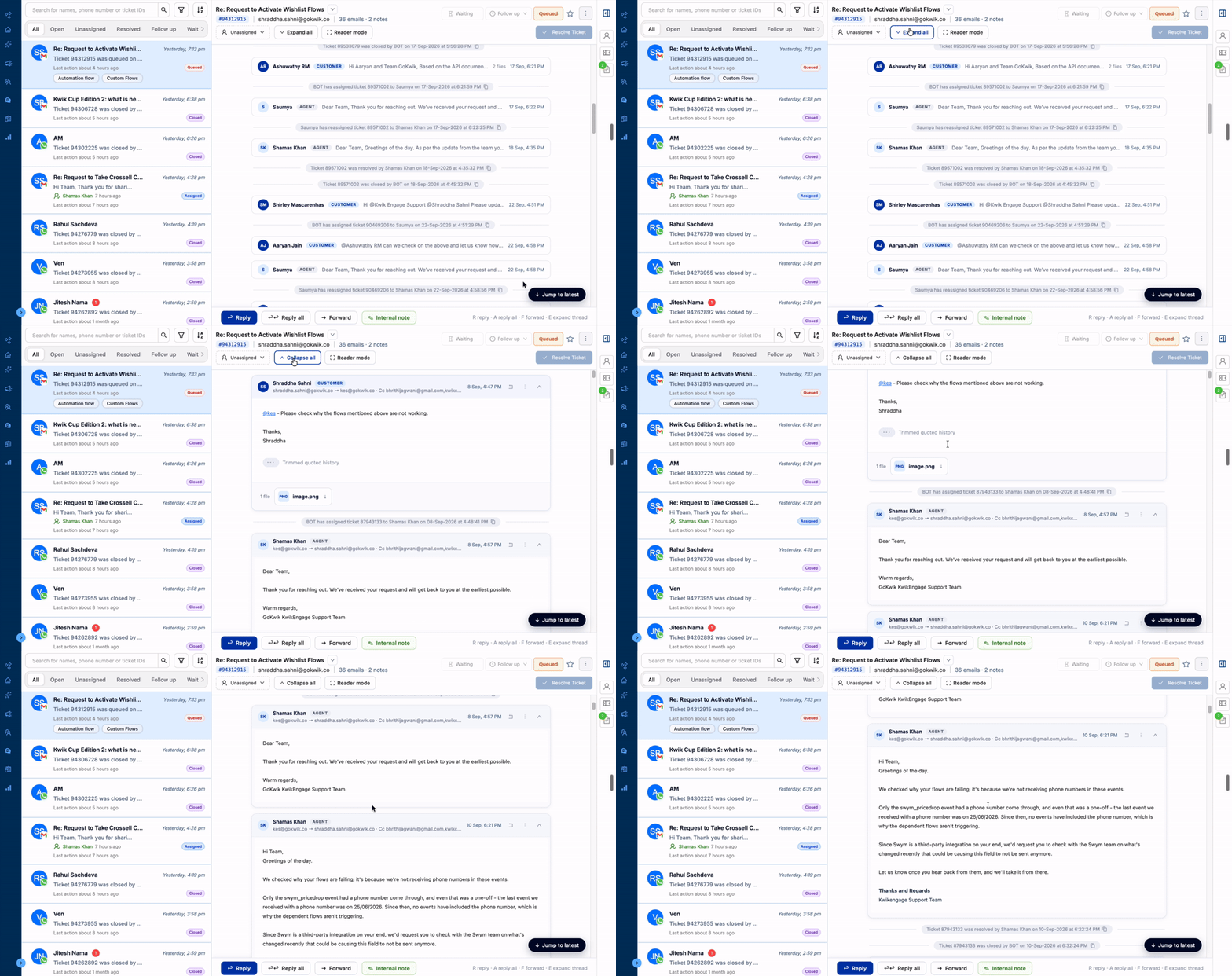 Expand all opens every email in the thread
4. Full subject and details in one click
Long subject lines no longer get cut off with no way to read them.
- Click the chevron next to the subject to see the full subject, plus From, To, Cc, when the ticket was opened and the last email.
- Under the subject you can always see the ticket ID, the customer's email address and how many emails and notes the ticket has.
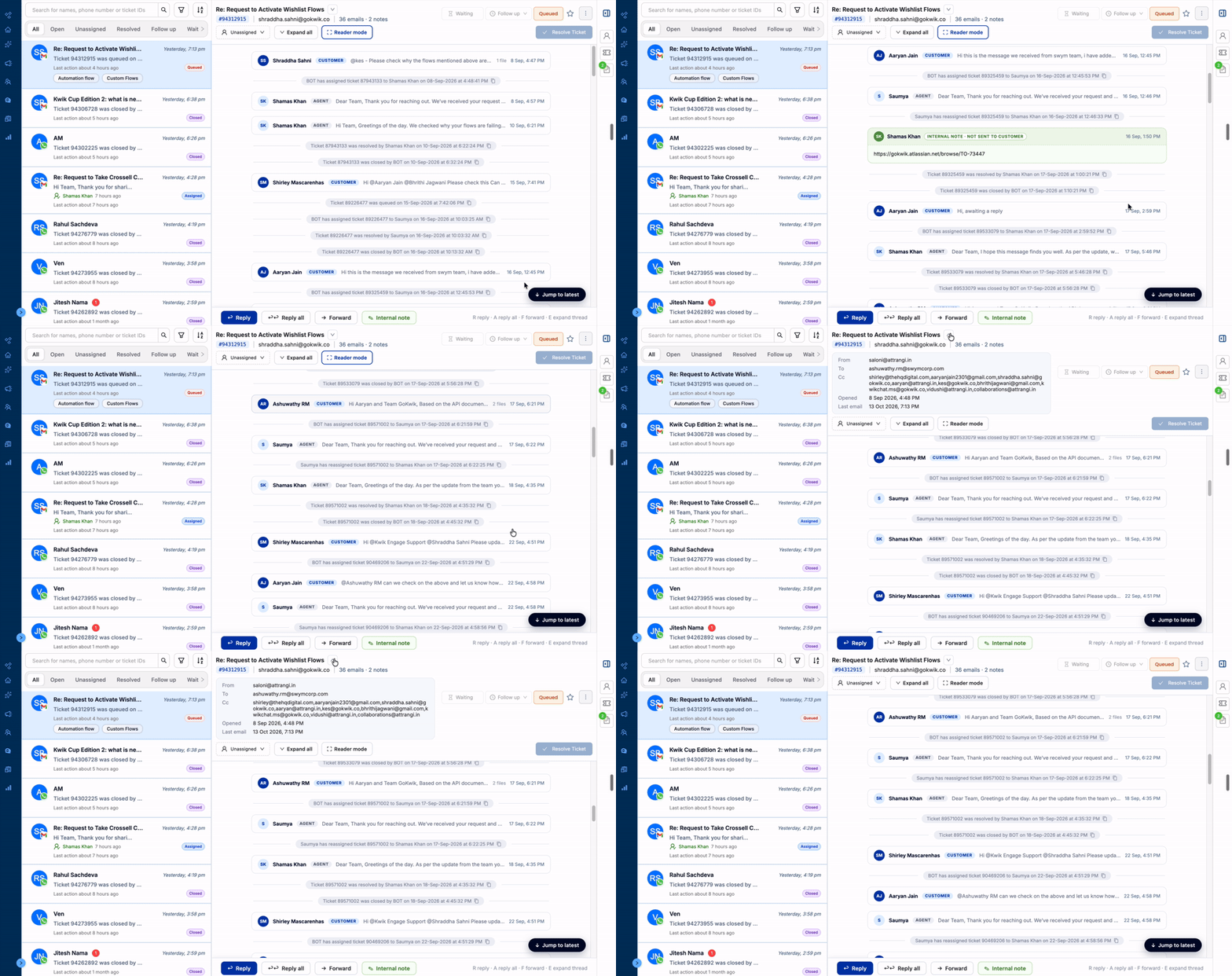
Scrolling a collapsed thread; opening the subject details
5. Reader mode
Reader mode is made for reading a long escalation from start to finish.
- Open an email ticket and click Reader mode at the top.
- The ticket list moves aside, the thread runs full width, and every email is expanded.
- You can still Reply from the bar at the bottom.
- Click Exit reader mode or press Esc to go back.
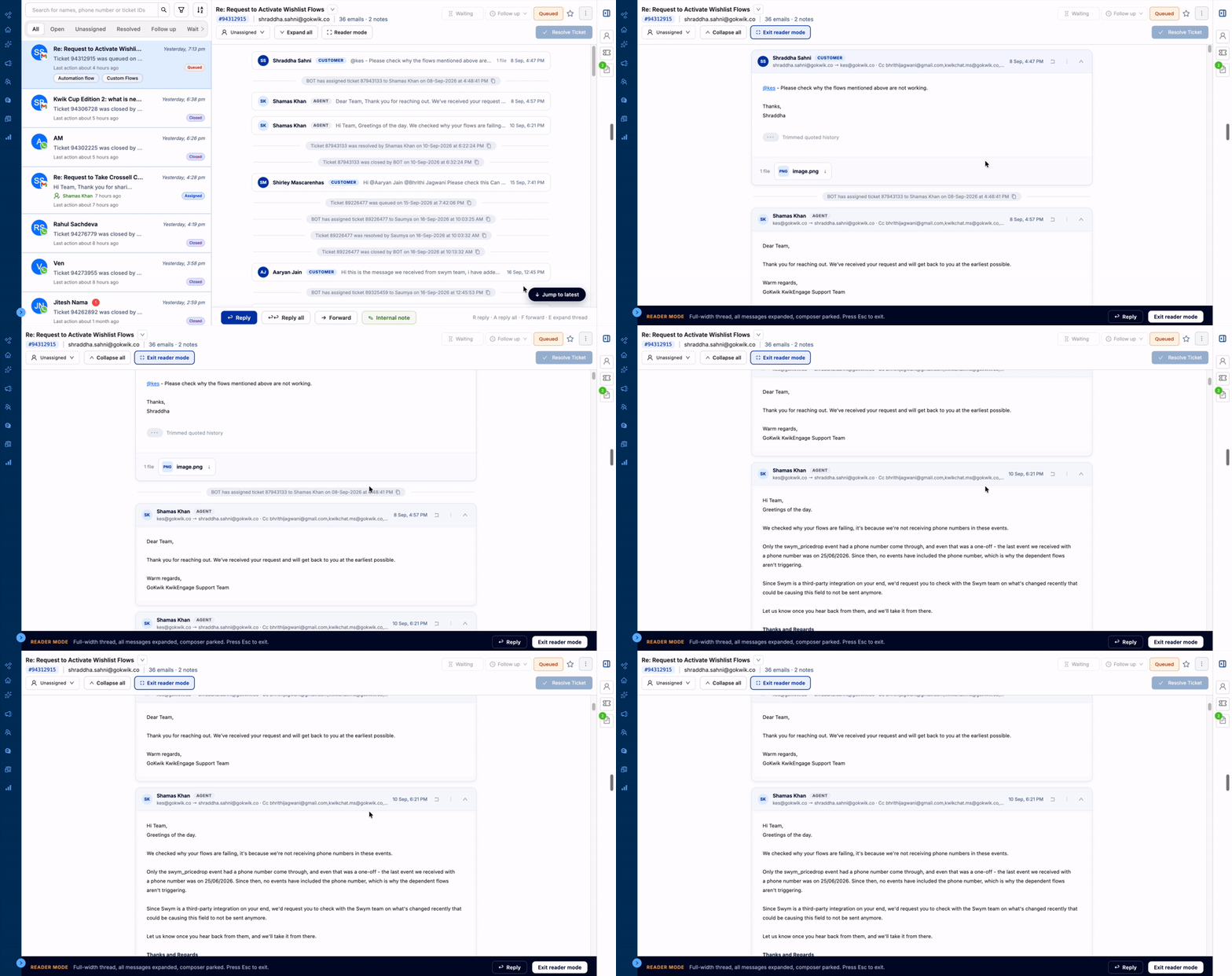 Reader mode: full-width thread with every email expanded
6. Less noise in every thread
- Quoted history is trimmed: the old text repeated at the bottom of replies is hidden behind a "···" Trimmed quoted history chip. Click it to show the text, and click again to hide it.
- Attachments stay with their email: files show as chips at the bottom of the email they came with. Collapsed rows show a count, like "1 file", so you never miss one.
- Internal notes stand out: notes have their own colour and an "Internal note · not sent to customer" label, so you can't mistake them for customer emails.
- System events stay out of the way: updates like a ticket being assigned, resolved or closed now appear as slim dividers between emails.
- Jump to latest: in a long thread, click Jump to latest at the bottom-right to go straight to the newest email.
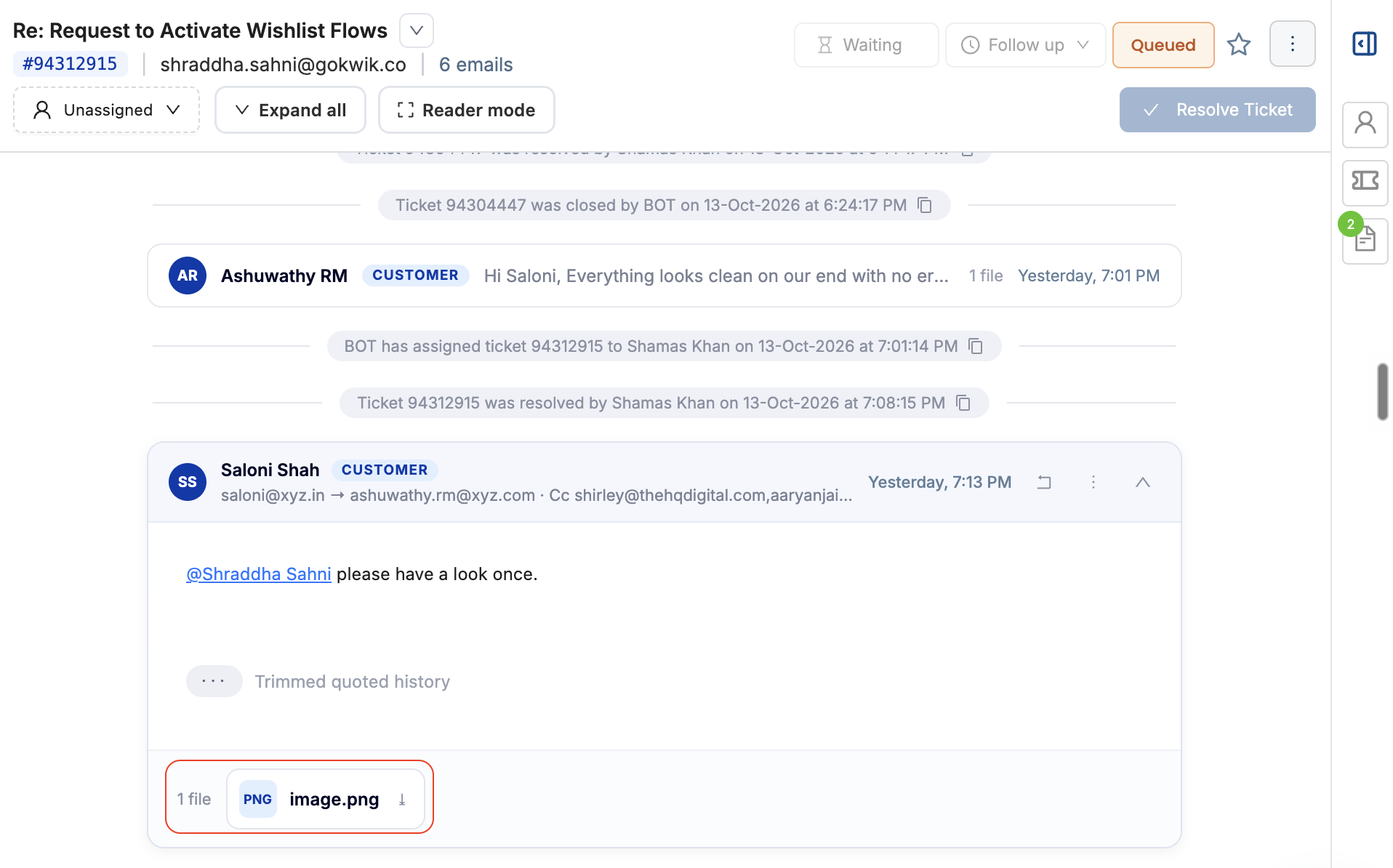 Trimmed quoted history and an attachment chip inside an email
7. Keyboard shortcuts
| Key | What it does |
|---|---|
| R | Reply |
| A | Reply all |
| F | Forward |
| E | Expand the thread |
| Esc | Exit Reader mode |
8. FAQs
Q. Do I need to turn anything on?
No. The new layout is live for all Kwik Engage merchants on the Email channel.
Q. Where did the reply box go?
It's in the action bar at the bottom. Click Reply, Reply all, Forward or Internal note (or press R, A or F) and the editor opens.
Q. I can only see one email open. Where are the rest?
Older emails are collapsed into one-line rows. Click a row to open it, or click Expand all to open them all.
Q. Is the quoted email history gone?
No, it's only hidden. Click the "···" Trimmed quoted history chip to show it.
Q. How do I leave Reader mode?
Click Exit reader mode or press Esc.
Q. Does this change WhatsApp, Instagram or Facebook chats?
No. This update is for the Email channel only. We will be releasing changes relevant for other channels as well.
Was this article helpful?
That’s Great!
Thank you for your feedback
Sorry! We couldn't be helpful
Thank you for your feedback
Feedback sent
We appreciate your effort and will try to fix the article